


Teacher Messaging
Learn how to message teachers or staff, share documents and images, and reply to their responses.
Overview
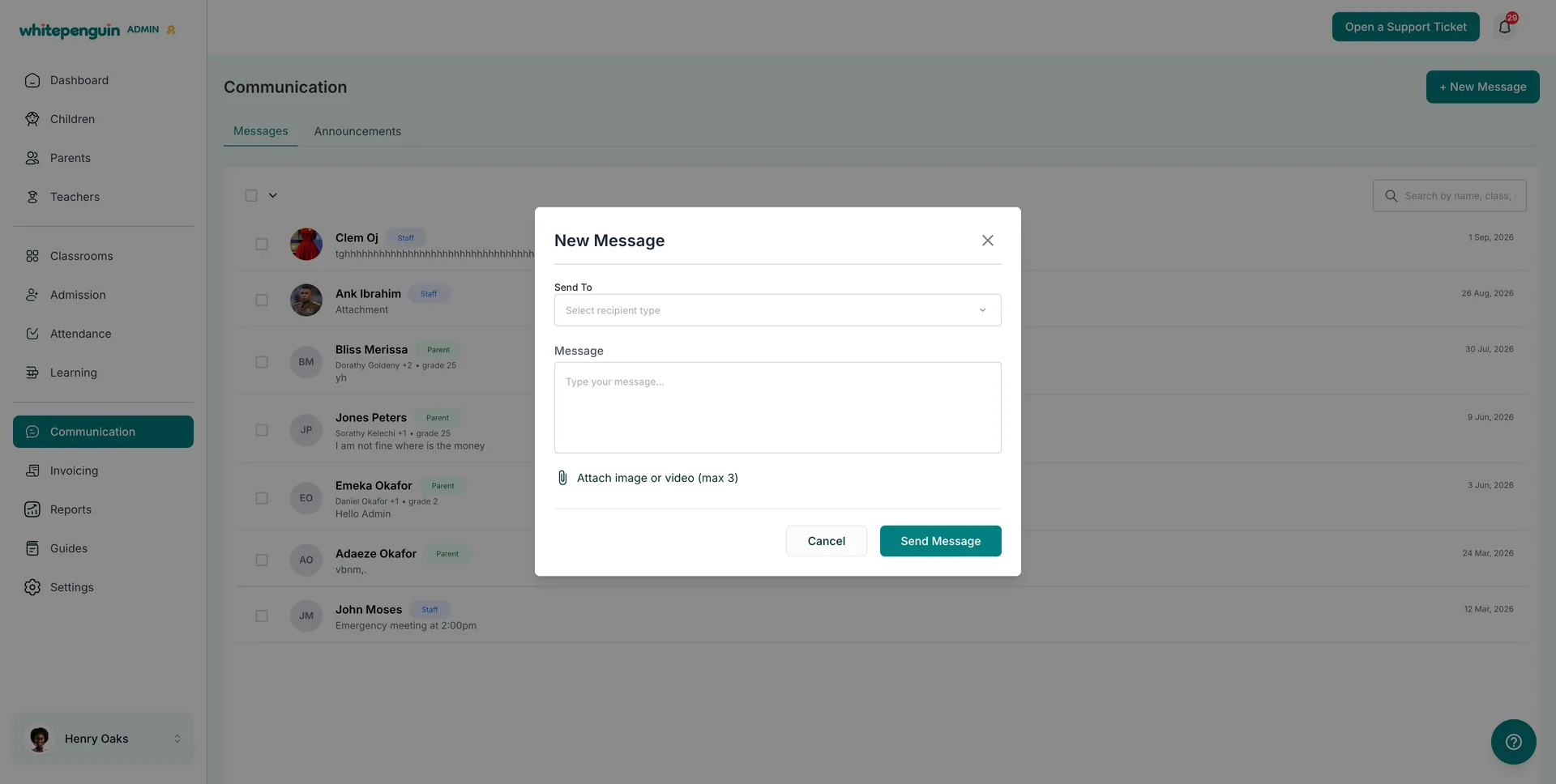
Teacher Messaging lets admins, parents, and teammates hold private, one-to-one conversations with teachers and staff directly inside WhitePenguin — keeping every school conversation in one place.
Everything happens in the Communication section, which has two tabs:
| Tab | What It Shows |
|---|---|
| Messages | All one-to-one conversations with teachers, staff, and parents, most recent first. |
| Announcements | Broadcast announcements sent to a group — separate from private messages. |
Each row in the Messages list shows:
- The person's name with a role badge — Staff for teachers and staff members, Parent for parents
- A preview of the last message, or Attachment if the last message was a file
- The date or time of the most recent activity
How to Access
-
Admins
- Click Communication in the left sidebar.
- The Messages tab opens by default, showing every conversation in the school.
- Click + New Message (top right) to message a teacher, or click any row to open an existing thread.
-
Teachers
- Click Communication in the left sidebar.
- The Messages tab shows the conversations they are part of.
- Teachers can always reply to messages they receive. Starting, editing, or deleting messages depends on their custom role.
-
Parents
- Sign in to the Parent Dashboard.
- Open the Communication section.
- Parents can start a new message and reply to anything they receive.
Roles & Access
Access is based on custom roles. Your school admin creates custom roles for all users and controls exactly which permissions each role has — View, Edit, Create, and Delete — for every section of the system, including Communication.
A teacher can always reply to a message they receive. Everything beyond replying follows the custom role assigned to them:
| Action | Who can do it |
|---|---|
| Reply to a received message | Any teacher or staff member with access to Communication |
| Read conversations | Roles with View permission for Communication |
| Start a new conversation | Roles with Create permission for Communication |
| Edit a message | Roles with Edit permission for Communication |
| Delete a message | Roles with Delete permission for Communication |
Admins with full Communication access can message any teacher and any parent in the school.
Where to manage roles: Go to Settings → Roles & Permissions, then click + Create Role to build a new custom role, or select an existing role to toggle its permissions. Super Admin permissions are fixed and cannot be edited.
How to Create a New Message to a Teacher
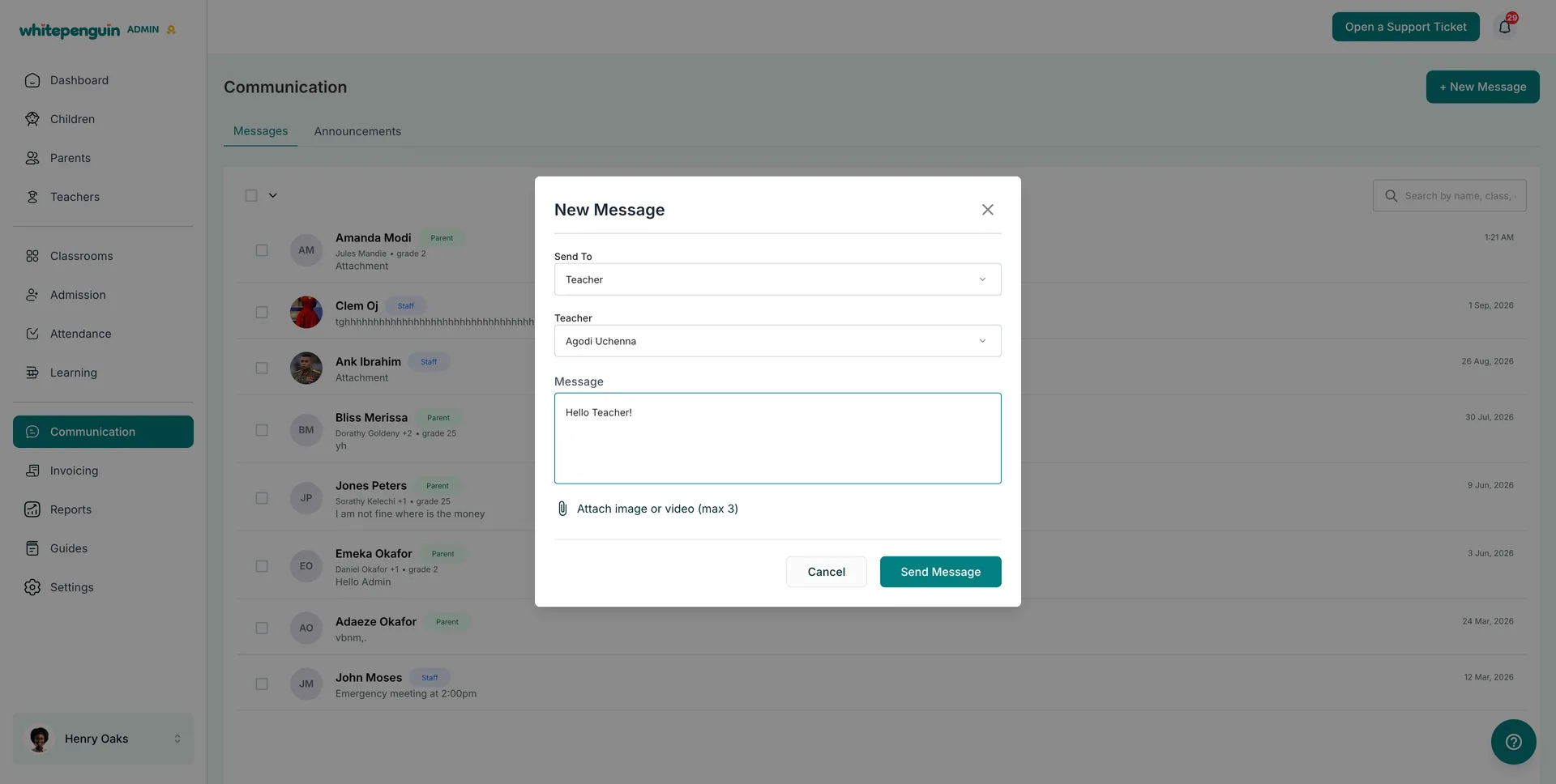
Click + New Message at the top right of the Communication page, then complete the New Message window:
-
Send To
- Open the Select recipient type dropdown.
- Choose Teacher to message a teacher or staff member.
-
Teacher
- A second dropdown appears once the recipient type is selected.
- Pick the teacher you want to message (for example, Agodi Uchenna).
- Admins can select any teacher in the school.
-
Message
- Type your message in the Type your message… box.
-
Attach image or video (max 3) — optional
- Click the attachment link to add files — up to 3 per message.
- Each file appears as a chip below the box. Click the × on a chip to remove it before sending.
-
Click Send Message to send it, or Cancel to discard.
Recipient types available in the Send To dropdown:
| Recipient type | Who you can select |
|---|---|
| Teacher | Any teacher or staff member |
| Parent | Any parent or guardian in the school |
Replying to a Teacher
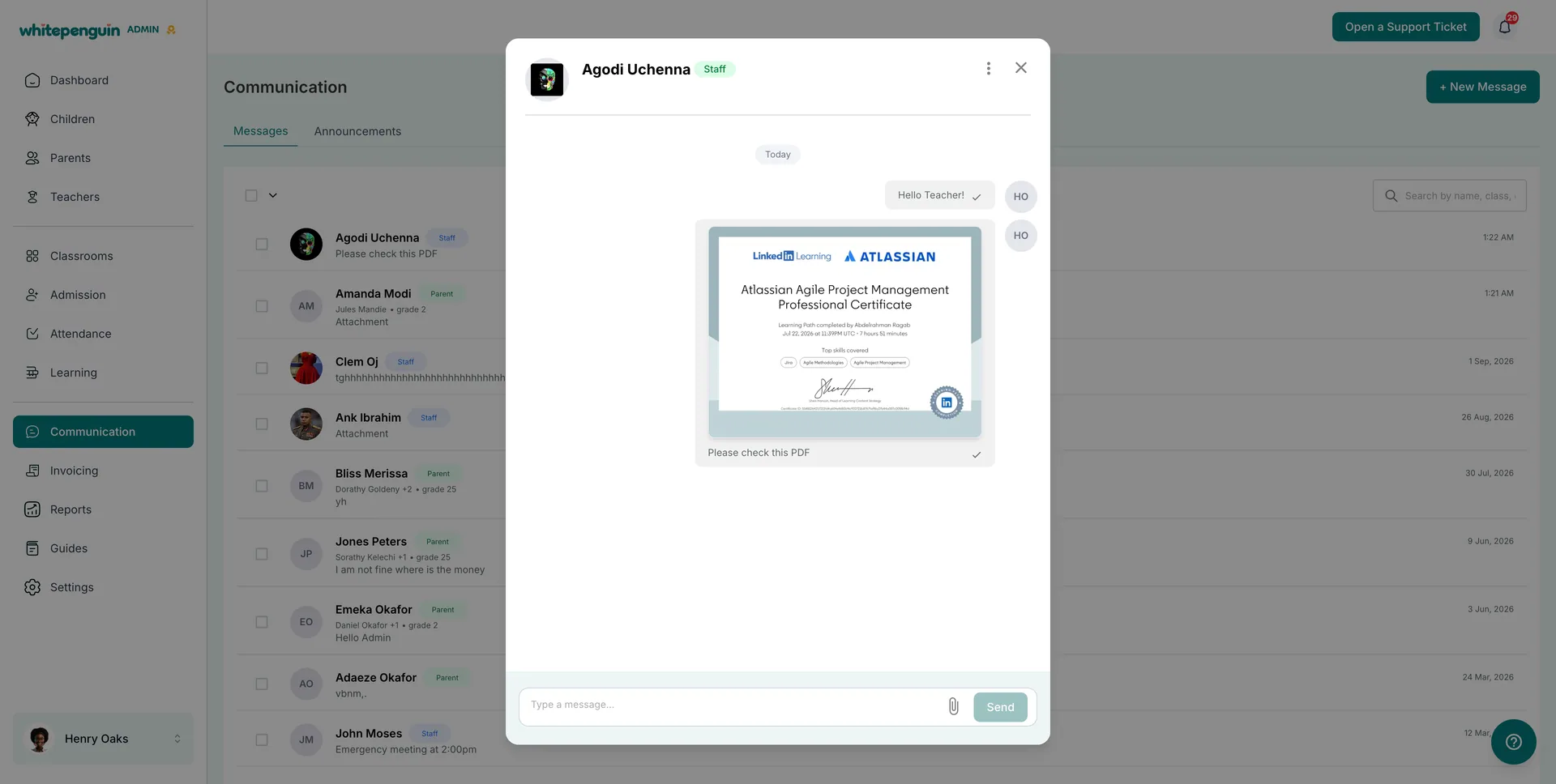
- Open the conversation from the Messages tab.
- The thread header shows the teacher's name and their Staff badge.
- Messages are grouped by day (Today, and so on). Messages you send appear on the right with a ✓ once they are delivered.
- Type your reply in the Type a message… box at the bottom of the thread.
- Use the attachment icon to add a file, then click Send.
Sharing Images, Videos & Documents
- You can attach up to 3 files per message.
- Files can be attached from the New Message window or from inside an open conversation.
- Attachments appear in the thread as a preview card — for example, a PDF shows its first page — with your message text underneath as a caption.
- In the Messages list, a message that contains only a file is previewed as Attachment.
Tips
- Use the search bar at the top of the Messages tab to find a teacher's conversation instead of scrolling the list.
- The Staff badge makes it easy to tell teacher conversations apart from parent conversations at a glance.
- Share documents as attachments (PDFs, certificates, reports) rather than retyping the details in the message body.
- Look for the ✓ to confirm your message was delivered.
- Keep one topic per conversation so the full history with that teacher stays easy to follow.
- Use Announcements when the same information needs to reach the whole team at once.
- If a teacher needs to start conversations, not just reply, give their role Create permission for Communication in Settings → Roles & Permissions.
FAQs
Admins with full Communication access can message any teacher in the school. Parents and other users can message teachers when their access allows it, and any user whose custom role includes Create permission for Communication can start a conversation.
Teachers can always reply to messages they receive. To start new conversations, their custom role needs Create permission for Communication.
Only if their custom role includes Edit or Delete permission for Communication. Your school admin controls this per role.
Up to 3 images or videos per message. You can attach them from the New Message window or from inside an open conversation.
It confirms the message was delivered to the recipient.
Your custom role may not include View permission for Communication. Ask your school admin to update it in Settings → Roles & Permissions.
Messages are private one-to-one conversations. Announcements are sent to a group of recipients at once and live on their own tab.
The teacher may not be added to the system yet, or your role may not have access to message them. Check the Teachers section first, then ask your school admin to review your role permissions.
Last updated on