

Clock In using Kiosk (Admin/Teacher - Parent)
Learn how to use the WhitePenguin Kiosk to clock in — for Admins, Staff/Teachers, and Parents. The Kiosk is a shared check-in station (tablet or desktop) placed at the school entrance for daily attendance tracking.
Overview
The WhitePenguin Kiosk is a dedicated check-in interface displayed on a shared device (e.g., a tablet or screen) at the school entrance. It allows:
- Admins & Teachers/Staff to clock in to start their school day.
- Parents to clock in their child upon drop-off.
The Kiosk has two separate interfaces depending on who is using it:
| User Type | Interface | What They Do |
|---|---|---|
| Admin / Teacher (Staff) | Staff list with PIN authentication | Log in → Select their name from a list → enter PIN → Clock In |
| Parent | Personal login with email + Kiosk PIN | Log in → select child → Clock In child |
All clock-in events are recorded in WhitePenguin and visible to admins in the Attendance section.
Accessing the Kiosk
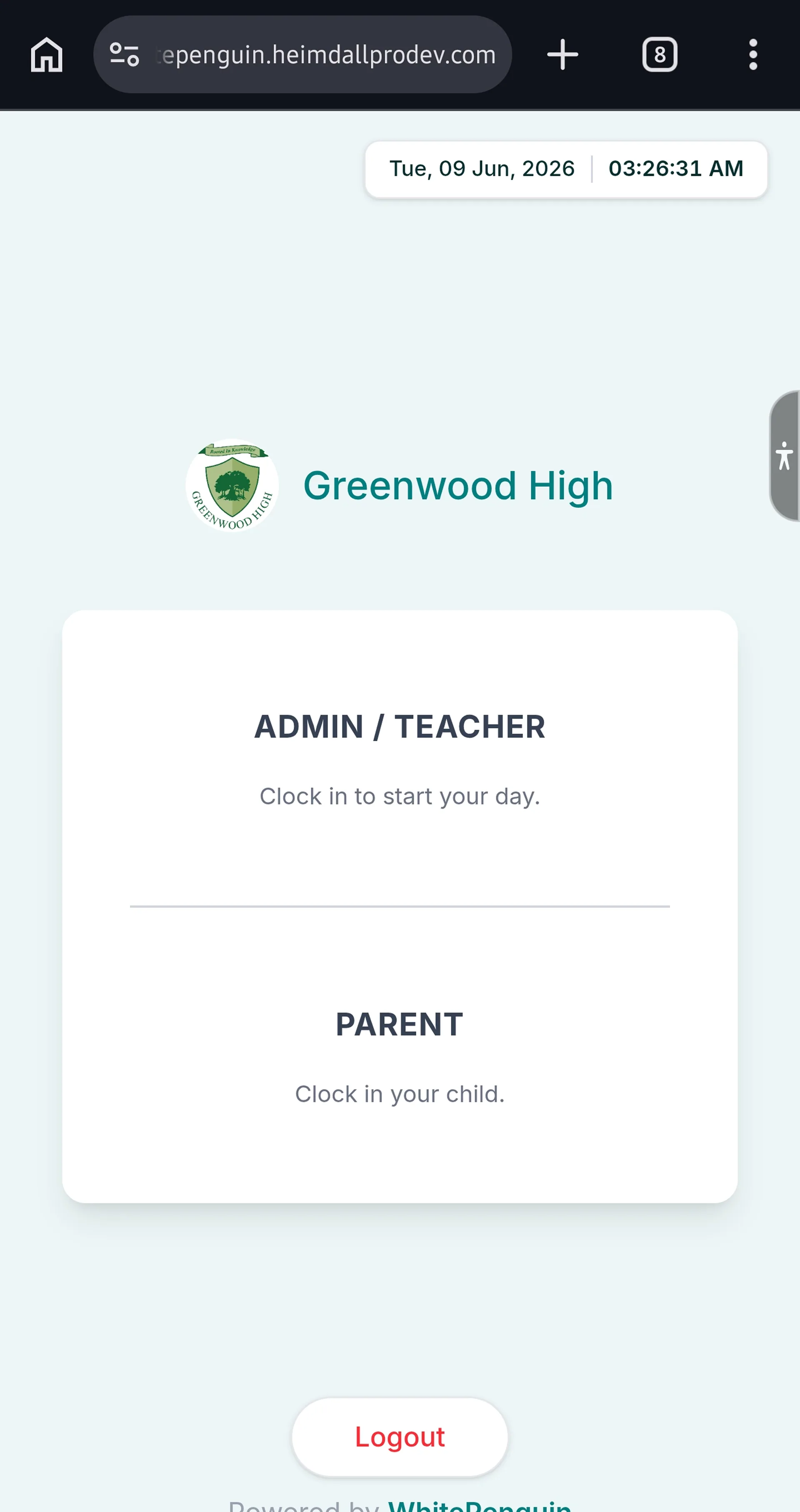
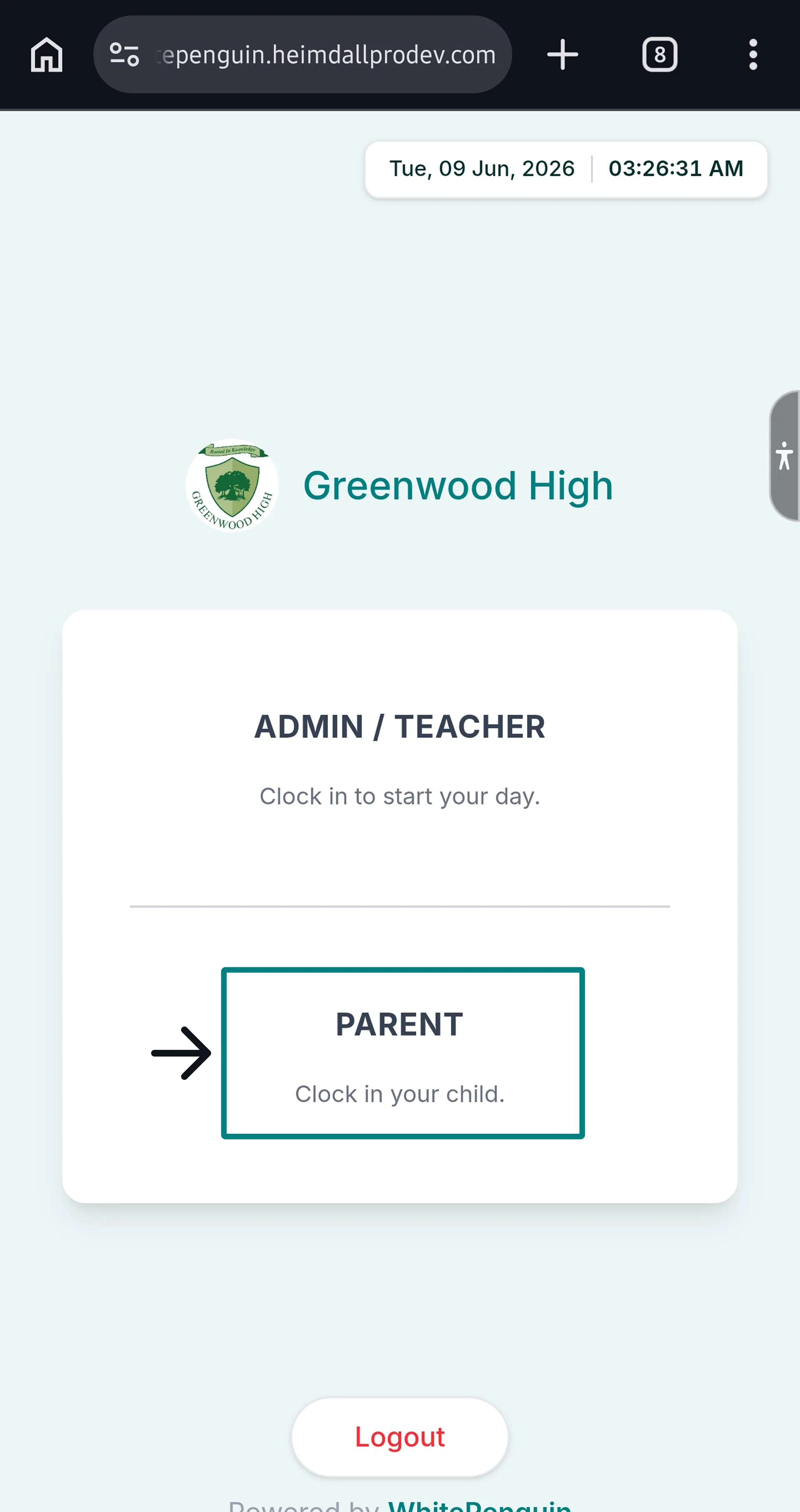
The Kiosk is accessed via a shared device at the school entrance. The Kiosk home screen shows the school name (e.g., Greenwood High) and two options:
| Option | For | Description |
|---|---|---|
| ADMIN / TEACHER | Admins & Staff | "Clock in to start your day." |
| PARENT | Parents | "Clock in your child." |
Tap the appropriate option to proceed to the correct interface.
A Logout button is available at the bottom of the Kiosk home screen to sign out of the kiosk session when the device is not in use.
Clock In — Admin / Teacher (Staff)
Important Note: If the admin is not logged in to the WhitePenguin system on the device, staff cannot access the Kiosk to clock in.
Step 1: Access the Staff Interface
-
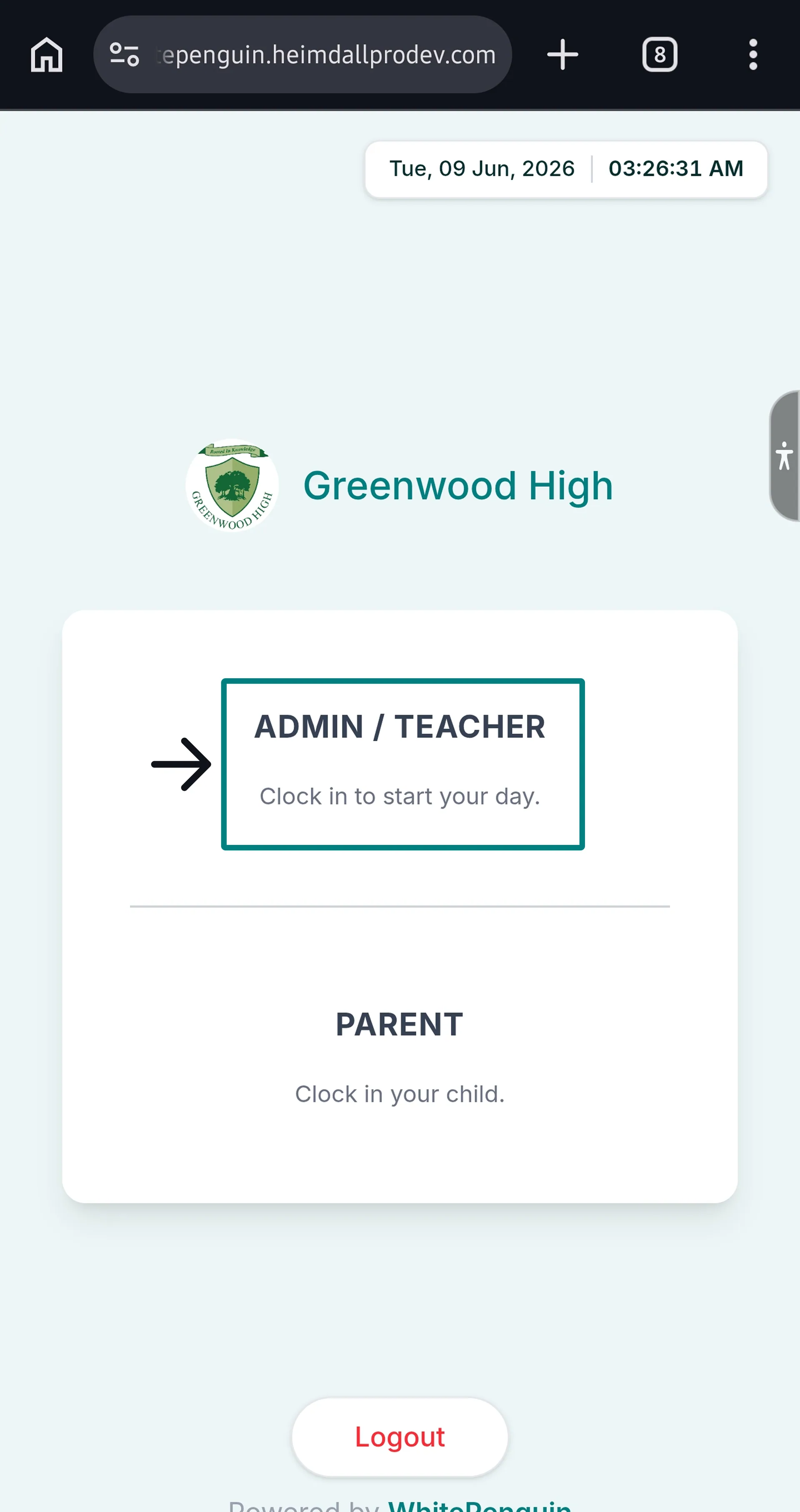
On the Kiosk home screen, tap ADMIN / TEACHER.
-
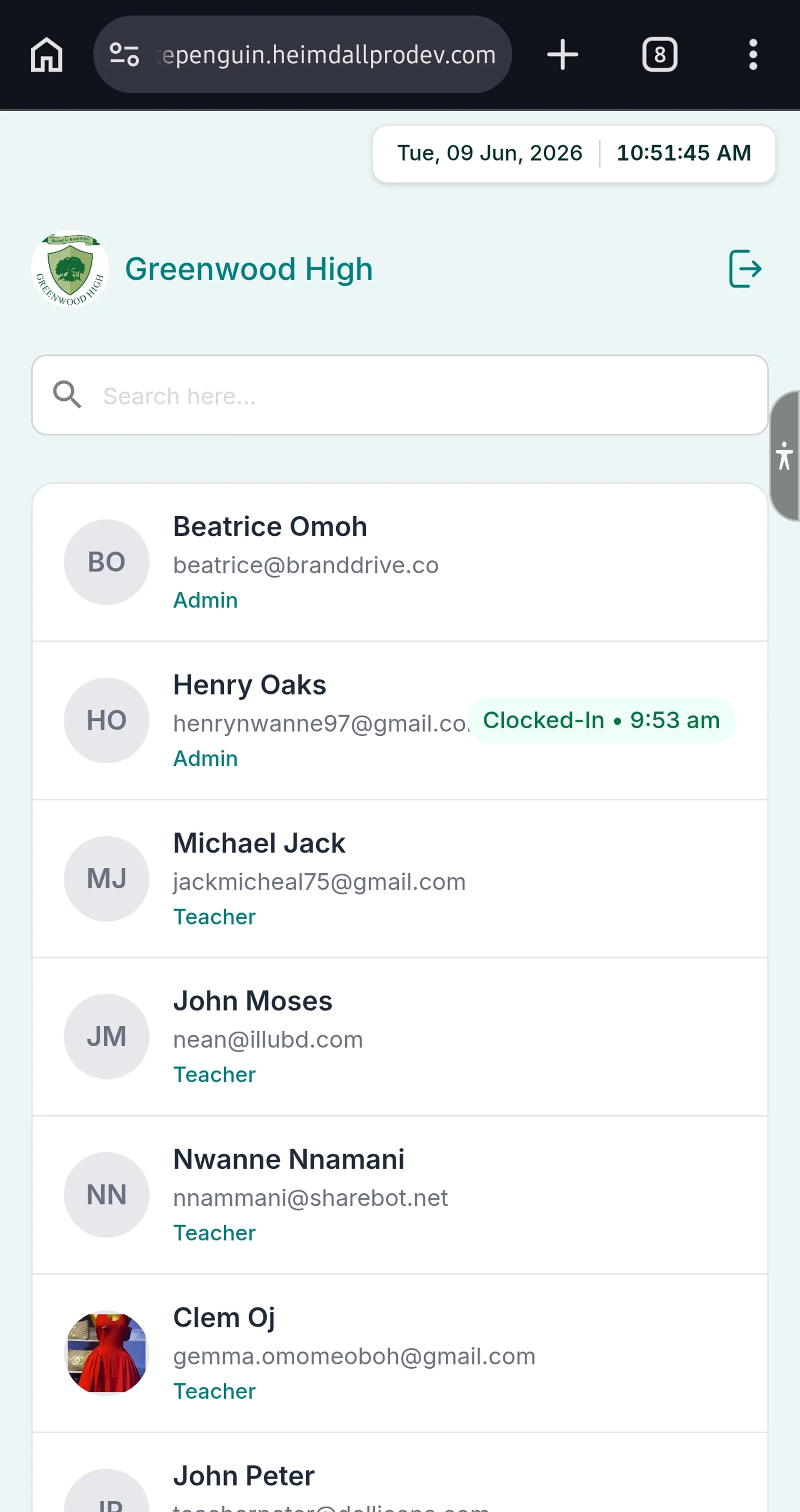
The Staff List page will open, showing all admins and teachers registered in WhitePenguin.
- Each person is shown with their avatar/initials, full name, email, and role (Admin or Teacher).
- Staff who have already clocked in today will show a "Clocked-In • [time]" badge on the right.
-
Use the Search bar at the top to quickly find your name if the list is long.
Step 2: Select Your Name
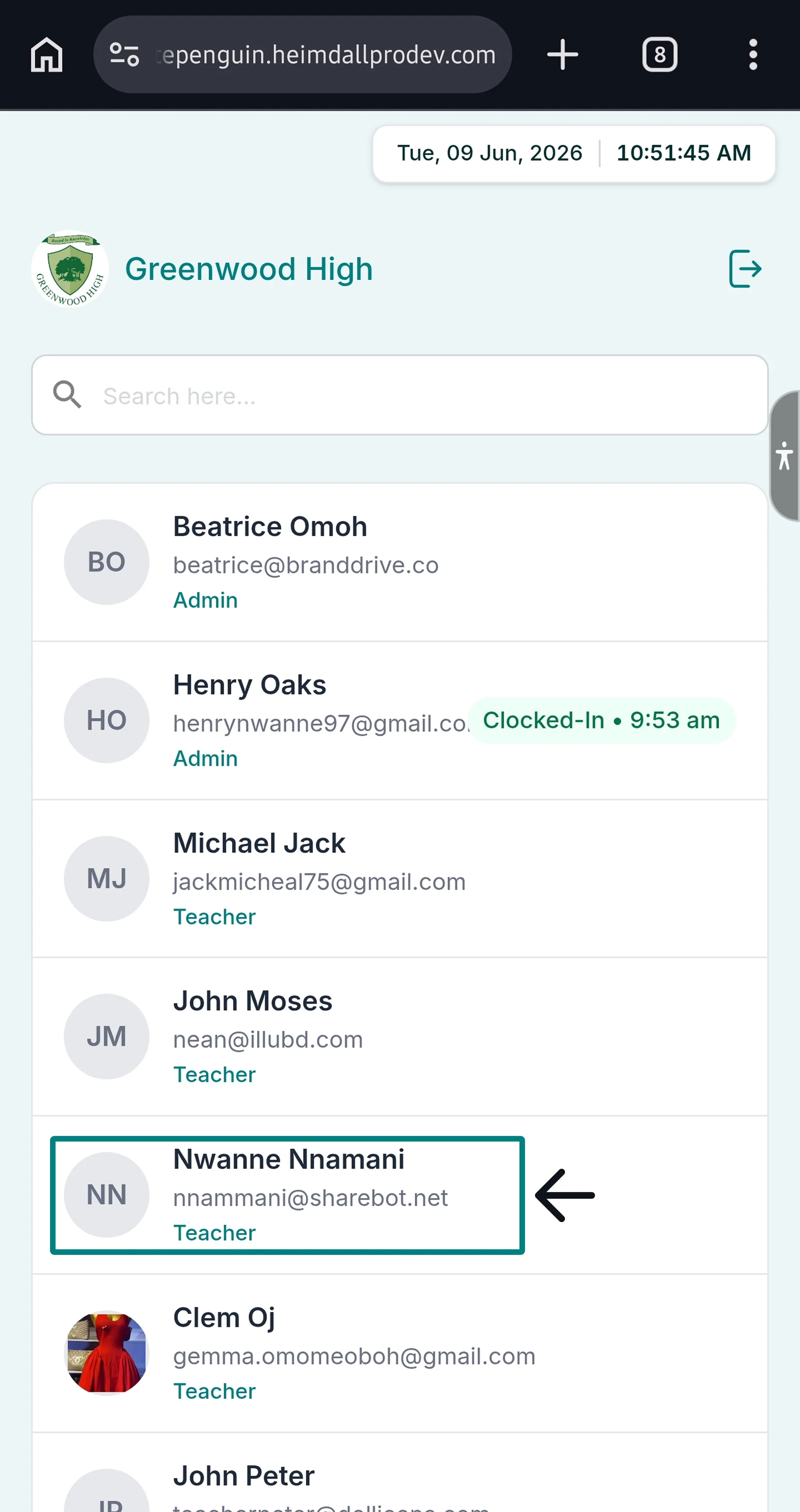
- Tap your name from the list.
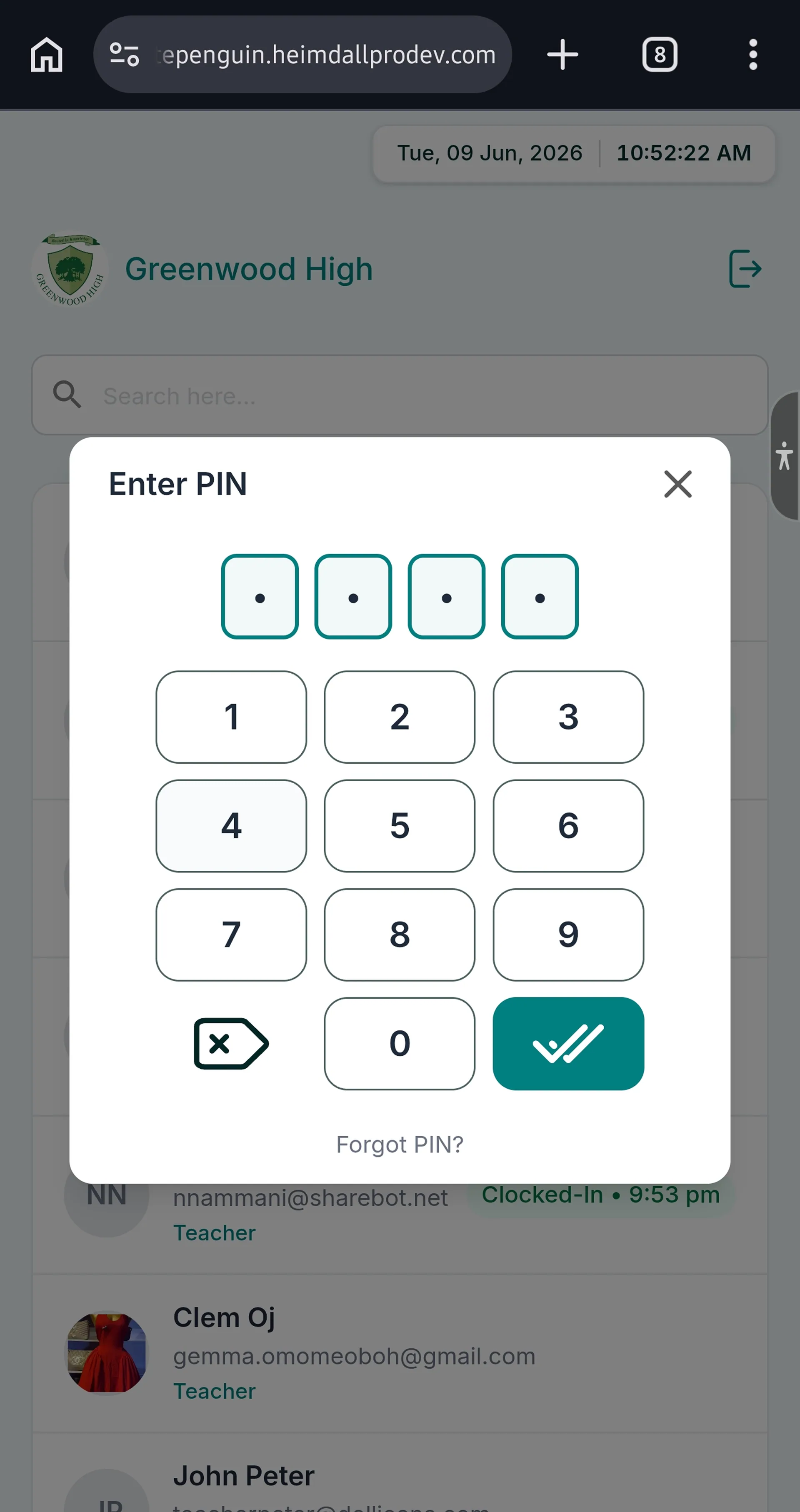
- A "Enter PIN" dialog will appear with a 4-digit numeric keypad (digits 0–9, a backspace key, and a confirm ✔ button).
- Enter your 4-digit Kiosk PIN.
- Tap the ✔ (confirm) button.
Step 3: Confirm Clock In
-
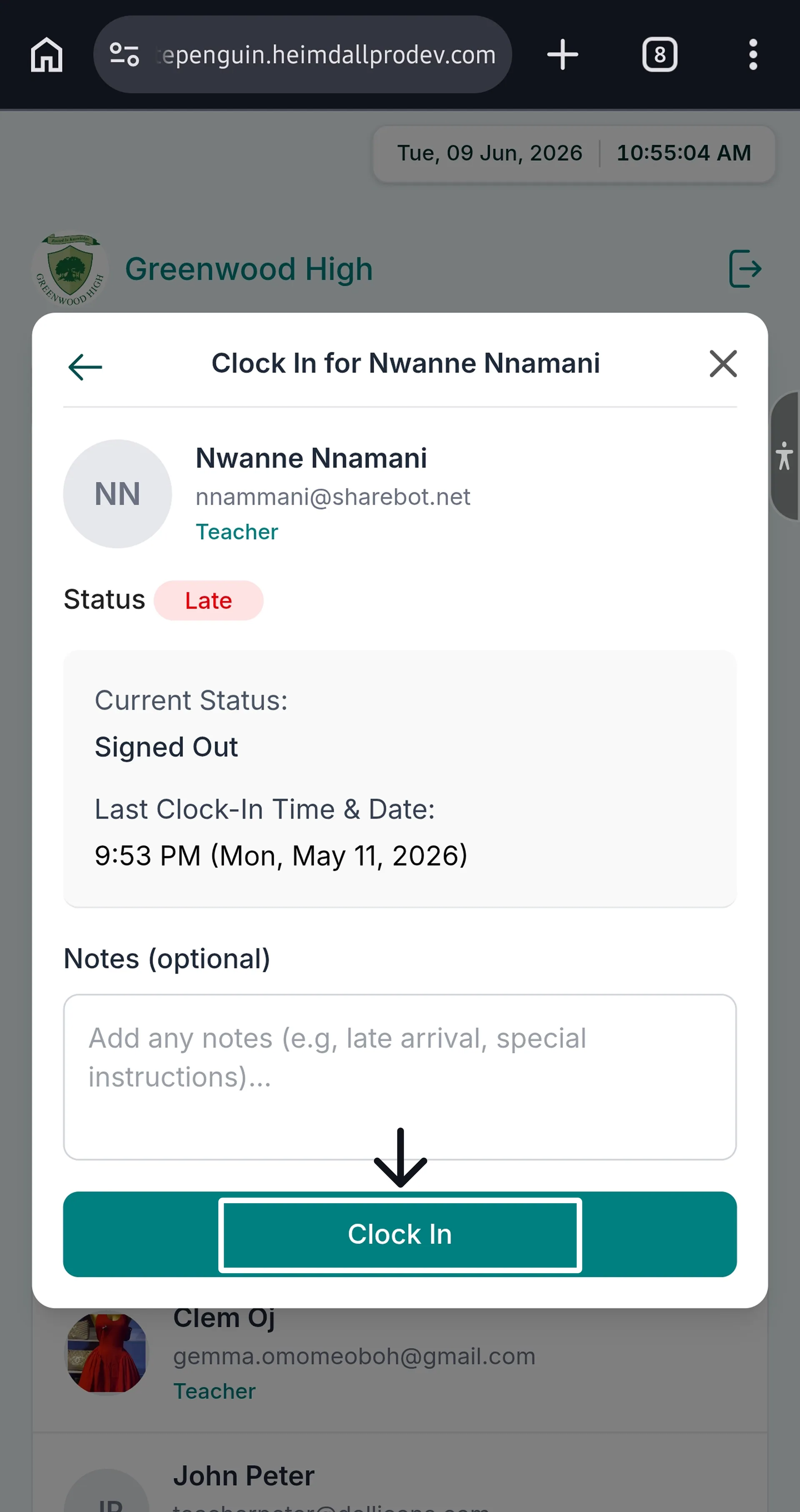
A "Clock In for [Your Name]" confirmation dialog will appear, showing:
- Your profile photo, name, email, and role
- Status badge:
Punctual(on time) orLate(arrived late) - Current Status: Clocked Out
- Last Clock-In Time & Date (if applicable)
- An optional Notes field (e.g., "Running late due to traffic", special instructions)
-
Add a note if needed (optional).
-
Tap the Clock In button.
Step 4: Confirmation
-
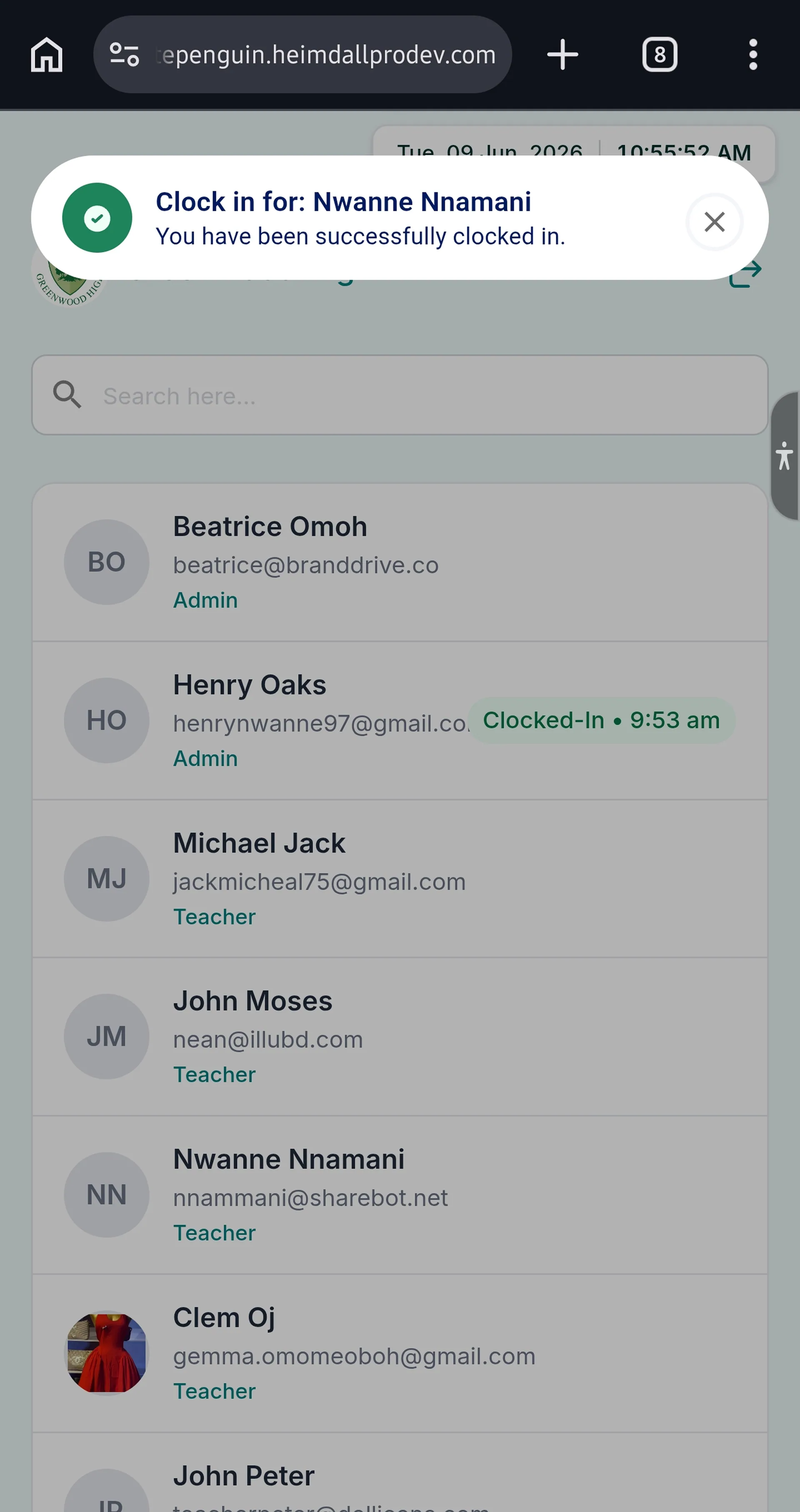
A green success toast notification will appear at the top of the screen:
"Clock in for: [Your Name]"
"You have been successfully clocked in."
-
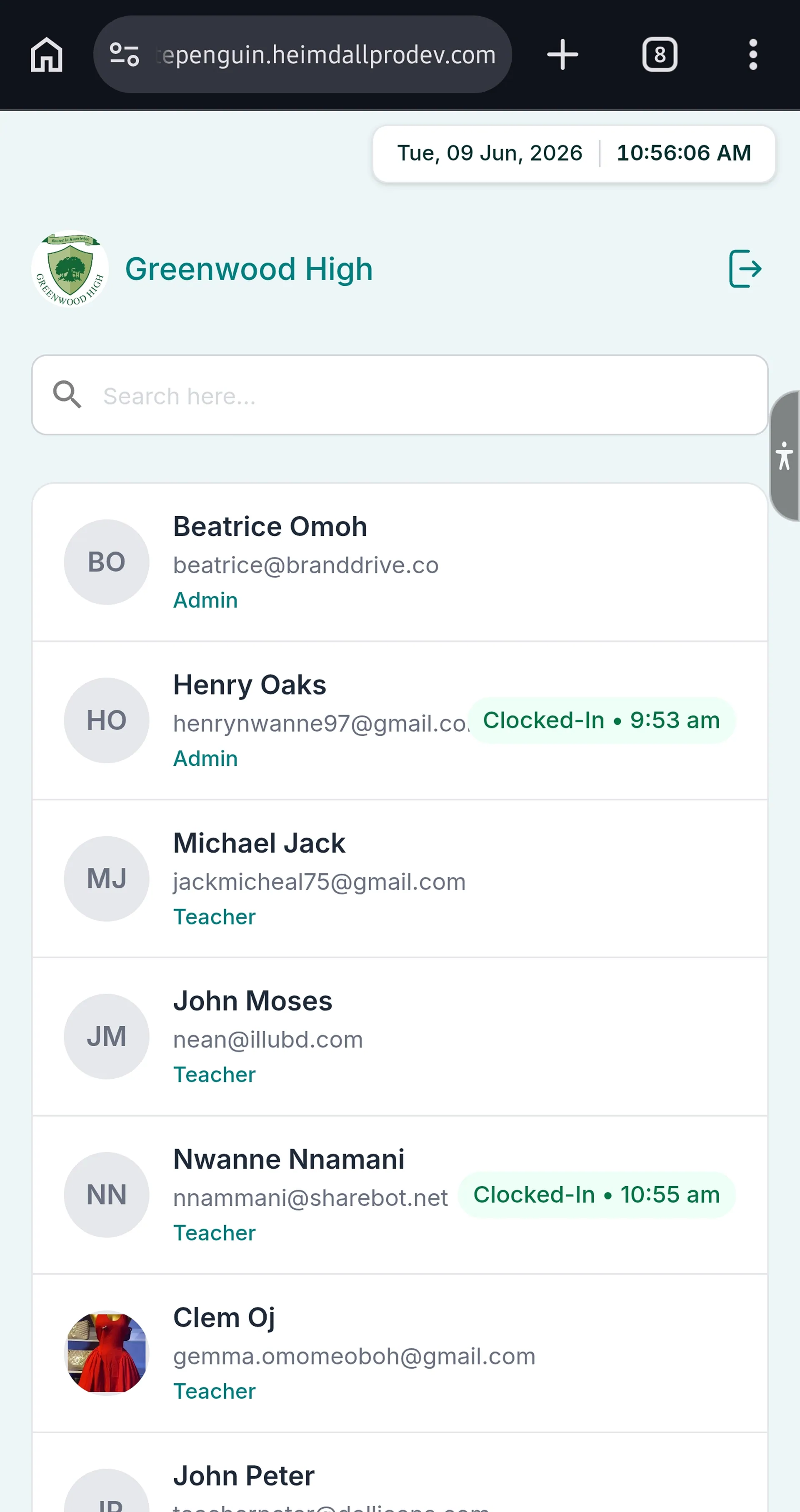
The Staff List will update, showing your name with a "Clocked-In • [current time]" badge.
Late Status: If you arrive after the school's scheduled start time, your status badge will show Late (in red) instead of Punctual (in green). This is automatically determined by WhitePenguin based on the school's configured schedule.
Clock In — Parent (Child Drop-Off)
Step 1: Access the Parent Interface
-
On the Kiosk home screen, tap PARENT.
-
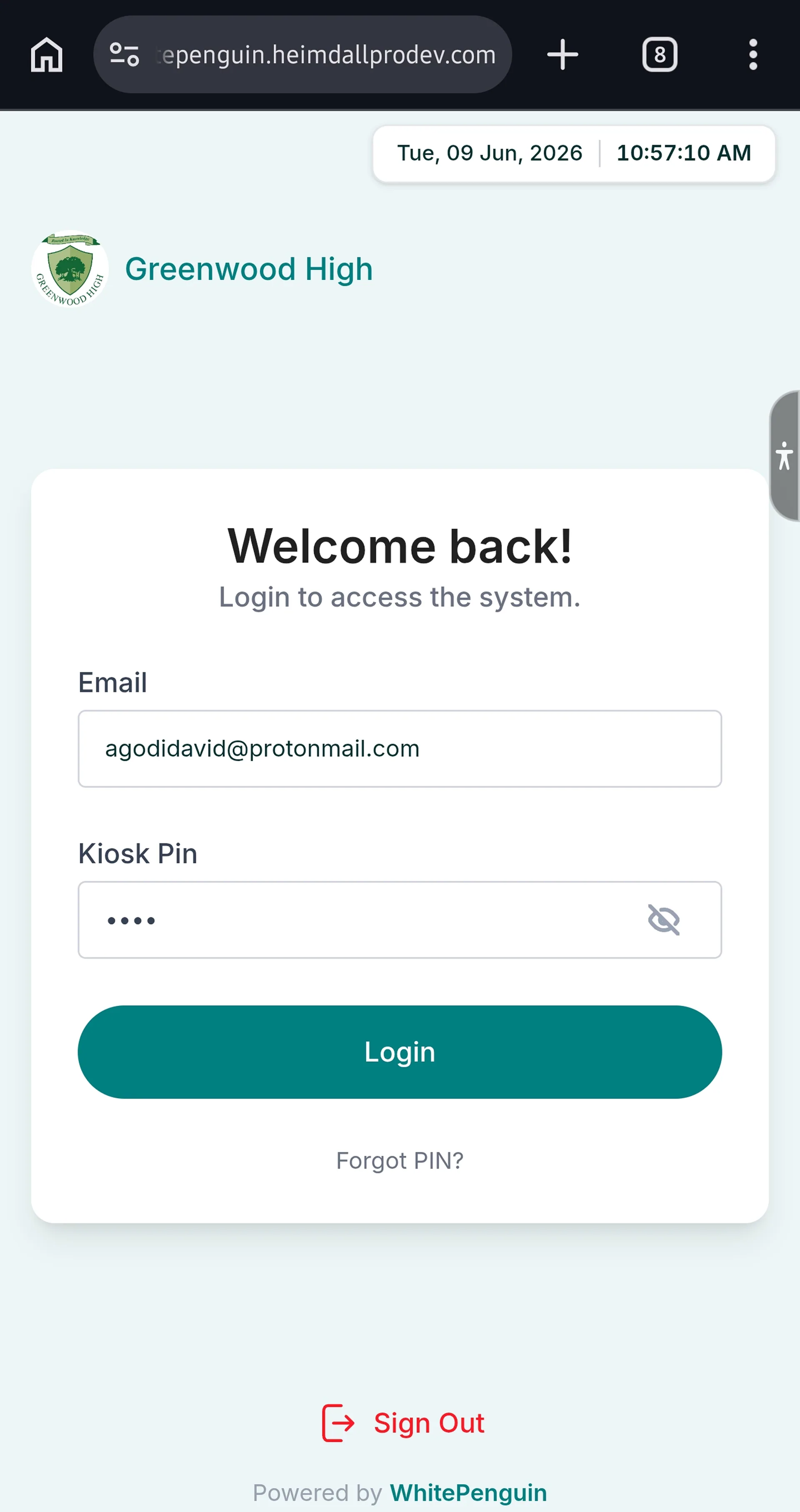
The Parent Login page will open, showing:
- The school logo and name (e.g., Greenwood High)
- A "Welcome back!" heading with the subtitle "Login to access the system."
- An Email field
- A Kiosk Pin field (with a show/hide eye icon)
- A Login button
- A "Forgot PIN?" link
- A Sign Out button at the bottom
Step 2: Log In
- Enter your registered email address (e.g.,
parent@example.com). - Enter your Kiosk PIN (the 4-digit PIN shown in your parent portal Dashboard).
- Tap Login.
Your Kiosk PIN is different from your account password. You can find it on your Dashboard in the WhitePenguin parent portal. If you've forgotten it, tap "Forgot PIN?" on the login screen.
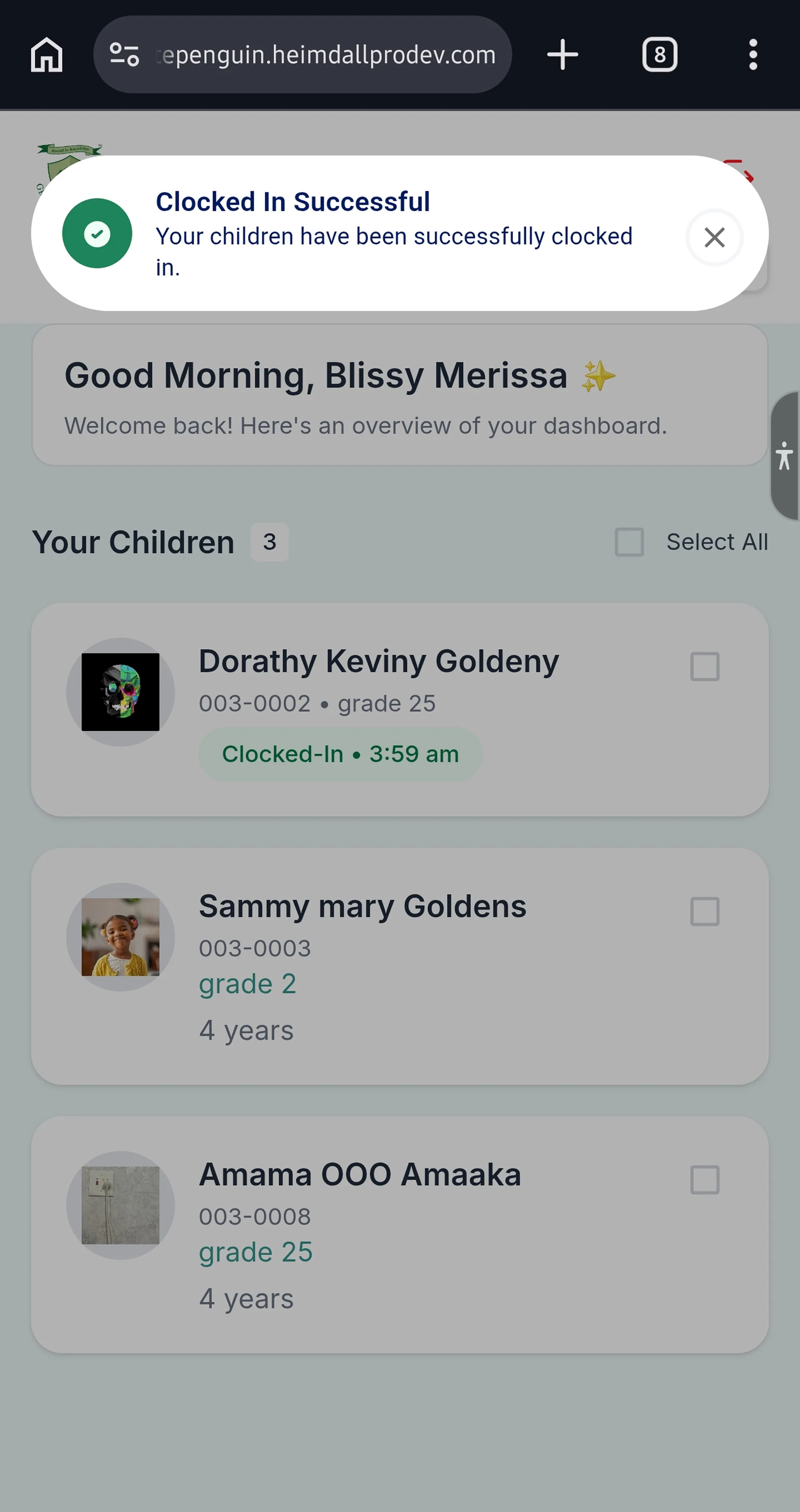
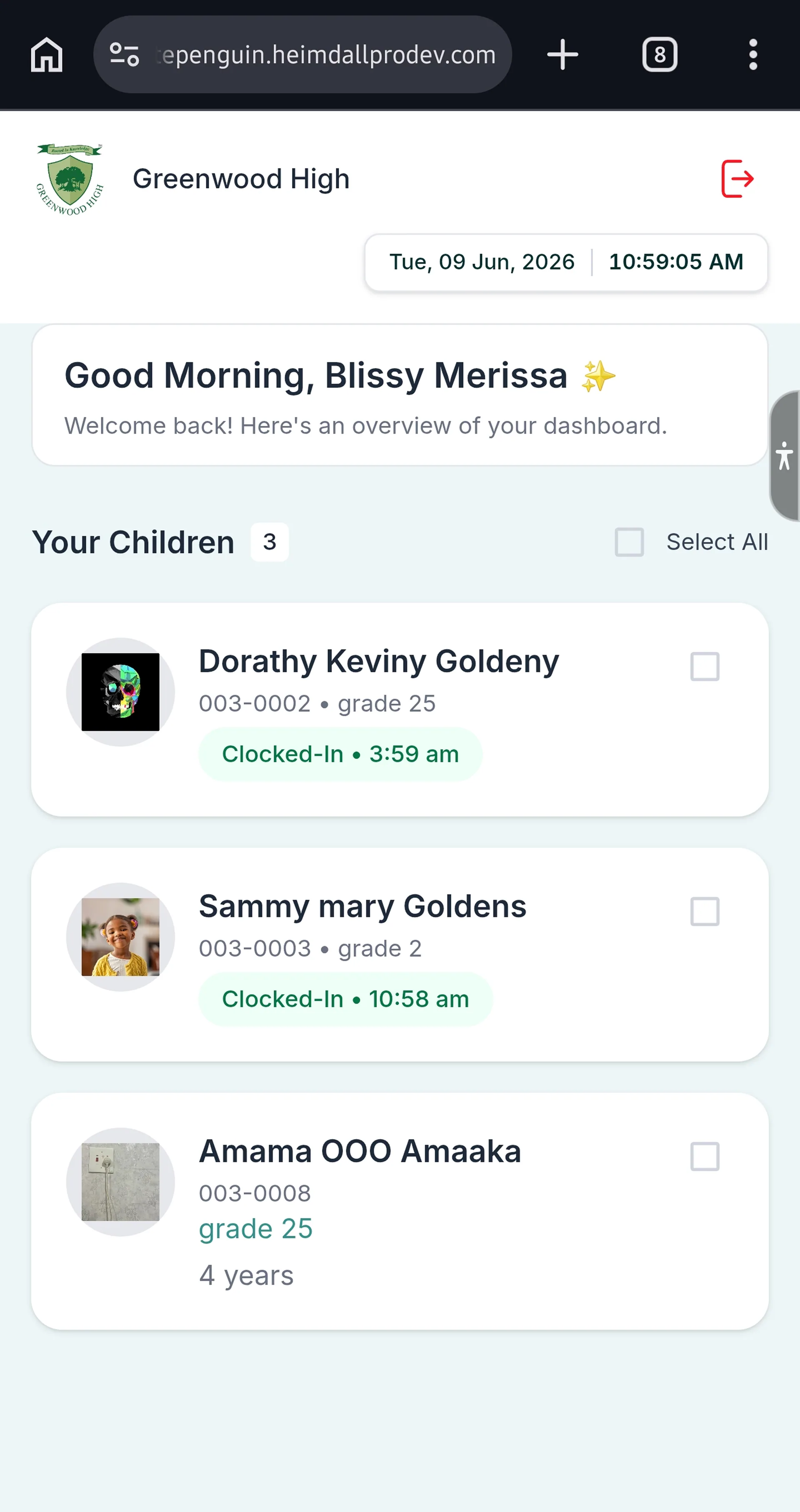
Step 3: View Your Children Dashboard
-
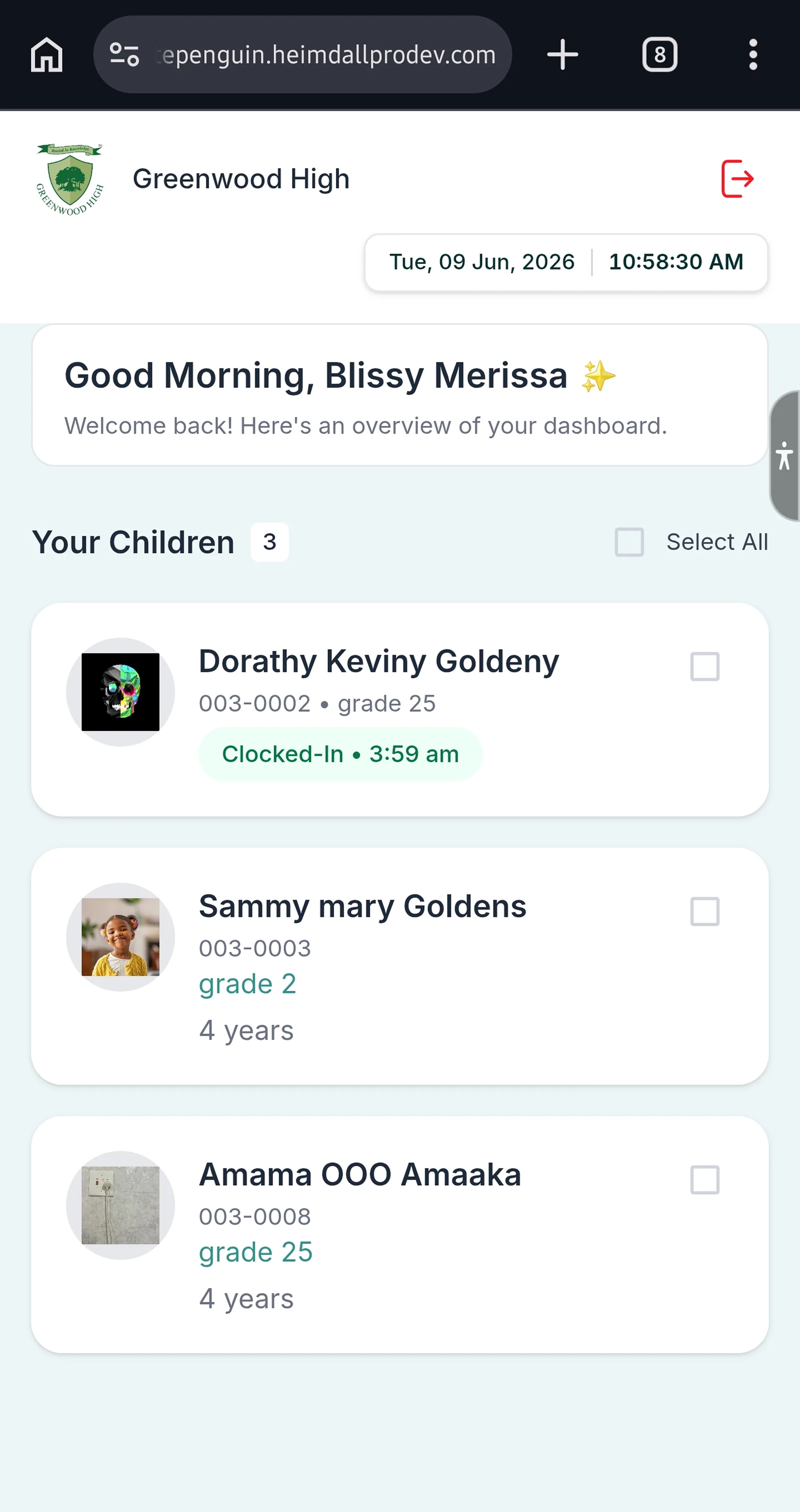
After logging in, the Parent Kiosk Dashboard will open, showing:
-
A greeting: "Good Morning, [Your Name]" with the subtitle "Welcome back! Here's an overview of your dashboard."
-
A "Your Children" section listing all children linked to your account, with their:
- Profile photo / avatar
- Full name
- Student ID and grade
- Age
- Clock-in status (if already clocked in, shown in teal: "Clocked-In • [time]")
-
A Select All checkbox (to select all children at once)
-
A Log Out button at the top-right
-
Step 4: Select Child & Clock In
-
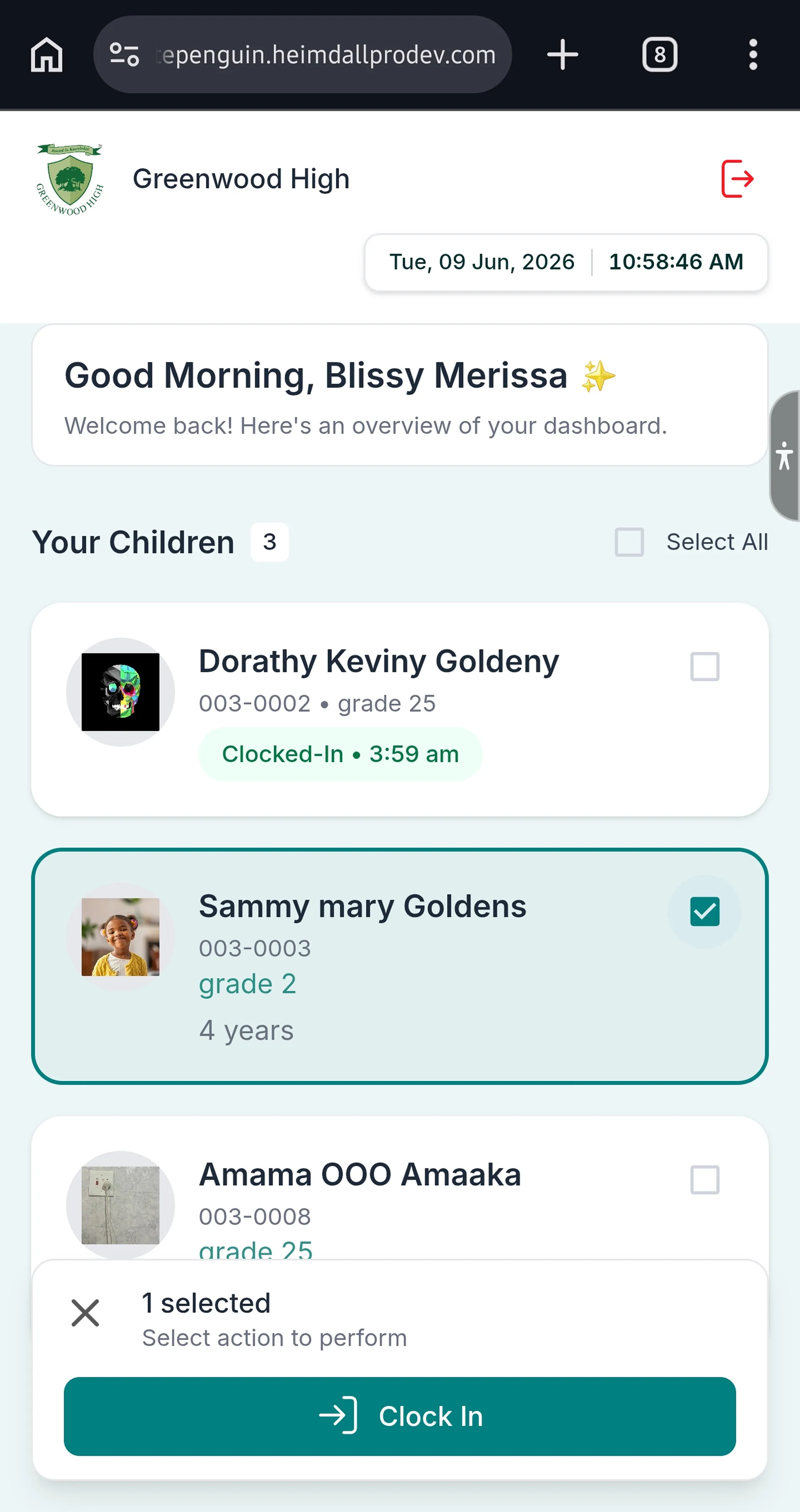
Tap the checkbox next to the child you want to clock in (or tap Select All to clock in all children at once).
-
After selecting, a "Clock In for [Child's Name]" dialog will appear, showing:
- The child's profile photo, name, student ID, grade, and age
- Status badge:
Late(red) if arriving after school start time - Current Status: Signed Out
- Last Clock-In Time & Date (e.g., 9:53 AM (Tue, May 12, 2026))
- An optional Notes field (e.g., "late pick-up", "special instructions")
-
Add a note if needed (optional).
-
Tap Clock In.
Step 5: Confirmation
-
A green success toast notification will appear:
"Clocked in [Child's Name]"
"Your child has been successfully clocked in."
-
The child's card on the dashboard will update to show "Clocked-In • [current time]" in teal.
Late Status: If your child arrives after the school's scheduled start time, their status badge will show Late (red). This is recorded automatically and visible to the school admin in the Attendance reports.
Tips
- Admins & Teachers: Remember your 4-digit Kiosk PIN. You set it when your account was created. If you forget it, contact your school admin to reset it.
- Parents: Your Kiosk PIN is shown on your parent portal Dashboard. Keep it handy for daily drop-off.
- Forgot PIN? (Parent): Tap the "Forgot PIN?" link on the parent login screen to reset your Kiosk PIN.
- Clock in multiple children at once: Use the Select All checkbox on the parent dashboard to clock in all your children in one step.
- Add notes when needed: Use the optional Notes field to inform the school of special circumstances (e.g., "Early pick-up today", "Doctor's appointment in the afternoon").
- Check clock-in status before leaving: After clocking in, verify that your name (staff) or your child's card (parent) shows the "Clocked-In" badge before stepping away from the Kiosk.
- The Kiosk is a shared device. Do not leave sensitive information on the screen. Parents should log out after clocking in their children using the Log Out button.
- The date and time are displayed in the top-right corner of the Kiosk screen, so you can confirm the correct date before clocking in.
FAQs
- For Staff (Admin/Teacher): Your Kiosk PIN is a 4-digit number set up when your account was created. Contact your school admin if you don't know it.
- For Parents: Your Kiosk PIN is displayed on your Dashboard in the WhitePenguin parent portal. Log in to the parent portal and look for the Kiosk PIN card on your Dashboard.
- Parents: Tap "Forgot PIN?" on the parent Kiosk login screen to reset your PIN. You can also find your PIN on your parent portal Dashboard.
- Staff: Contact your school admin to have your Kiosk PIN reset.
The Late badge (shown in red) means the person (staff member or child) arrived after the school's scheduled start time. This is determined automatically by WhitePenguin based on the school's configured schedule and is recorded in the Attendance report.
Yes. On the parent Kiosk dashboard, use the Select All checkbox (top-right of the "Your Children" section) to select all your children, then proceed to clock them all in at once. Alternatively, select individual children by tapping their checkboxes.
The Notes field is optional but useful for communicating with the school. Examples include:
- "Early pick-up at 2 PM today"
- "Child has a doctor's appointment after school"
- "Running late due to traffic" (for staff)
- "Special dietary need today"
Notes are visible to the school admin.
After a successful clock-in, a green toast notification will appear at the top of the screen confirming the action. Additionally:
- Staff: Your name on the staff list will show a "Clocked-In • [time]" badge.
- Parents: Your child's card on the dashboard will show "Clocked-In • [time]" in teal.
If your child is not listed, it may be because they are not yet linked to your parent account in WhitePenguin. Contact your school admin to ensure your child's profile is properly linked to your account.
The Kiosk always records the clock-in for the current date and time, shown in the top-right corner of the screen. Always verify the date displayed on the Kiosk before clocking in.
Last updated on
Using the Kiosk App
Clock in and out with the WhitePenguin kiosk, and set up or reset the kiosk PIN for admins, teachers and parents.
Clock Out using Kiosk (Admin/Teacher - Parent)
Learn how to use the WhitePenguin Kiosk to clock out — for Admins, Staff/Teachers, and Parents. The Kiosk is a shared check-out station (tablet or desktop) placed at the school entrance for daily attendance tracking.