

Clock Out using Kiosk (Admin/Teacher - Parent)
Learn how to use the WhitePenguin Kiosk to clock out — for Admins, Staff/Teachers, and Parents. The Kiosk is a shared check-out station (tablet or desktop) placed at the school entrance for daily attendance tracking.
Overview
The WhitePenguin Kiosk clock-out feature is used at the end of the school day to record departures:
- Admins & Teachers/Staff clock out when they finish their school day.
- Parents clock out their child during pick-up.
Just like clock-in, the Kiosk has two separate interfaces for staff and parents:
| User Type | Interface | What They Do |
|---|---|---|
| Admin / Teacher (Staff) | Staff list with PIN authentication | Log in → Select their name → enter PIN → Clock Out |
| Parent | Personal login with email + Kiosk PIN | Log in → select child → Clock Out child |
All clock-out events are recorded in WhitePenguin and visible to admins in the Attendance section alongside clock-in times.
Accessing the Kiosk
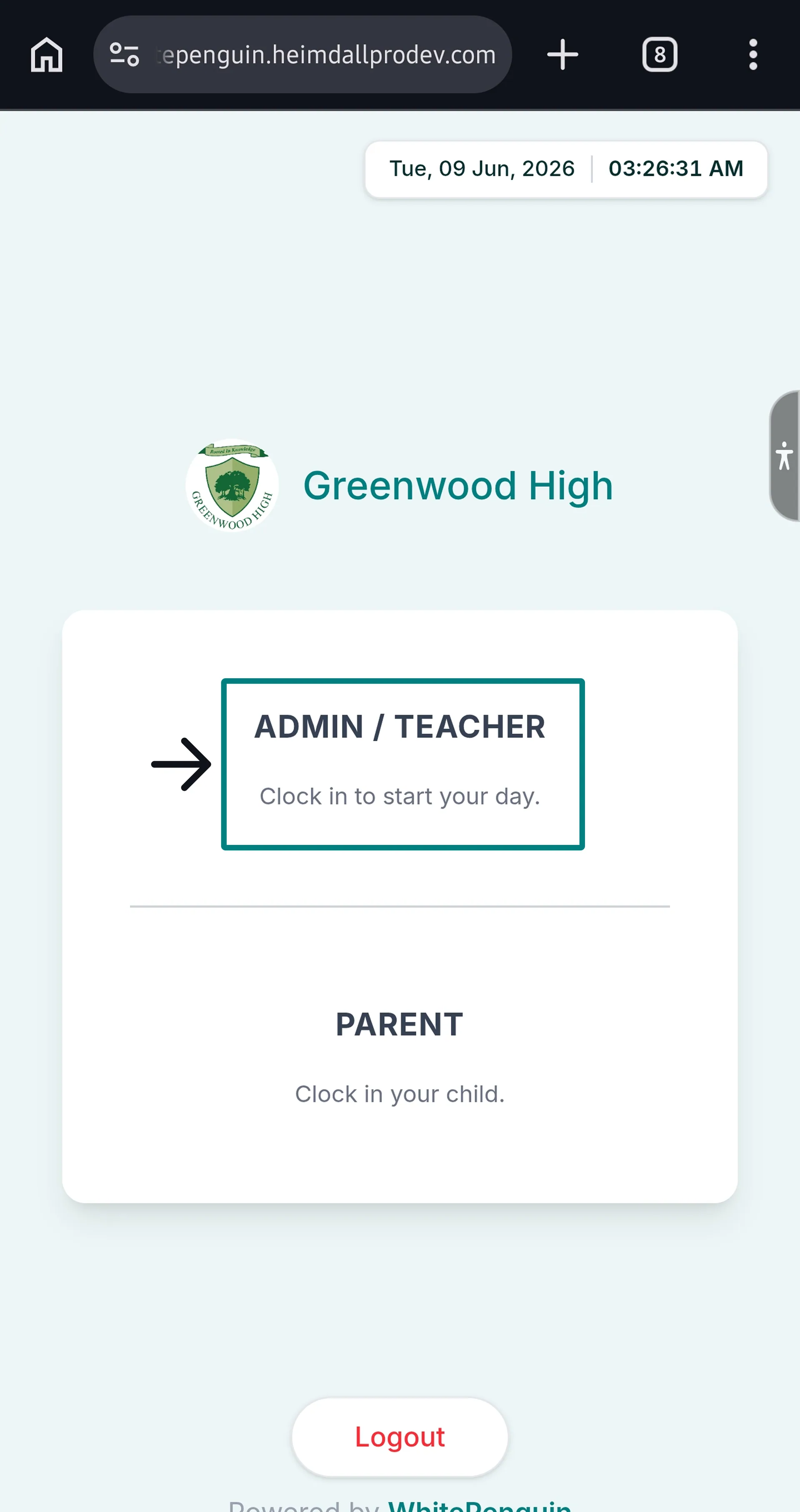
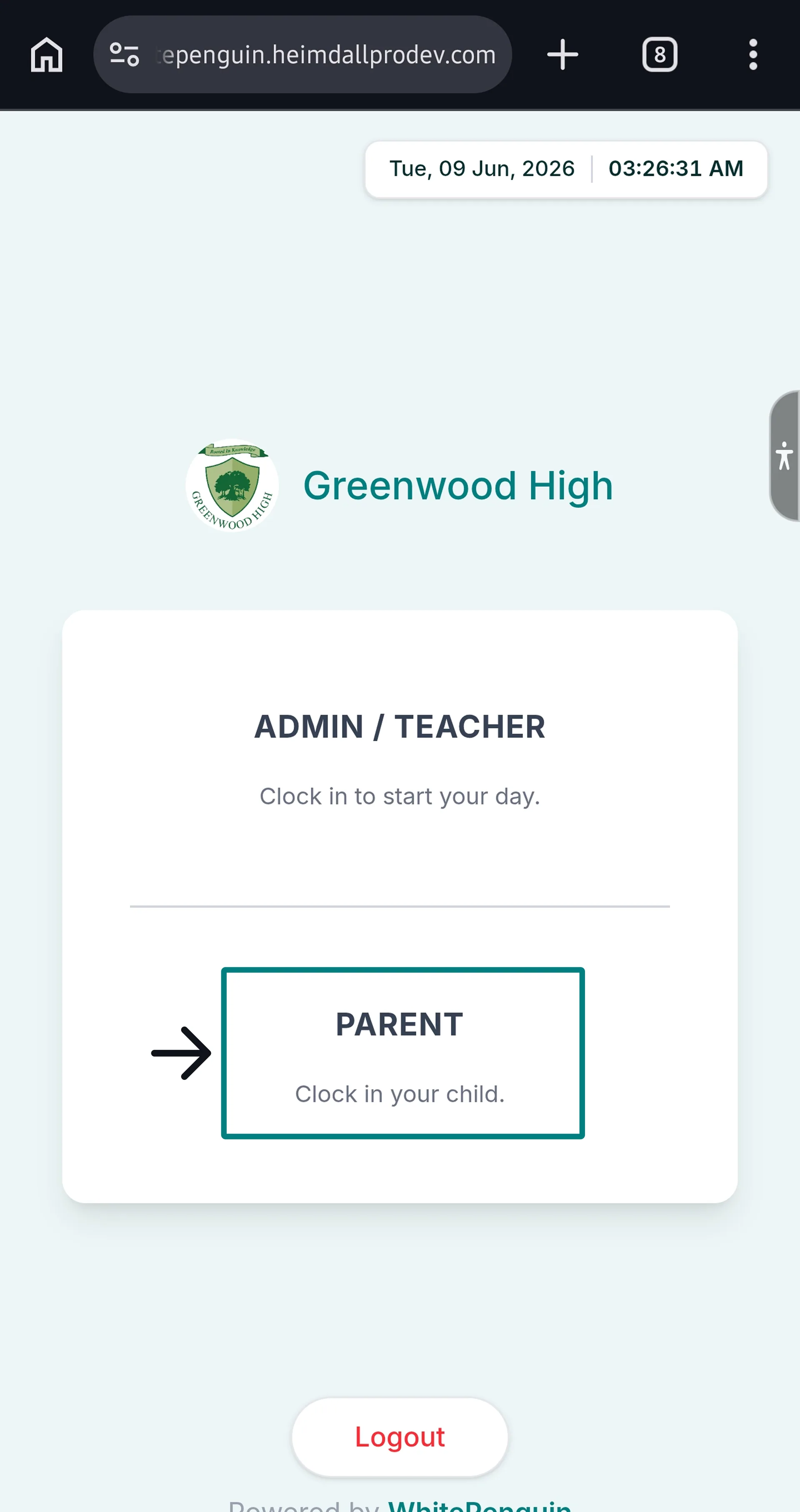
The Kiosk is accessed via the shared device at the school entrance. The Kiosk home screen shows the school name and two options:
| Option | For | Description |
|---|---|---|
| ADMIN / TEACHER | Admins & Staff | "Clock in to start your day." (also used for clock-out) |
| PARENT | Parents | "Clock in your child." (also used for clock-out) |
Tap the appropriate option to proceed to the correct interface.
The Kiosk uses the same entry point for both clock-in and clock-out. The system automatically detects your current status (Clocked In or Clocked Out) and shows the appropriate action button.
Clock Out — Admin / Teacher (Staff)
Note: Staff members cannot clock out if the Admin is not logged in to the Kiosk.
Step 1: Access the Staff Interface
-
On the Kiosk home screen, tap ADMIN / TEACHER.
-
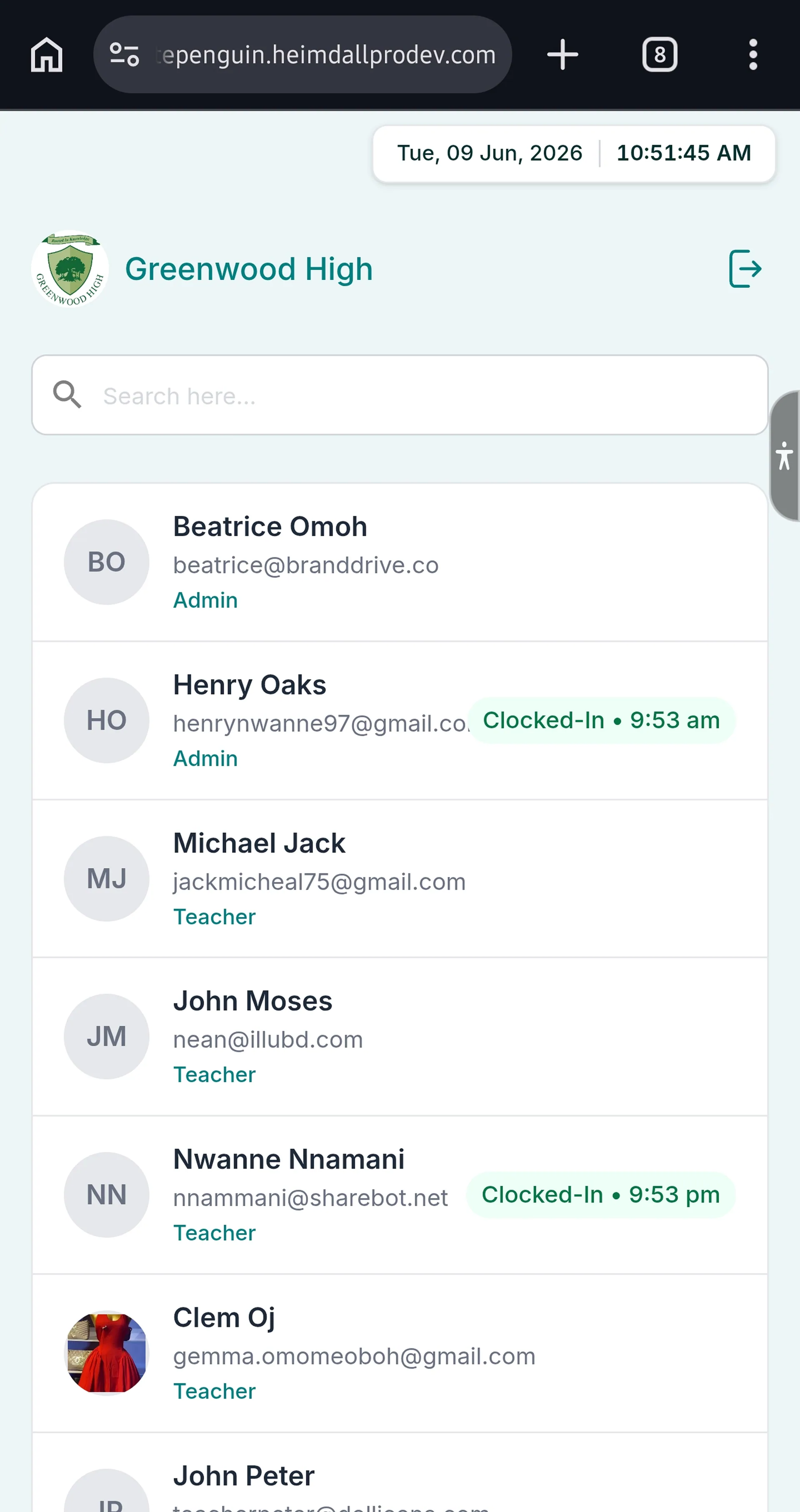
The Staff List page will open, showing all admins and teachers.
- Staff who are currently clocked in will show a "Clocked-In • [time]" badge on the right.
- Staff who have already clocked out will show no badge (or their name will appear without a clock-in indicator).
-
Use the Search bar to quickly find your name.
Step 2: Select Your Name
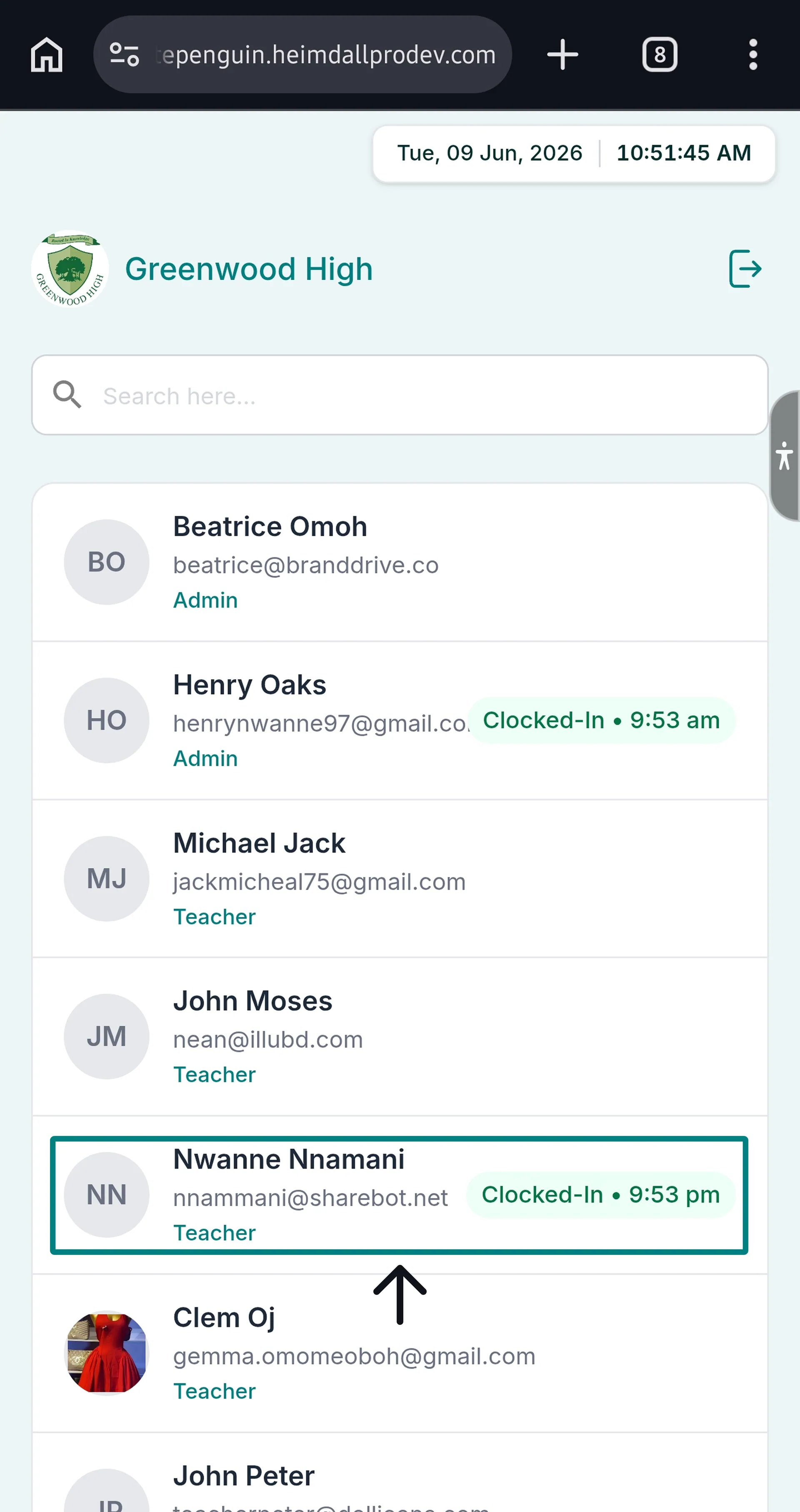
- Tap your name from the staff list.
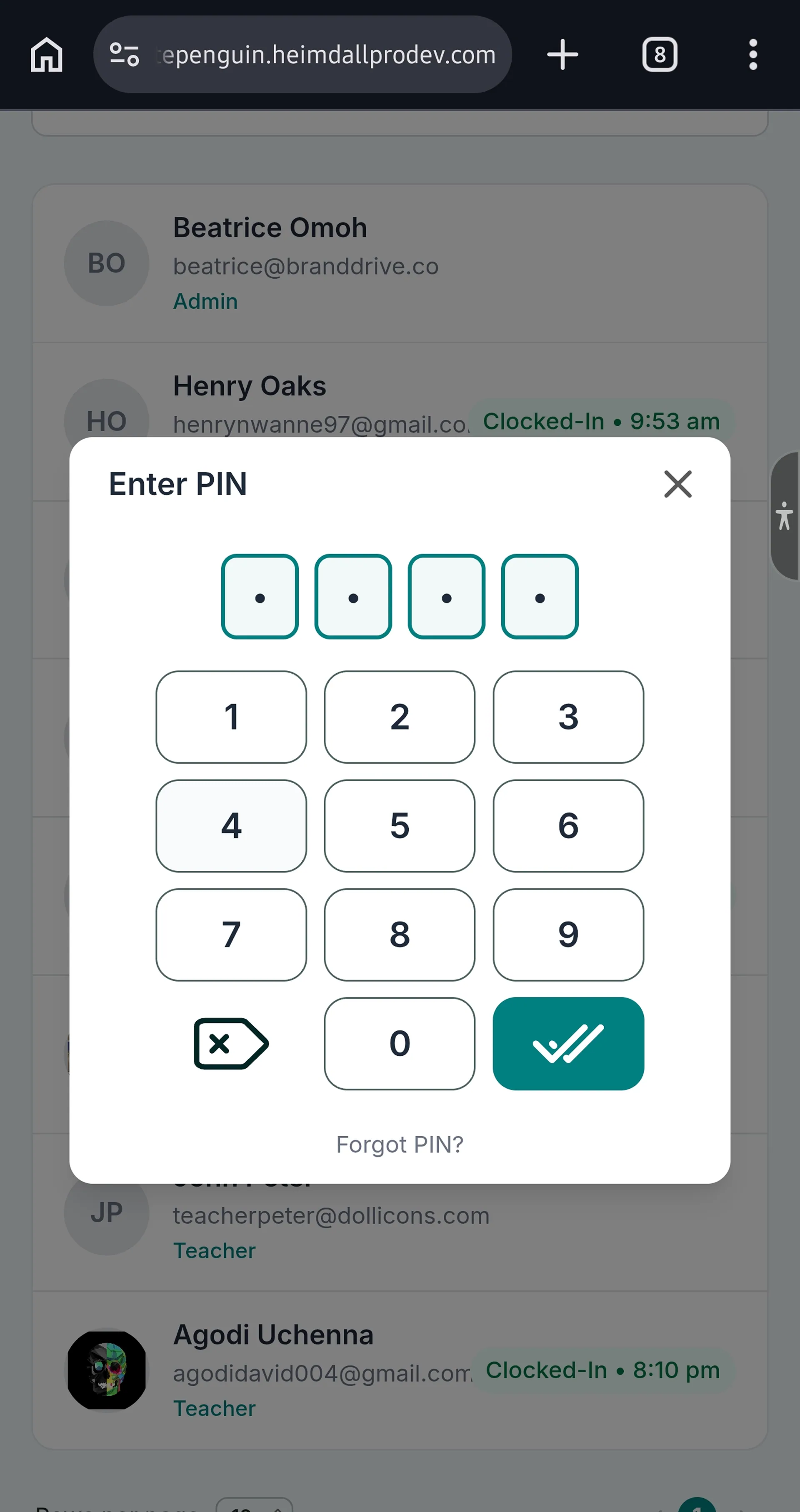
- A "Enter PIN" dialog will appear with the 4-digit numeric keypad.
- Enter your 4-digit Kiosk PIN.
- Tap the ✔ (confirm) button.
Step 3: Confirm Clock Out
-
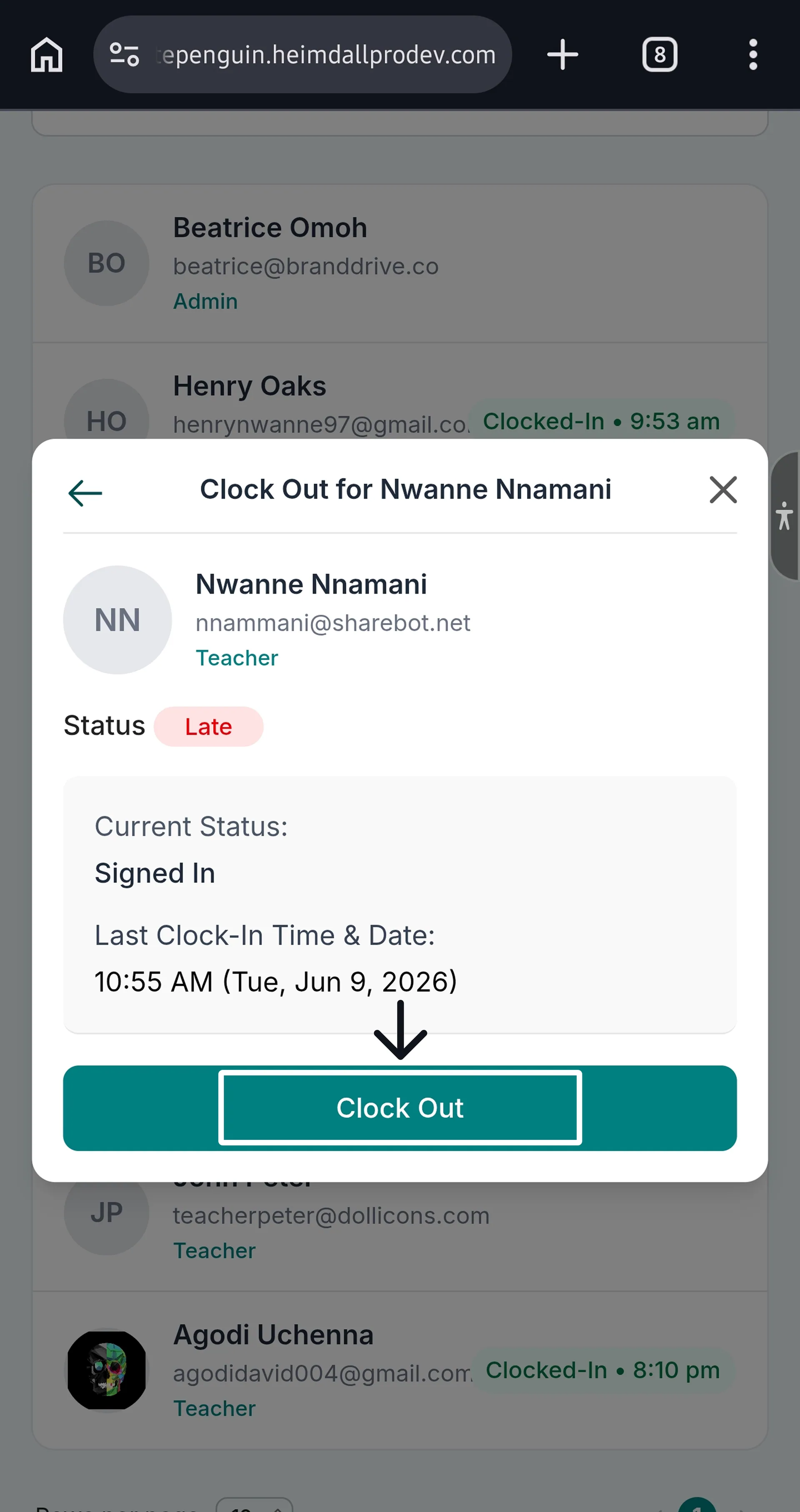
A "Clock Out for [Your Name]" confirmation dialog will appear, showing:
- Your profile photo, name, email, and role
- Status badge:
Punctual(green) — recorded at time of clock-in - Current Status: Clocked In
- Last Clock-In Time & Date (e.g., 3:57 AM (Wed, Jun 3, 2026))
- An optional Notes field
-
Add a note if needed (optional).
-
Tap the Clock Out button.
Step 4: Confirmation
-
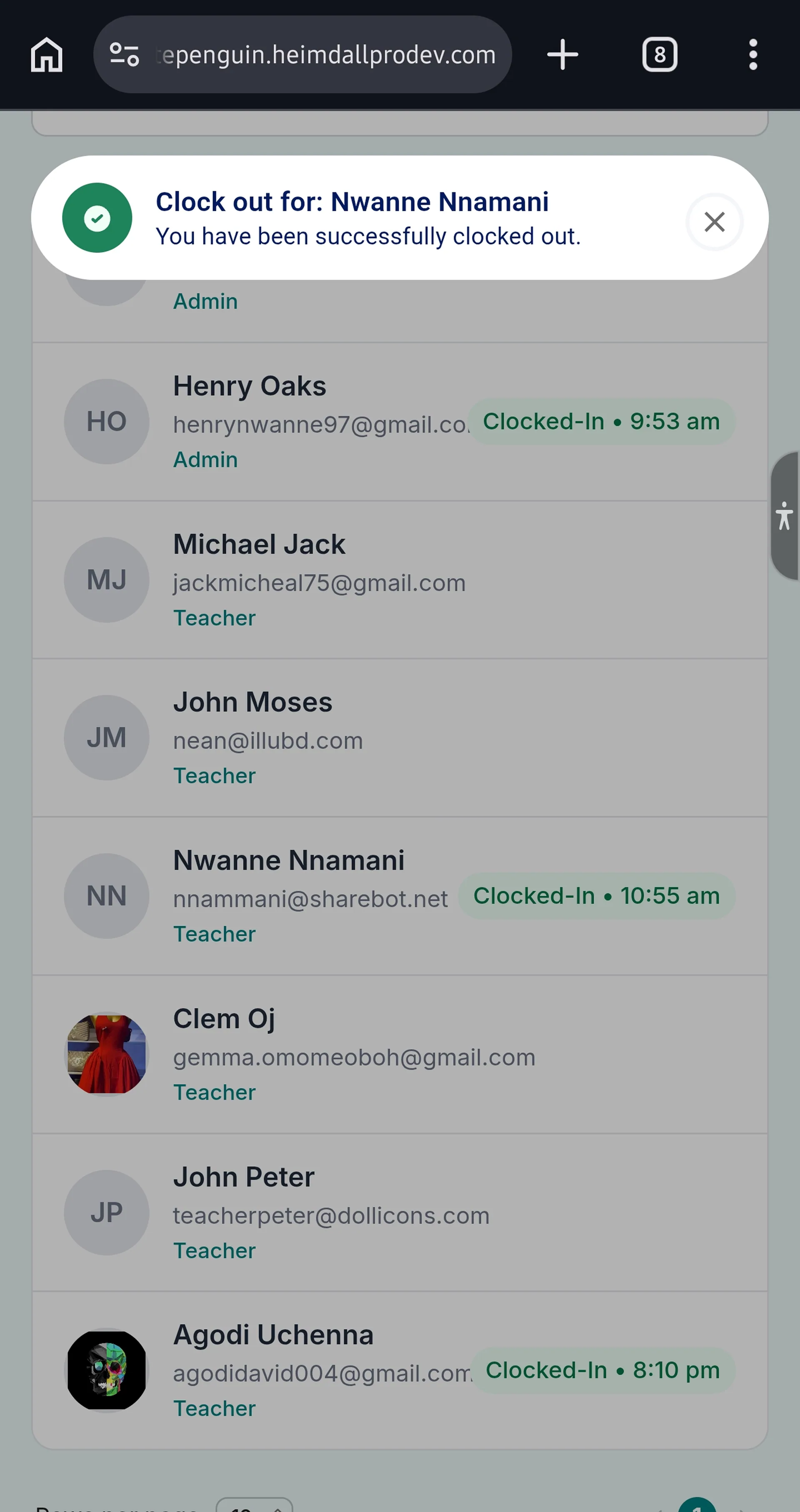
A green success toast notification will appear at the top:
"Clock out for: [Your Name]"
"You have been successfully clocked out."
-
The Staff List will update, removing the "Clocked-In" badge from your name.
Already Clocked Out? If you tap your name and the dialog shows Current Status: Clocked Out, you have already been clocked out for the day. No further action is needed.
Clock Out — Parent (Child Pick-Up)
Step 1: Access the Parent Interface
- On the Kiosk home screen, tap PARENT.
- The Parent Login page will open.
Step 2: Log In
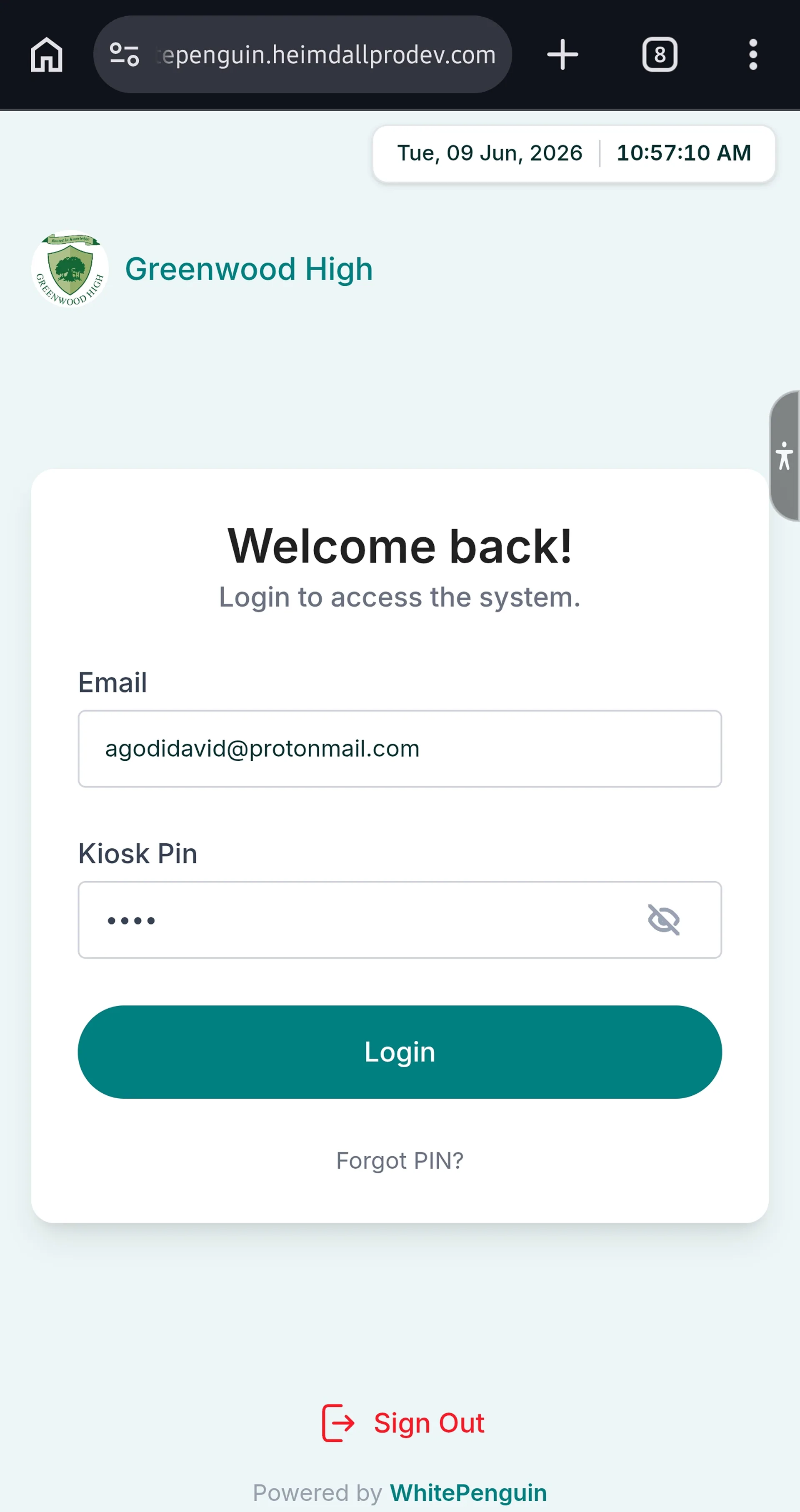
- Enter your registered email address.
- Enter your Kiosk PIN.
- Tap Login.
Your Kiosk PIN is displayed on your parent portal Dashboard. If you've forgotten it, tap "Forgot PIN?" on the login screen.
Step 3: View Your Children Dashboard
-
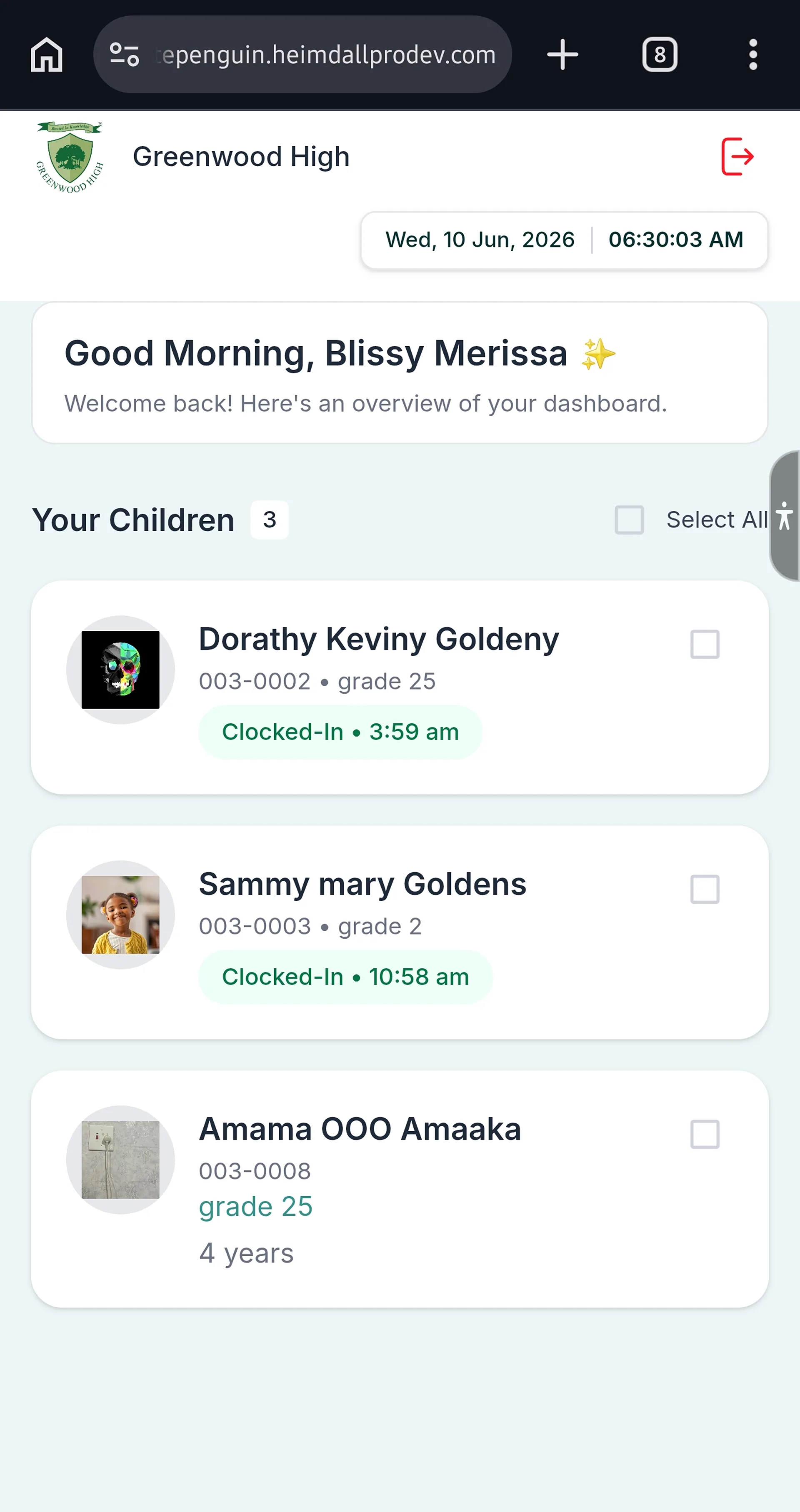
The Parent Kiosk Dashboard will open, showing all your children.
- Children who are currently clocked in will show a "Clocked-In • [time]" badge in teal.
- Children who have not been clocked in today will show no clock-in badge.
Step 4: Select Child & Clock Out
-
Tap the checkbox next to the child you want to clock out (or tap Select All to clock out all children at once).
-
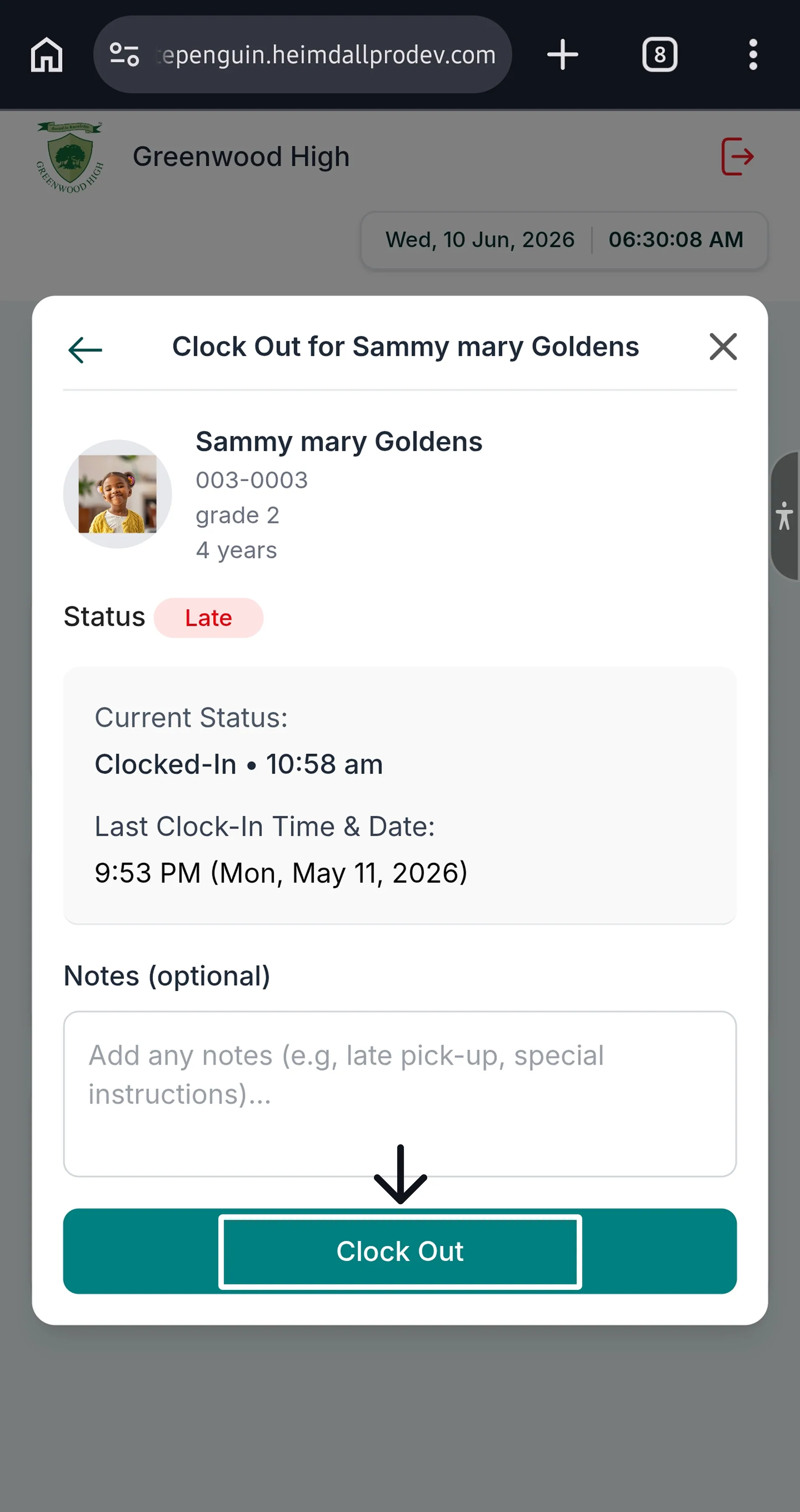
A "Clock Out for [Child's Name]" dialog will appear, showing:
- The child's profile photo, name, student ID, grade, and age
- Status badge:
Late(if applicable) - Current Status: Clocked-In • [time] (e.g., Clocked-In • 9:53 am)
- Last Clock-In Time & Date (e.g., 9:54 PM (Mon, May 11, 2026))
- An optional Notes field (e.g., "picked up early", "going to after-school program")
-
Add a note if needed (optional).
-
Tap Clock Out.
Step 5: Confirmation
-
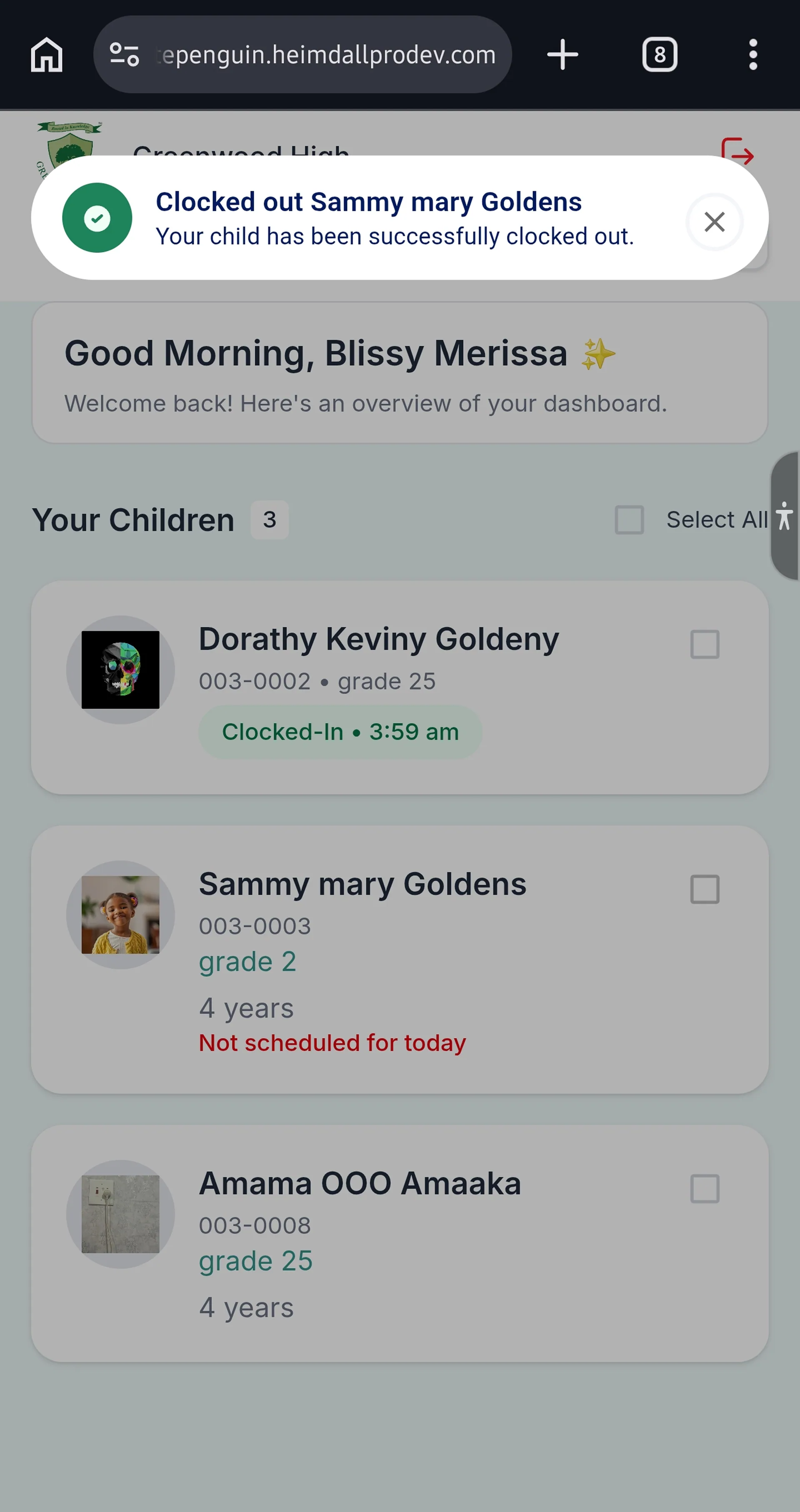
A green success toast notification will appear:
"Clocked out [Child's Name]"
"Your child has been successfully clocked out."
-
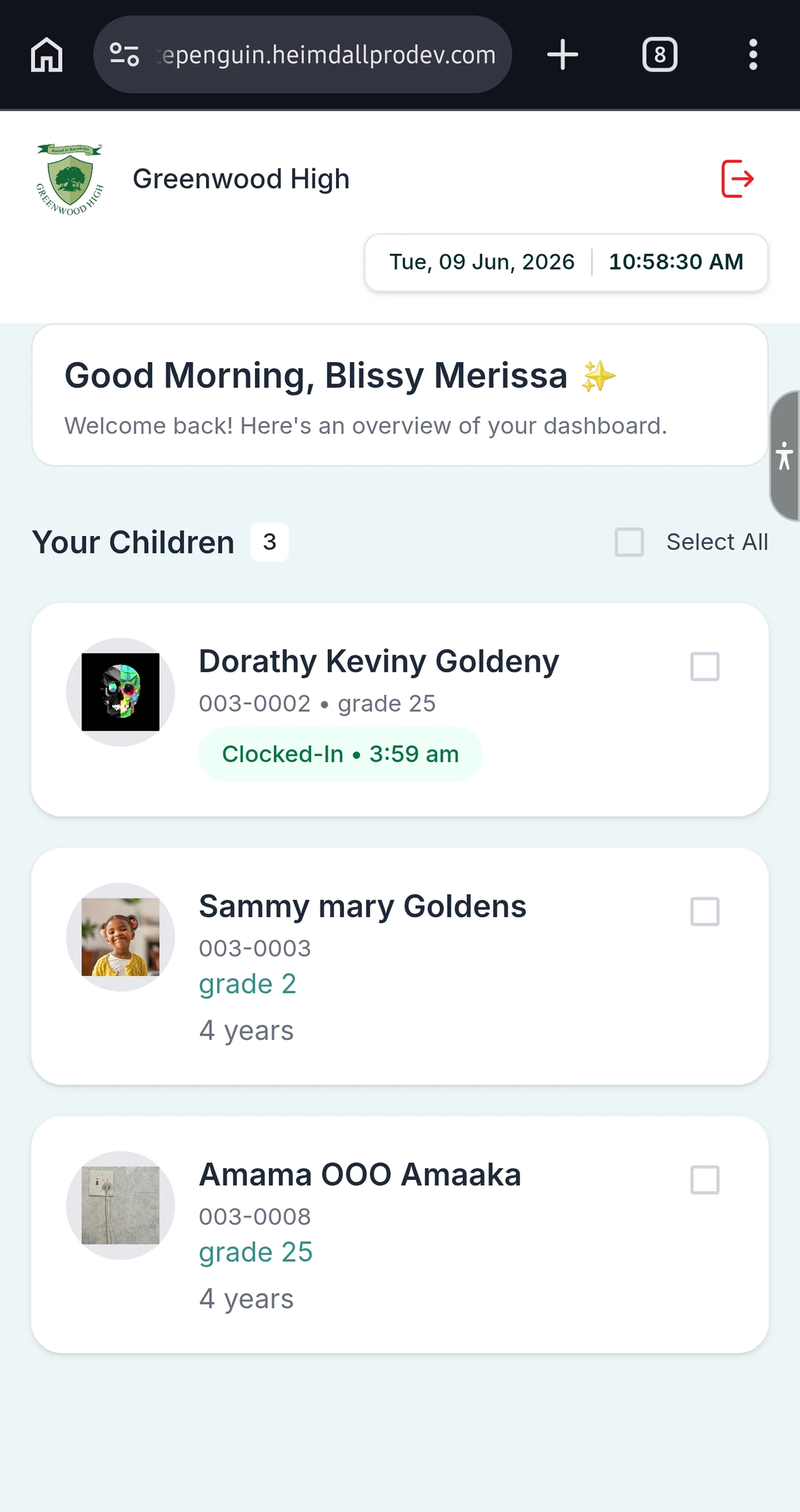
The child's card will update — the "Clocked-In" badge will be removed, showing the child is now signed out.
Child Not Clocked In? If the dialog shows Current Status: Signed Out, your child was not clocked in today or was already clocked out. No further action is needed.
Tips
- The system detects your status automatically. You don't need to choose "Clock In" or "Clock Out" from a separate menu. The Kiosk shows a Clock In button if you're currently clocked out, and a Clock Out button if you're currently clocked in.
- Admins & Teachers: Always clock out at the end of your shift to ensure accurate attendance records.
- Parents: Clock out your child at the moment of pick-up — not before or after — so the school has an accurate departure time on record.
- Log out after use. Since the Kiosk is a shared device, parents should tap Log Out after clocking out their child.
- Check the confirmation toast. Always wait for the green success notification before leaving the Kiosk to ensure the action was recorded.
- Add notes for early pick-ups. If you're picking up your child earlier than usual, use the Notes field to inform the school: e.g., "Early pick-up — dentist appointment."
- Clocked-In badge = still at school. If your child's card shows a "Clocked-In" badge, they are still registered as present at school. Clock them out when you collect them.
- The date and time are shown in the top-right corner of the Kiosk screen at all times.
FAQs
The Kiosk automatically checks your current attendance status in WhitePenguin after you authenticate (via PIN for staff, or email + PIN for parents). If you are currently Clocked Out, it shows a Clock In button. If you are currently Clocked In, it shows a Clock Out button. You don't need to select which action you want.
- Parents: Tap "Forgot PIN?" on the login screen, or log into your parent portal to retrieve your PIN from the Dashboard.
- Staff: Contact your school admin to have your PIN reset or to manually record your clock-out in the Attendance section.
A green toast notification appears at the top of the screen after a successful clock-out:
- Staff: "Clock out for: [Name] — You have been successfully clocked out."
- Parents: "Clocked out [Child's Name] — Your child has been successfully clocked out."
Additionally, the "Clocked-In" badge will disappear from the staff list or child card.
Yes. Use the Select All checkbox on the parent Kiosk dashboard to select all your children at once, then clock them all out in one step. You can also select individual children by tapping their checkboxes.
The Notes field is optional. However, it's a good practice to add notes for unusual situations, such as:
- "Early pick-up — family event"
- "Child going home with grandmother today"
- "Leaving early due to illness" (for staff)
Notes are saved with the attendance record and visible to the school admin.
You cannot edit past attendance records from the Kiosk. Contact your school admin, who can manually adjust attendance records from the admin portal's Attendance section.
- Staff: Your clock-out records are visible to the school admin in the Attendance section of the WhitePenguin admin portal.
- Parents: Your child's attendance history (including clock-in and clock-out times) is available in the Attendance tab of your child's profile in the WhitePenguin parent portal.
Last updated on
Clock In using Kiosk (Admin/Teacher - Parent)
Learn how to use the WhitePenguin Kiosk to clock in — for Admins, Staff/Teachers, and Parents. The Kiosk is a shared check-in station (tablet or desktop) placed at the school entrance for daily attendance tracking.
Setup & Reset Kiosk PIN (Admin/ Teacher - Parent)
Learn how to view and reset your Kiosk PIN in WhitePenguin — for Admins, Teachers/Staff, and Parents. The Kiosk PIN is the 4-digit code used at the school Kiosk to clock in and out.