

Manage My Profile
Learn how to manage your parent profile in WhitePenguin — update your personal information, address, and password, upload a profile photo, and control your notification preferences.
Overview
The Profile section in WhitePenguin is your personal account hub. It is split into two tabs:
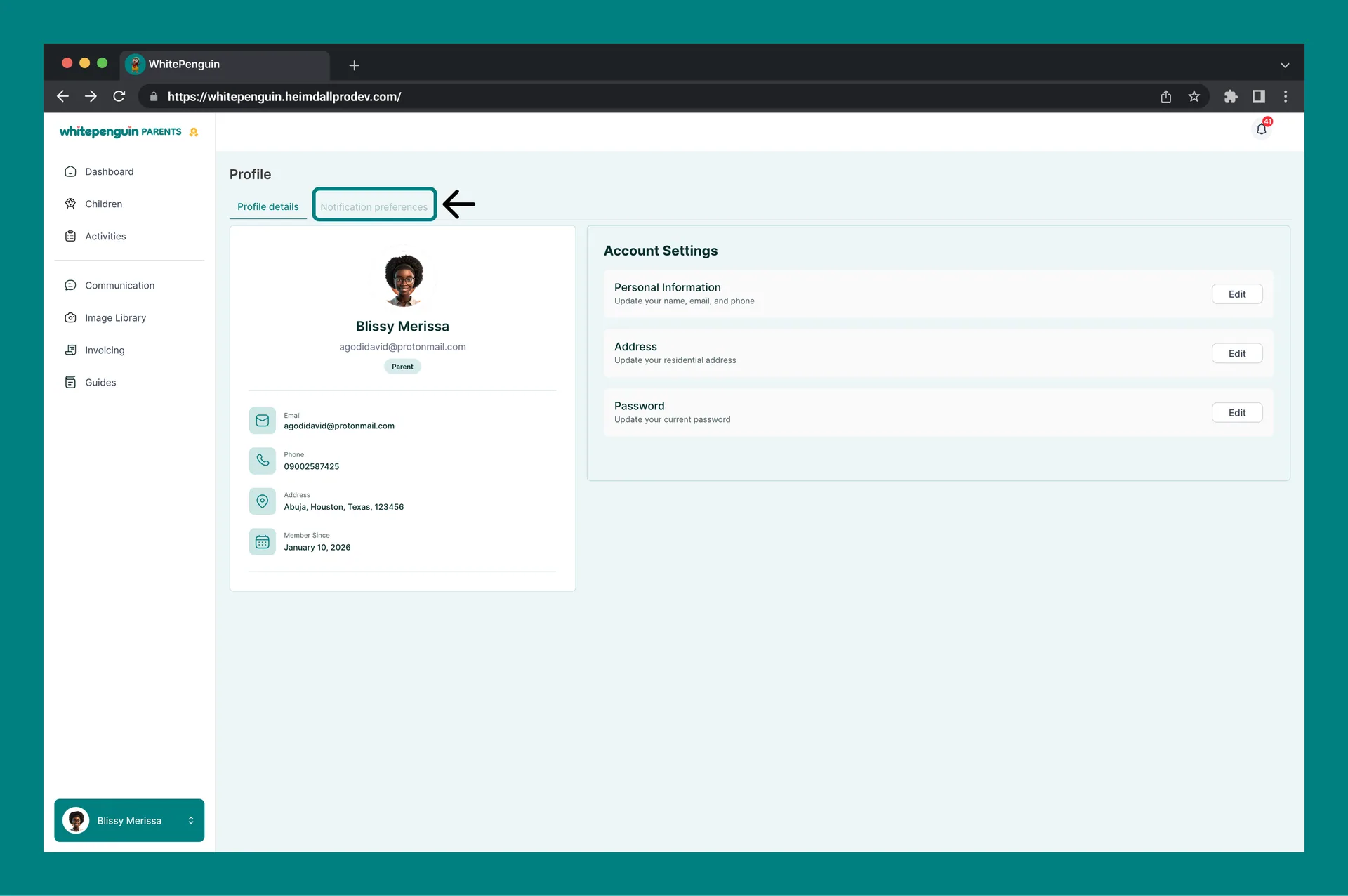
- Profile Details — view your profile summary and manage your account settings (Personal Information, Address, and Password).
- Notification Preferences — choose which types of notifications you want to receive from the school.
You can also access your profile and key account actions directly from the bottom-left profile menu in the sidebar.
How to Access
Method 1: Via the sidebar
-
Log in to the WhitePenguin parent portal.
-
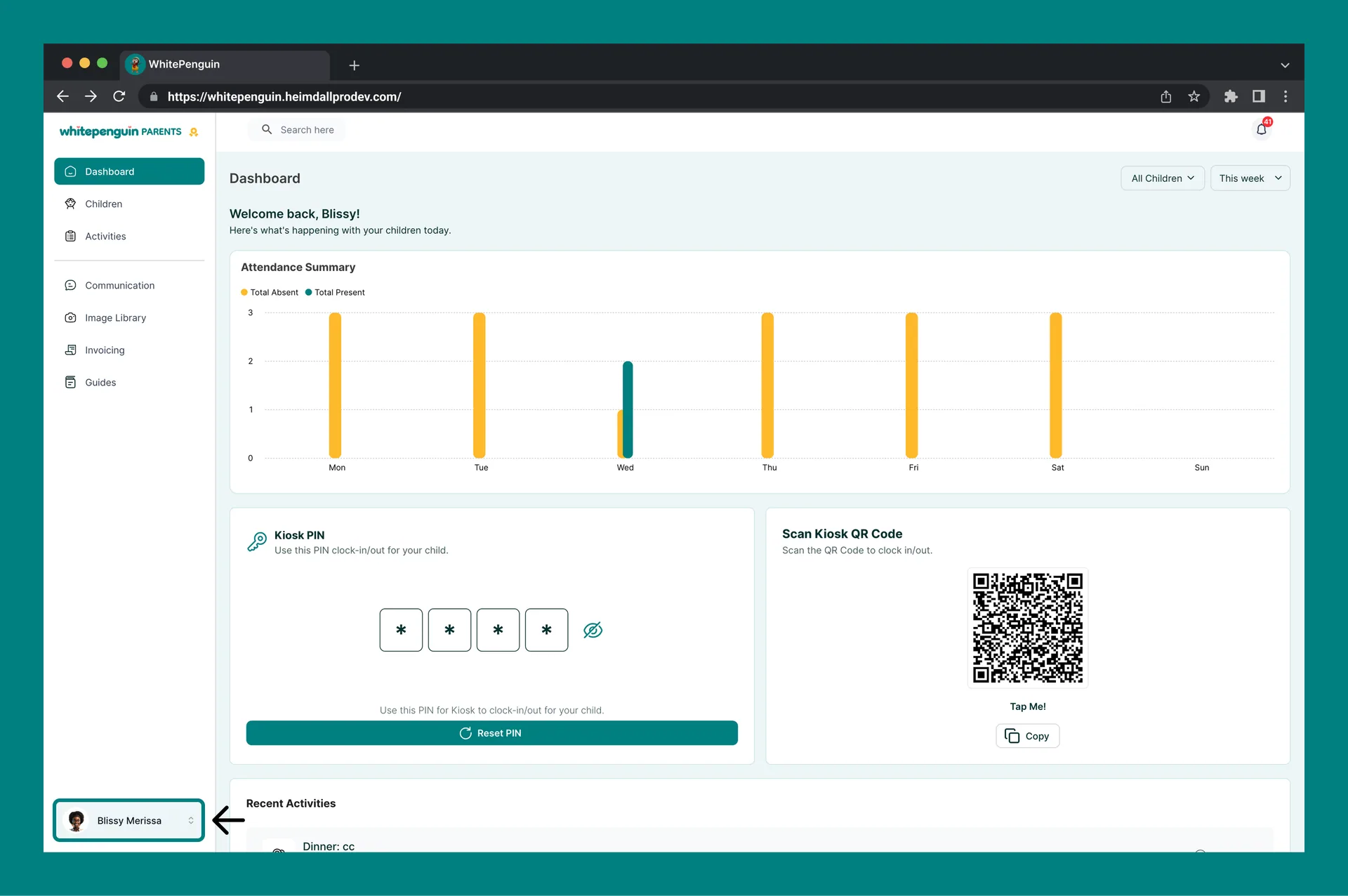
Click your name and avatar at the bottom-left of the sidebar (e.g., Blissy Merissa).
-
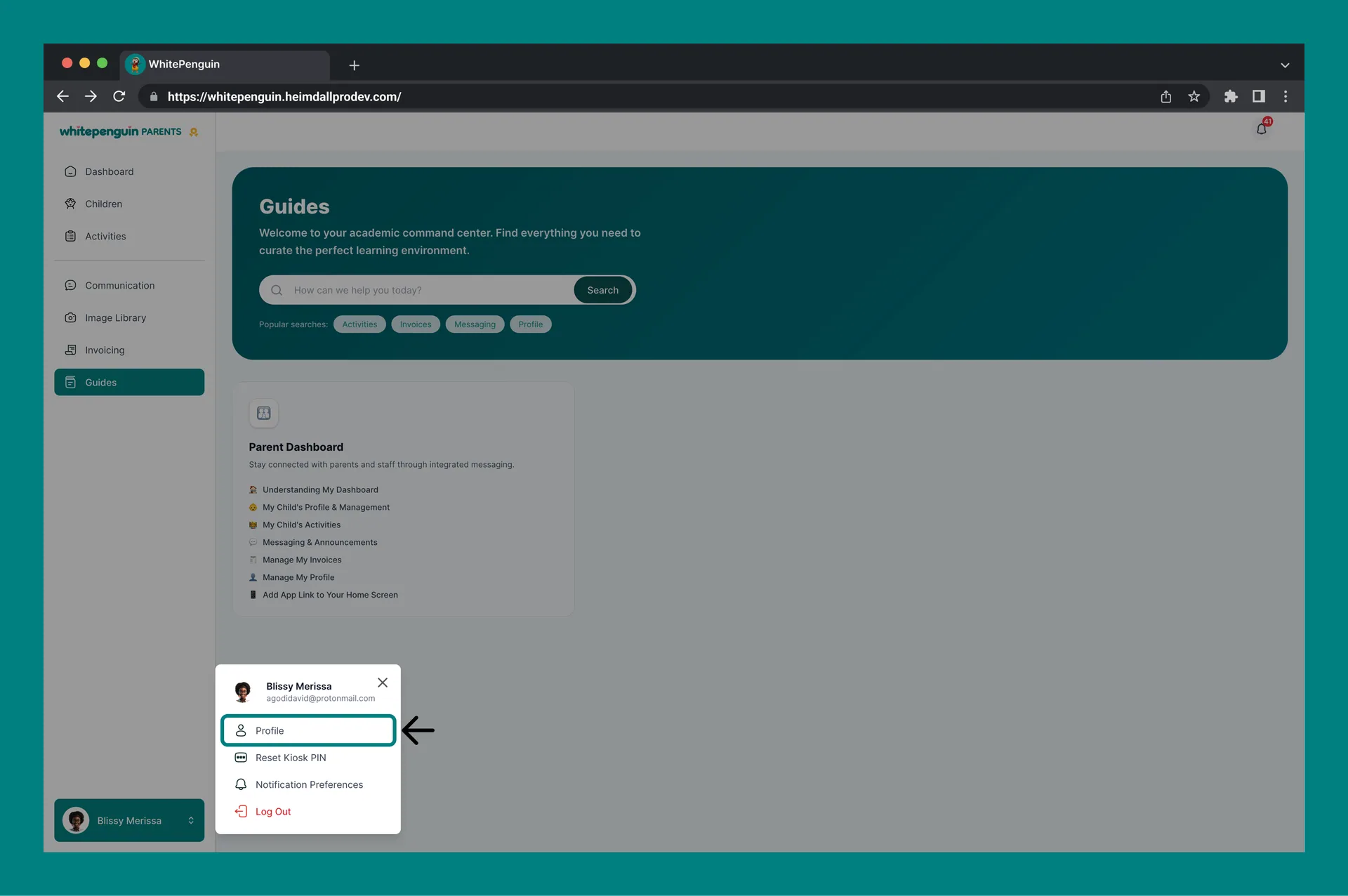
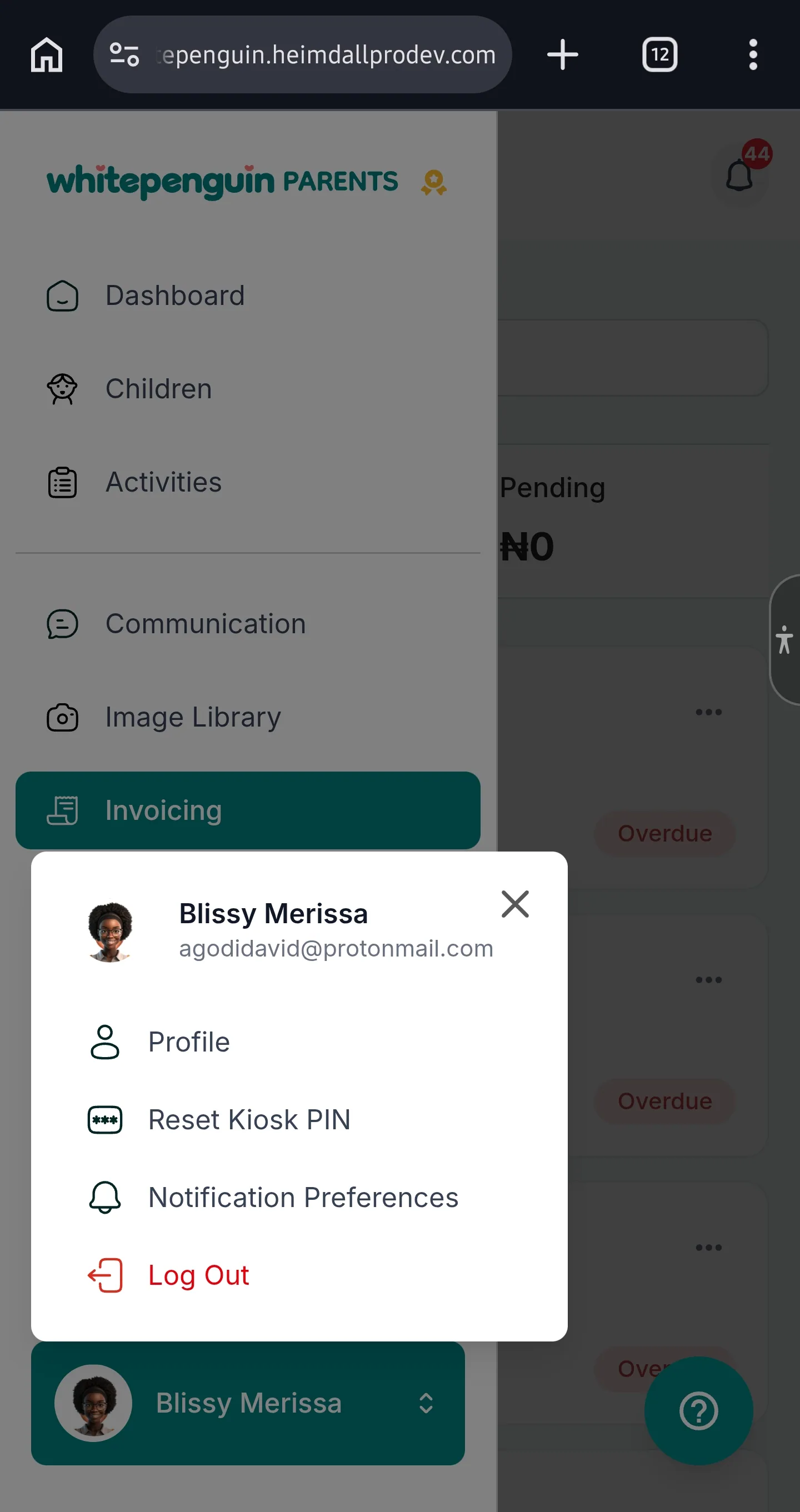
A pop-up menu will appear with options:
- Profile — go to your full profile page
- Reset Kiosk PIN — reset your child's check-in/out PIN
- Notification Preferences — go directly to notification settings
- Log Out — sign out of the portal
-
Click Profile to open the Profile page.
View Profile
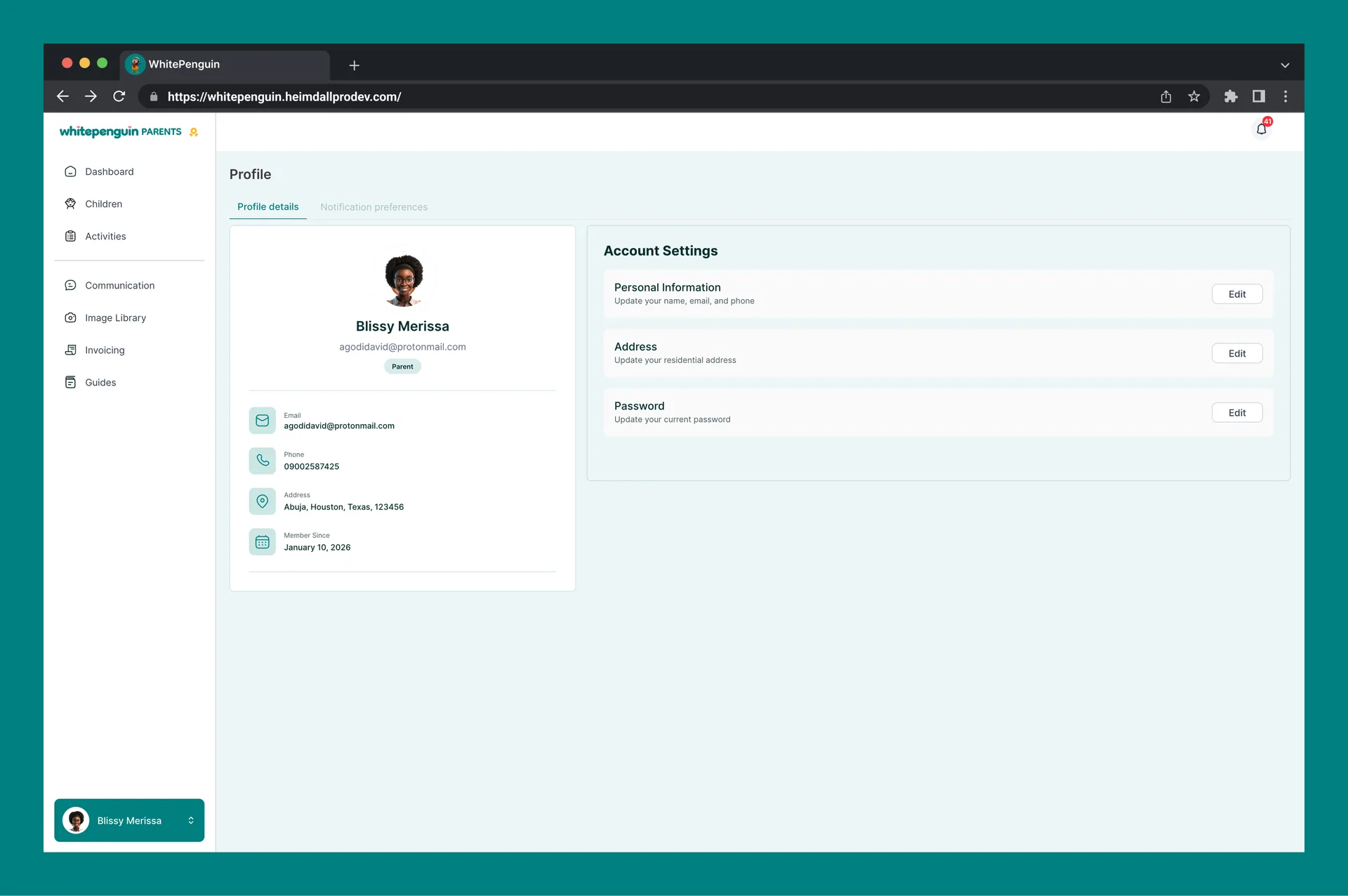
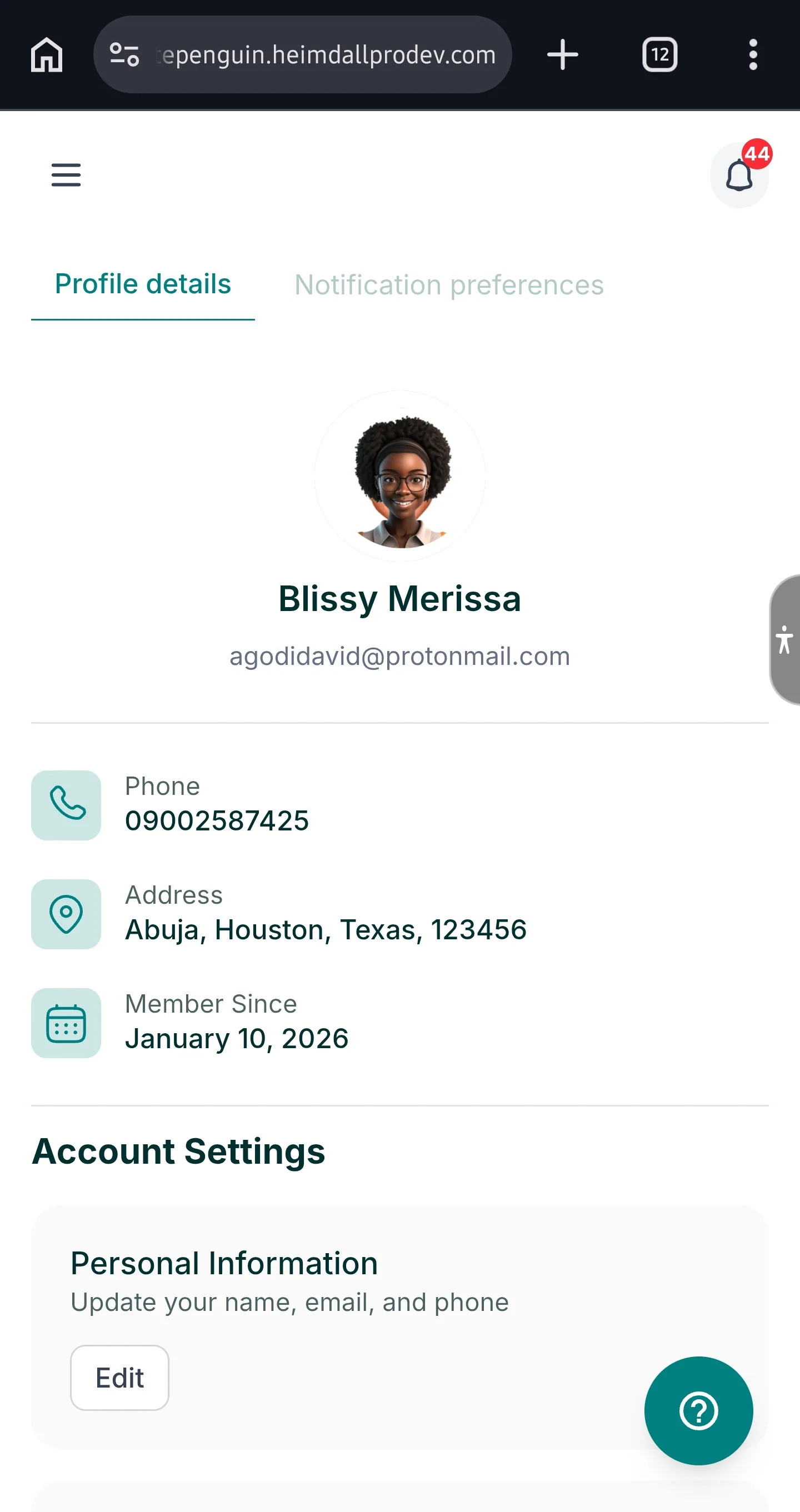
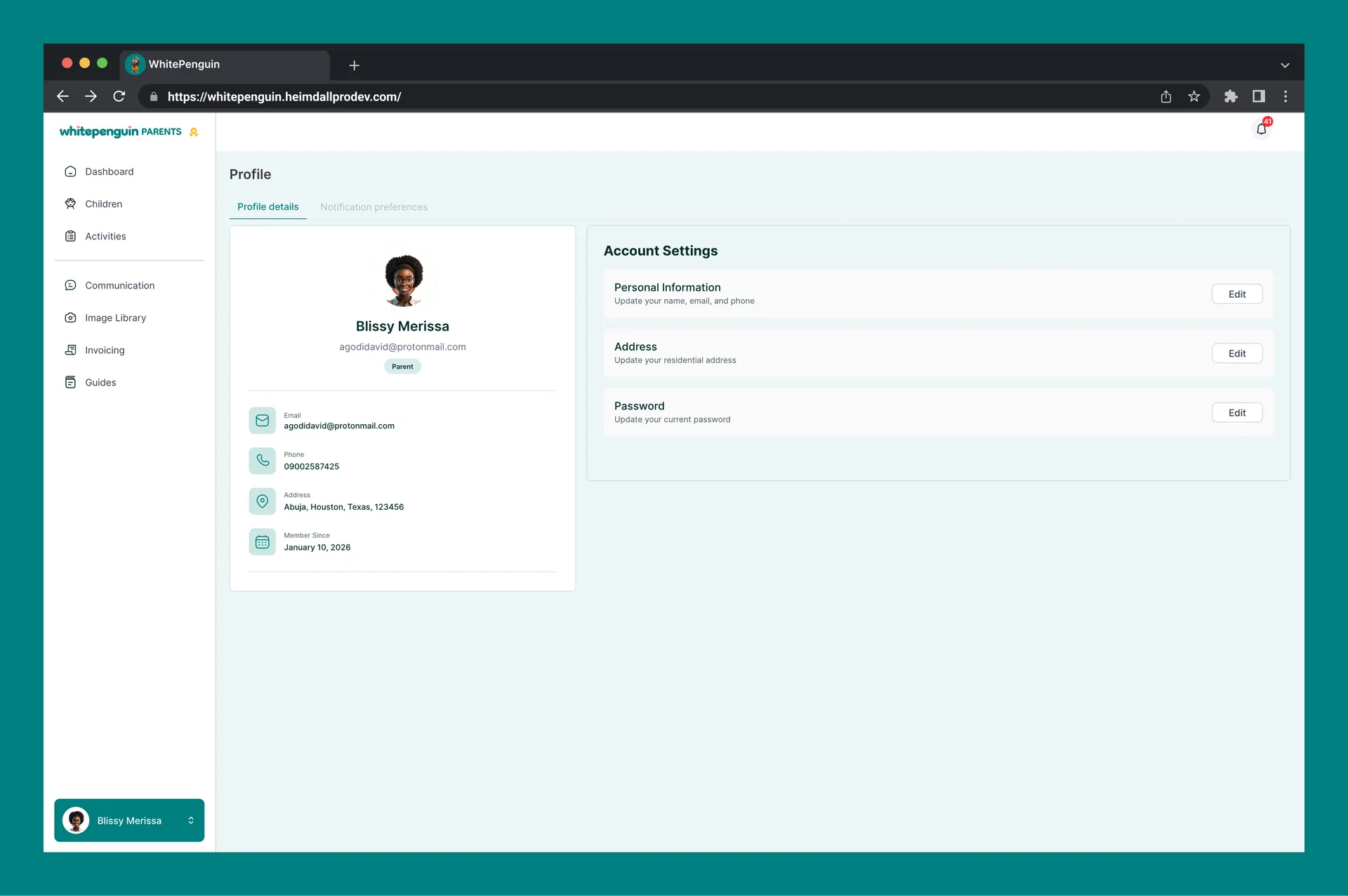
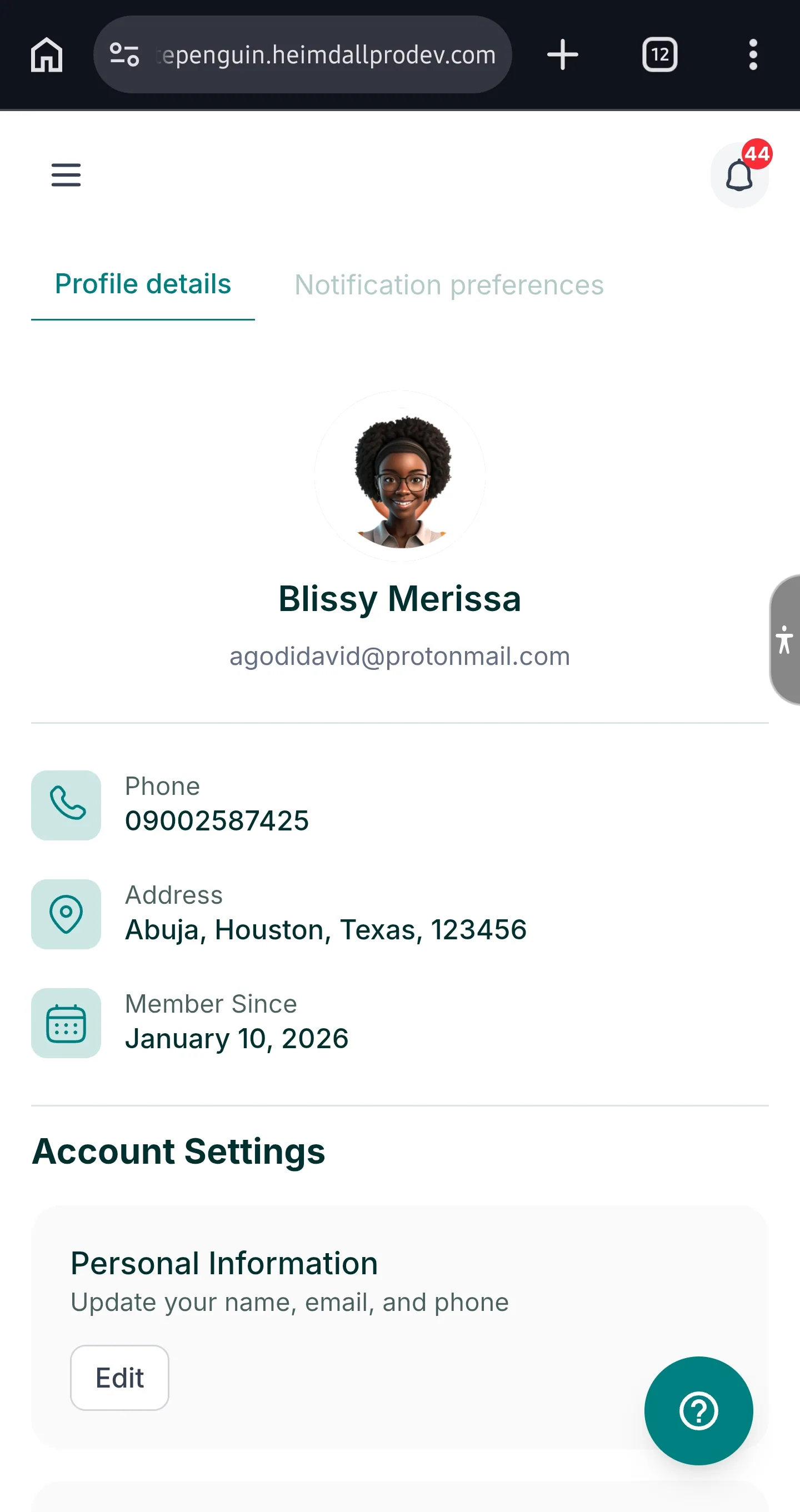
The Profile Details tab shows a summary card on the left side with your key account information:
| Field | Description |
|---|---|
| Profile Photo | Your uploaded profile picture (or a placeholder avatar if none has been uploaded). |
| Full Name | Your display name (e.g., Blissy Merissa). |
| Your registered email address (e.g., parent@example.com). | |
| Role Badge | Your role in the portal, shown as a Parent badge. |
| Shown again with an envelope icon in the details list below the card. | |
| Phone | Your registered phone number (e.g., 09002587425). |
| Address | Your residential address (e.g., Abuja, Houston, Texas, 123456). |
| Member Since | The date your account was created (e.g., January 10, 2026). |
Account Settings
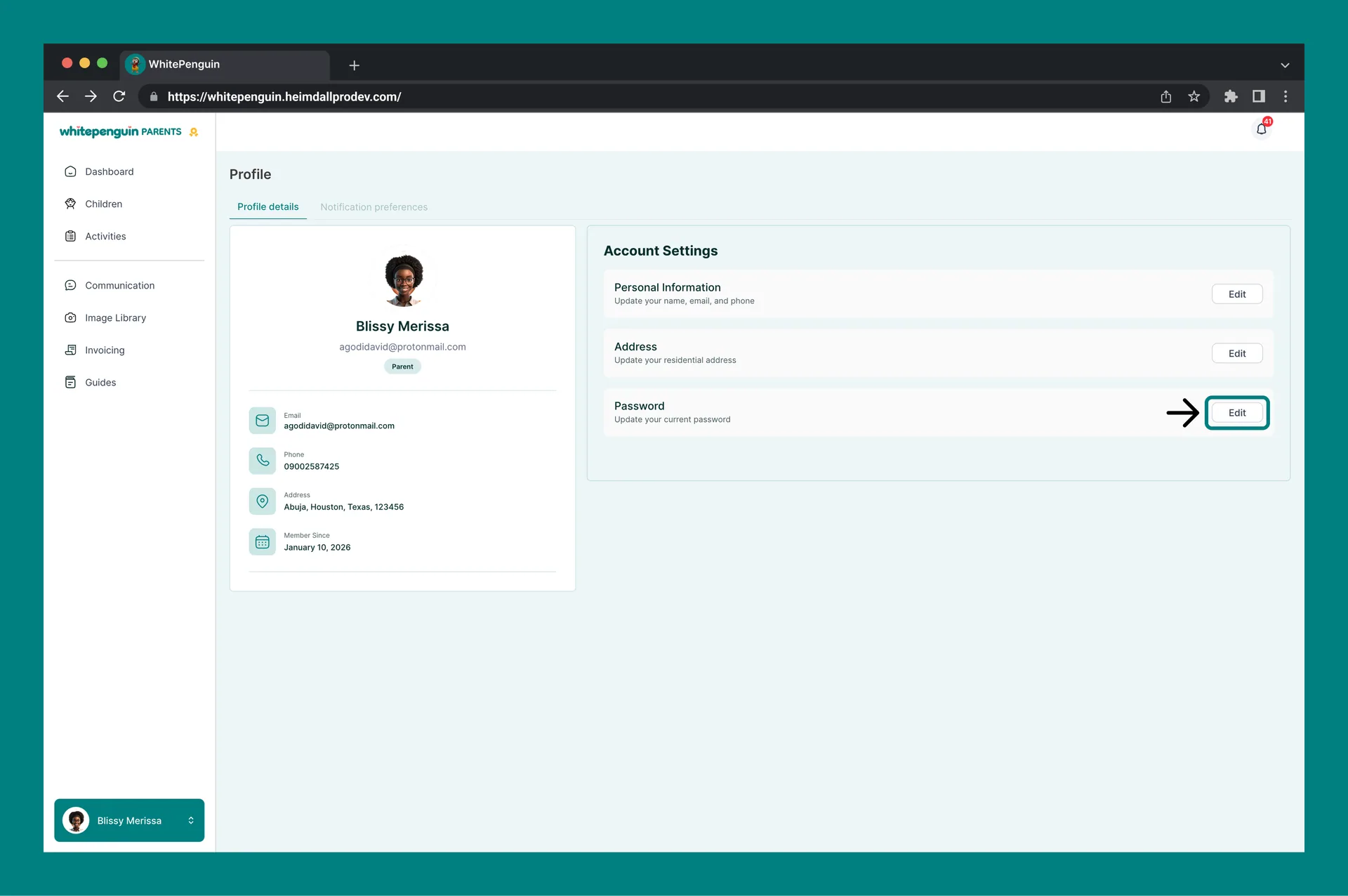
On the right side of the Profile Details tab, the Account Settings panel contains three editable sections, each with an Edit button.
Personal Information
Update your name, email address, and phone number.
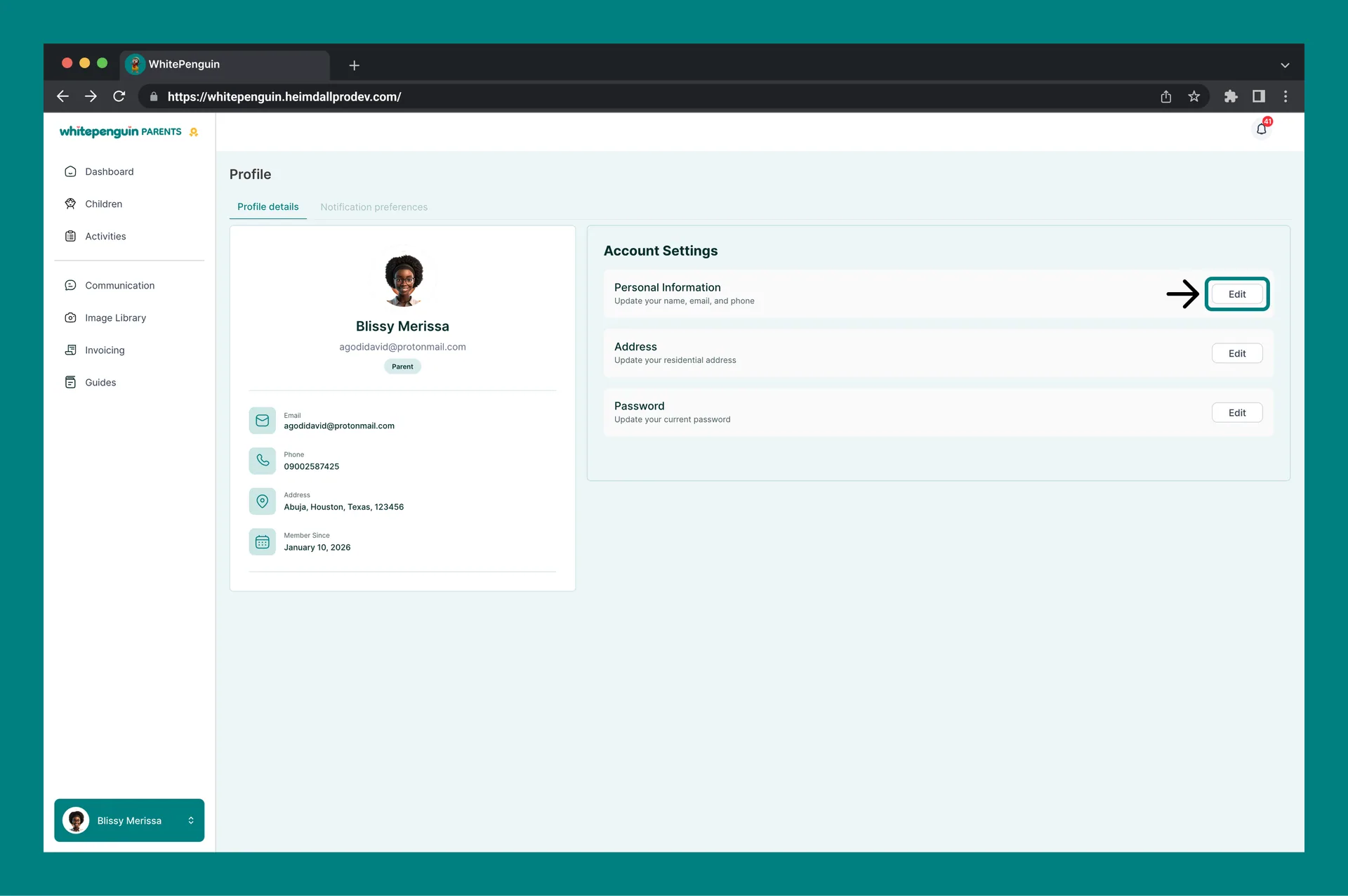
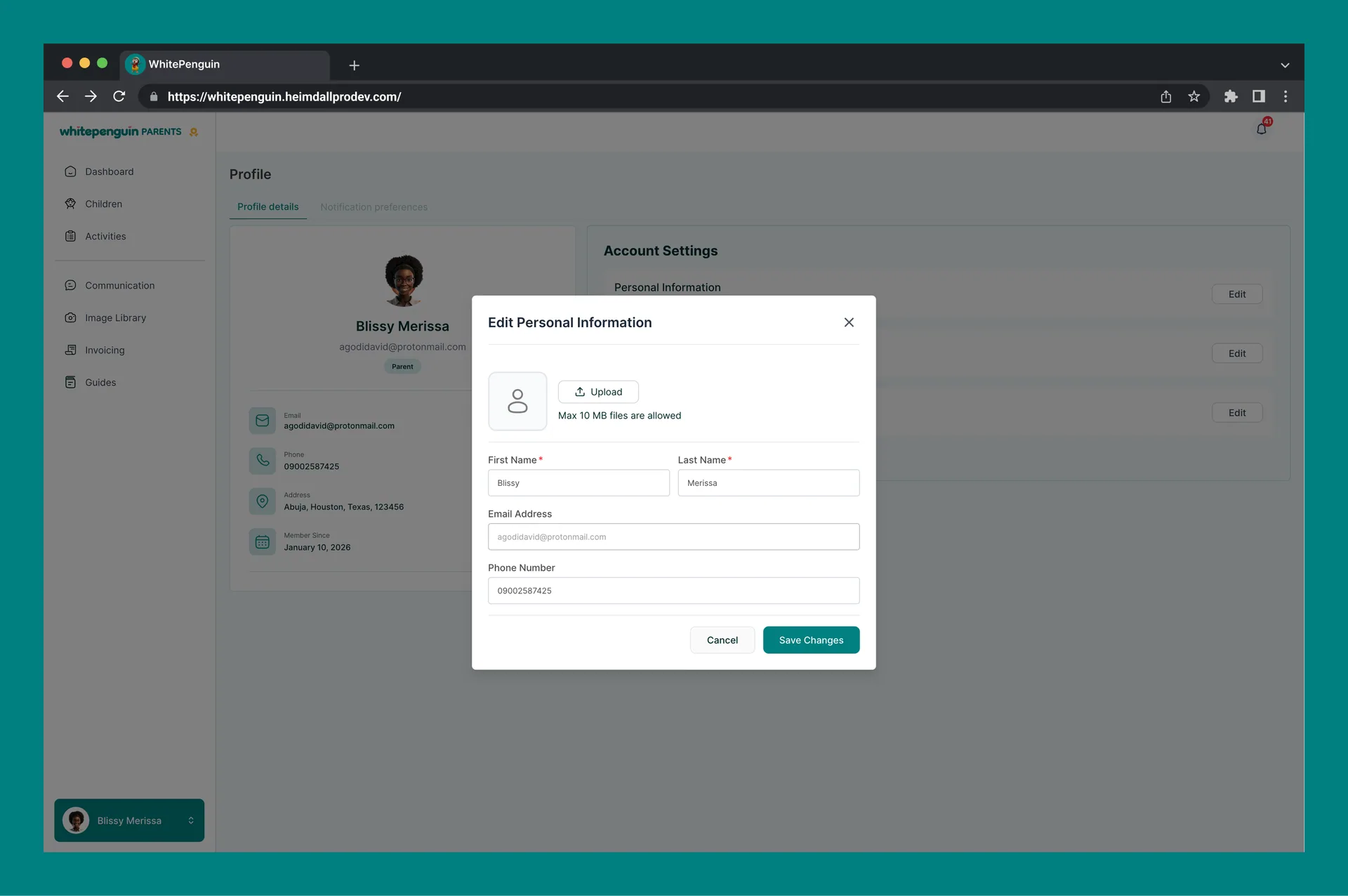
To edit Personal Information:
- Click the Edit button next to Personal Information.
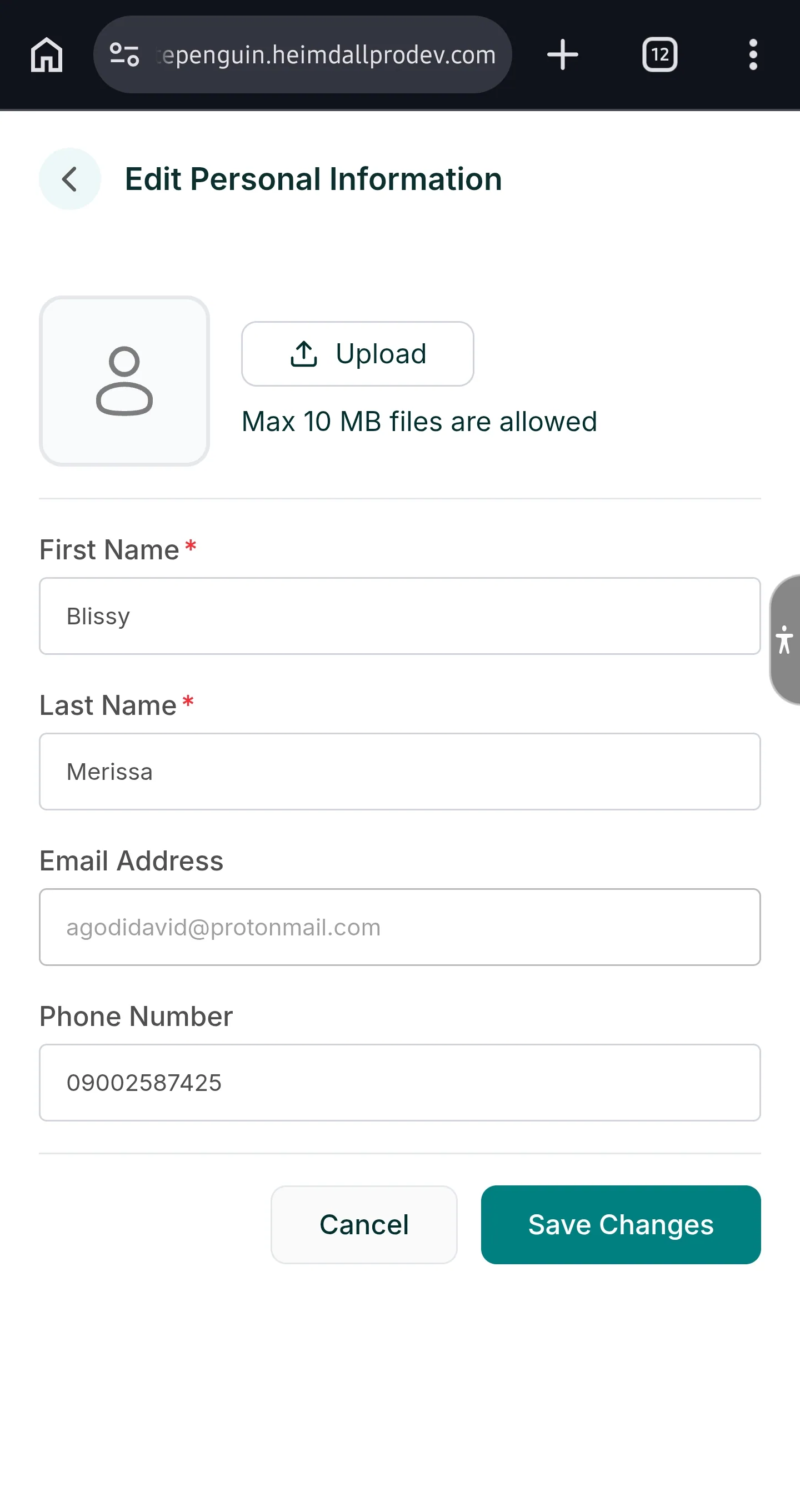
- The Edit Personal Information dialog will open with the following fields:
| Field | Description |
|---|---|
| Profile Photo | Click Upload to upload a new profile photo. Maximum file size is 10 MB. |
| First Name | Your first name (required). |
| Last Name | Your last name (required). |
| Email Address | Your registered email address. |
| Phone Number | Your contact phone number. |
- Make your changes.
- Click Save Changes to apply, or Cancel to discard.
Profile Photo: When uploading a photo, files up to 10 MB are supported. Use a clear, recent photo so the school's staff can recognize you during pick-up and drop-off.
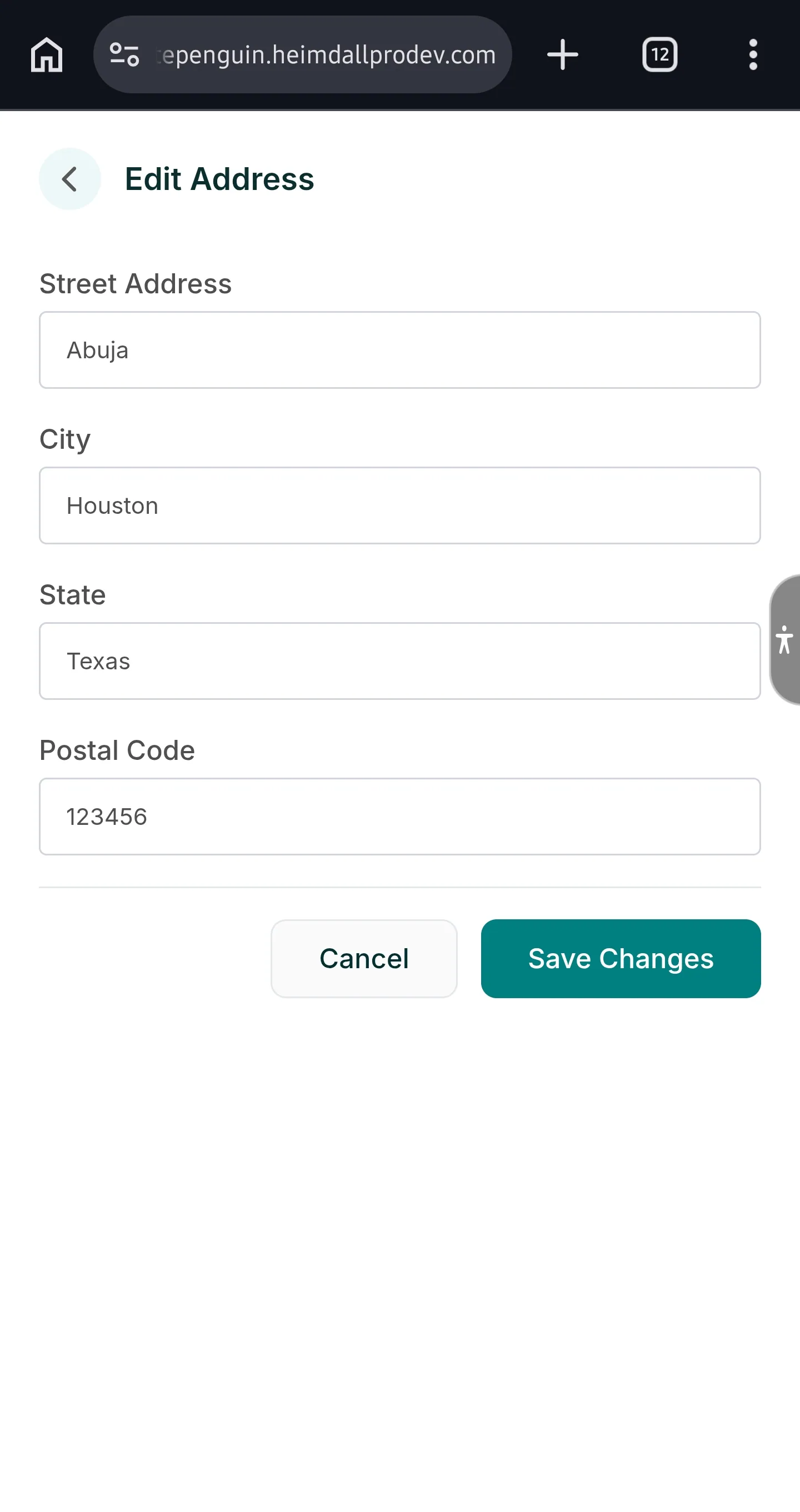
Address
Update your residential address.
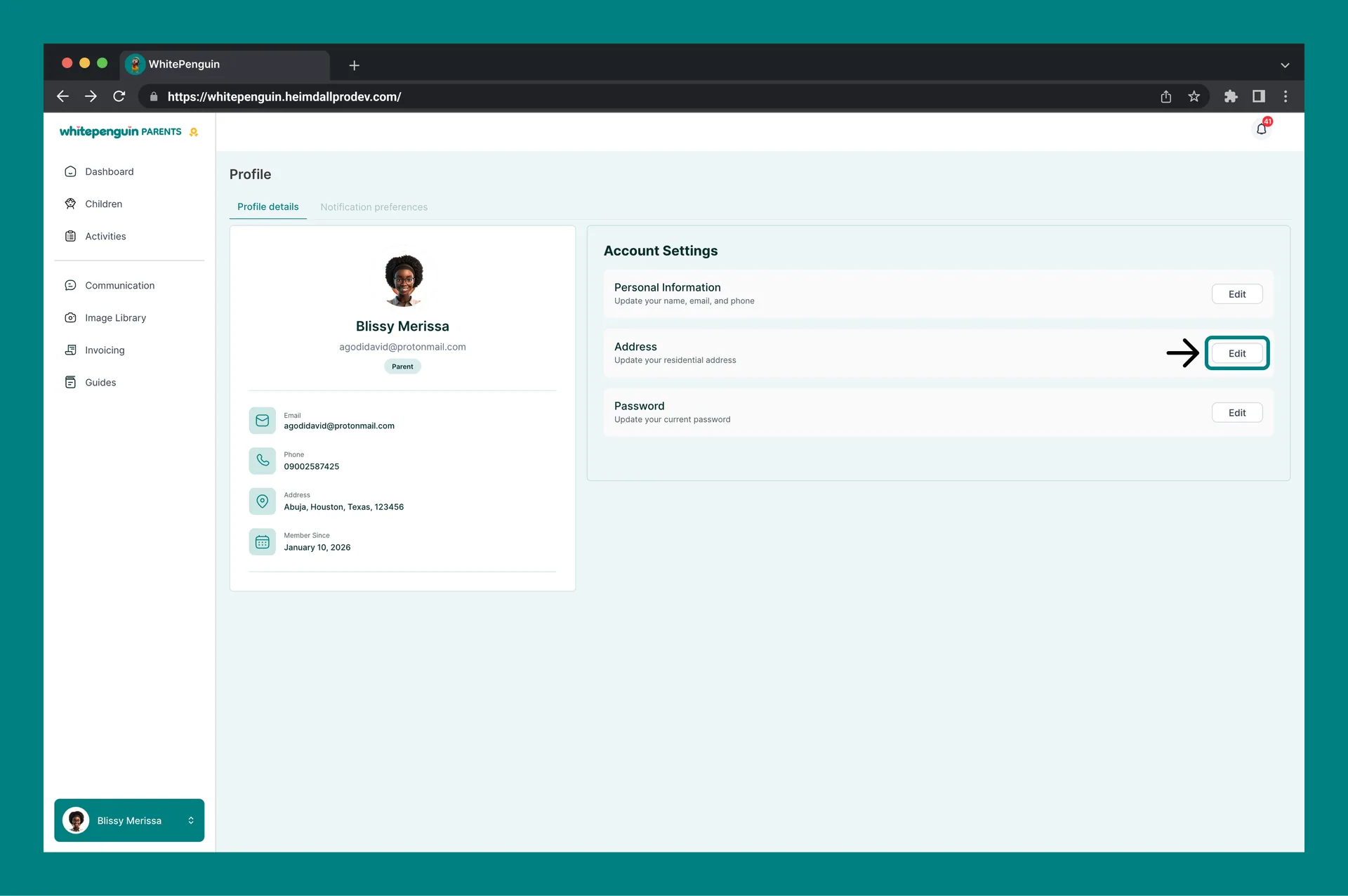
To edit your Address:
- Click the Edit button next to Address.
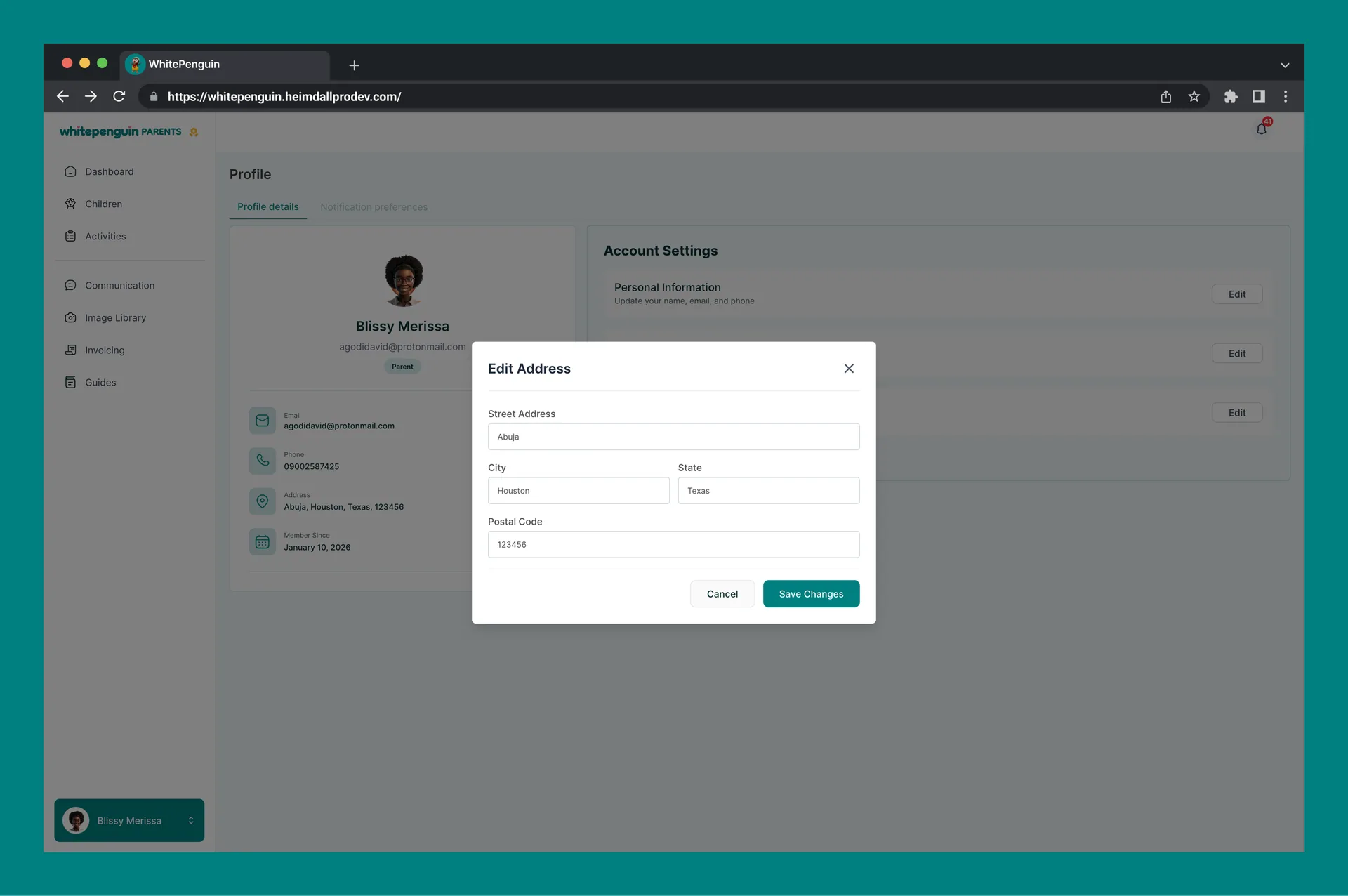
- The Edit Address dialog will open with the following fields:
| Field | Description |
|---|---|
| Street Address | Your street address (e.g., Abuja). |
| City | Your city (e.g., Houston). |
| State | Your state or region (e.g., Texas). |
| Postal Code | Your postal or ZIP code (e.g., 123456). |
- Make your changes.
- Click Save Changes to apply, or Cancel to discard.
Password
Update your account password to keep your account secure.
To change your Password:
- Click the Edit button next to Password.
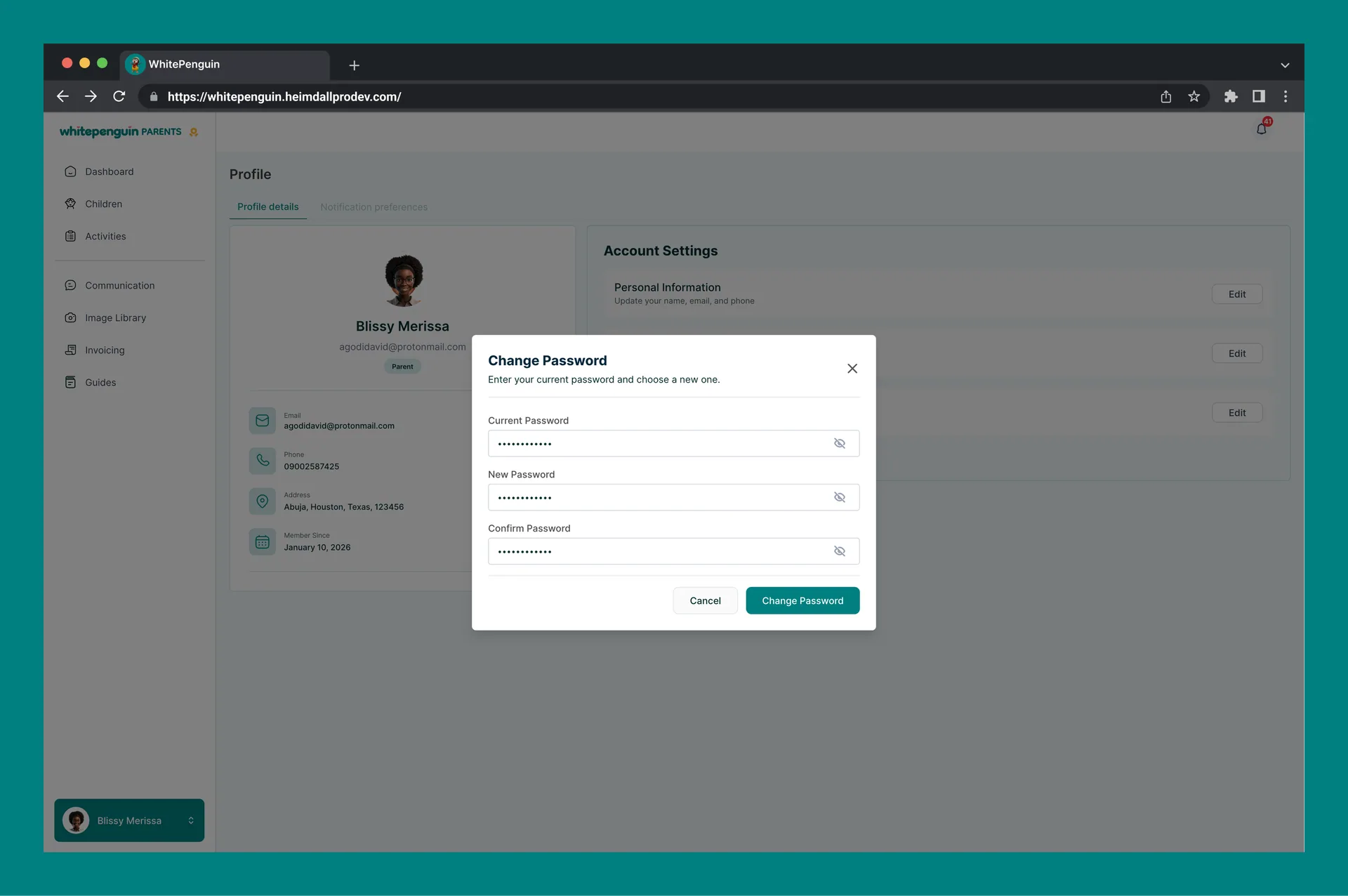
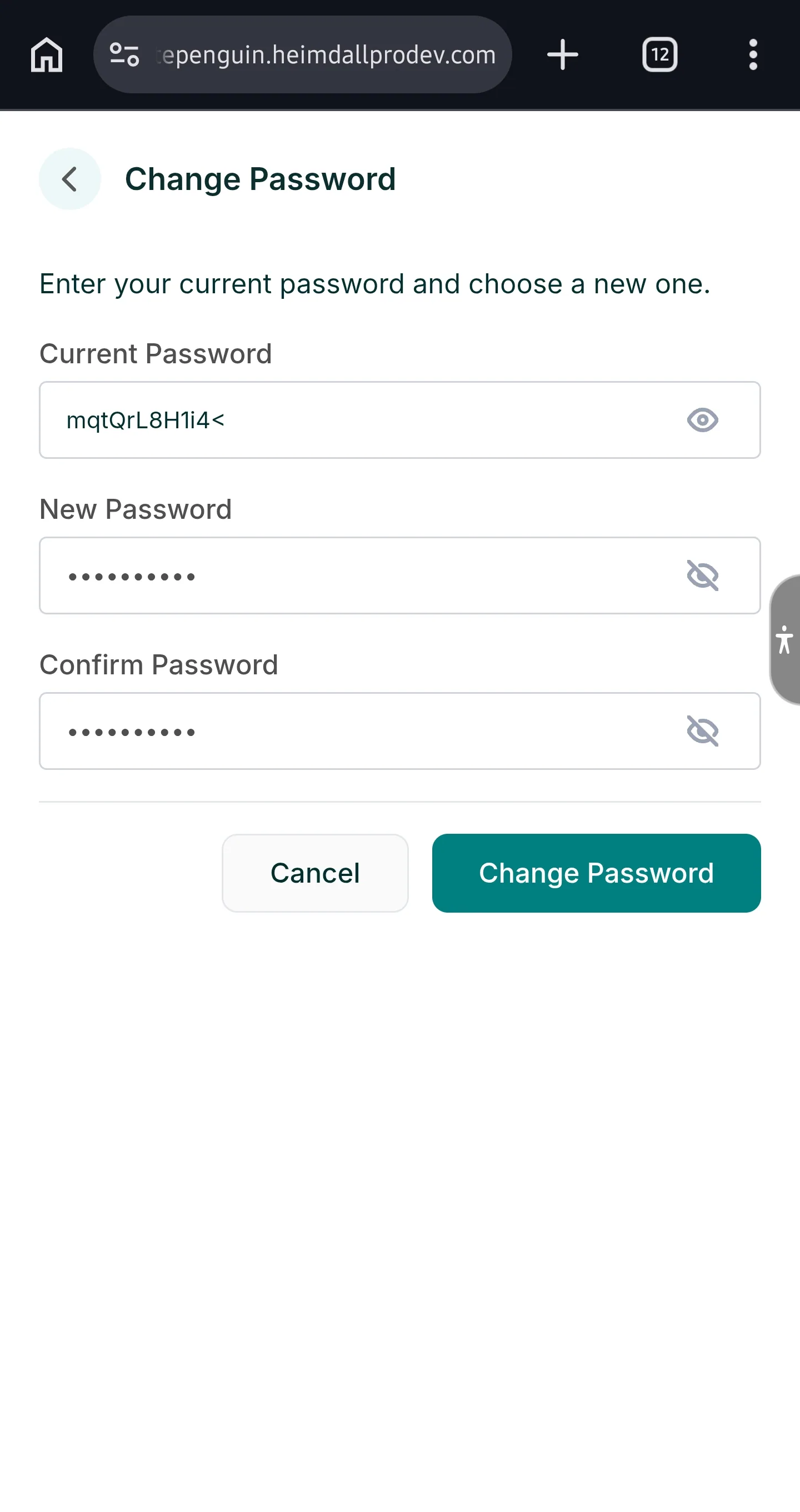
- The Change Password dialog will open with three fields:
| Field | Description |
|---|---|
| Current Password | Enter your existing password to verify your identity. |
| New Password | Enter the new password you want to use. |
| Confirm Password | Re-enter your new password to confirm it matches. |
- Use the eye icon (👁️) on each field to toggle password visibility.
- Click Change Password to save, or Cancel to discard.
Security tip: Choose a strong password that is at least 8 characters long and includes a mix of letters, numbers, and special characters. Do not share your password with anyone.
Notification Preferences
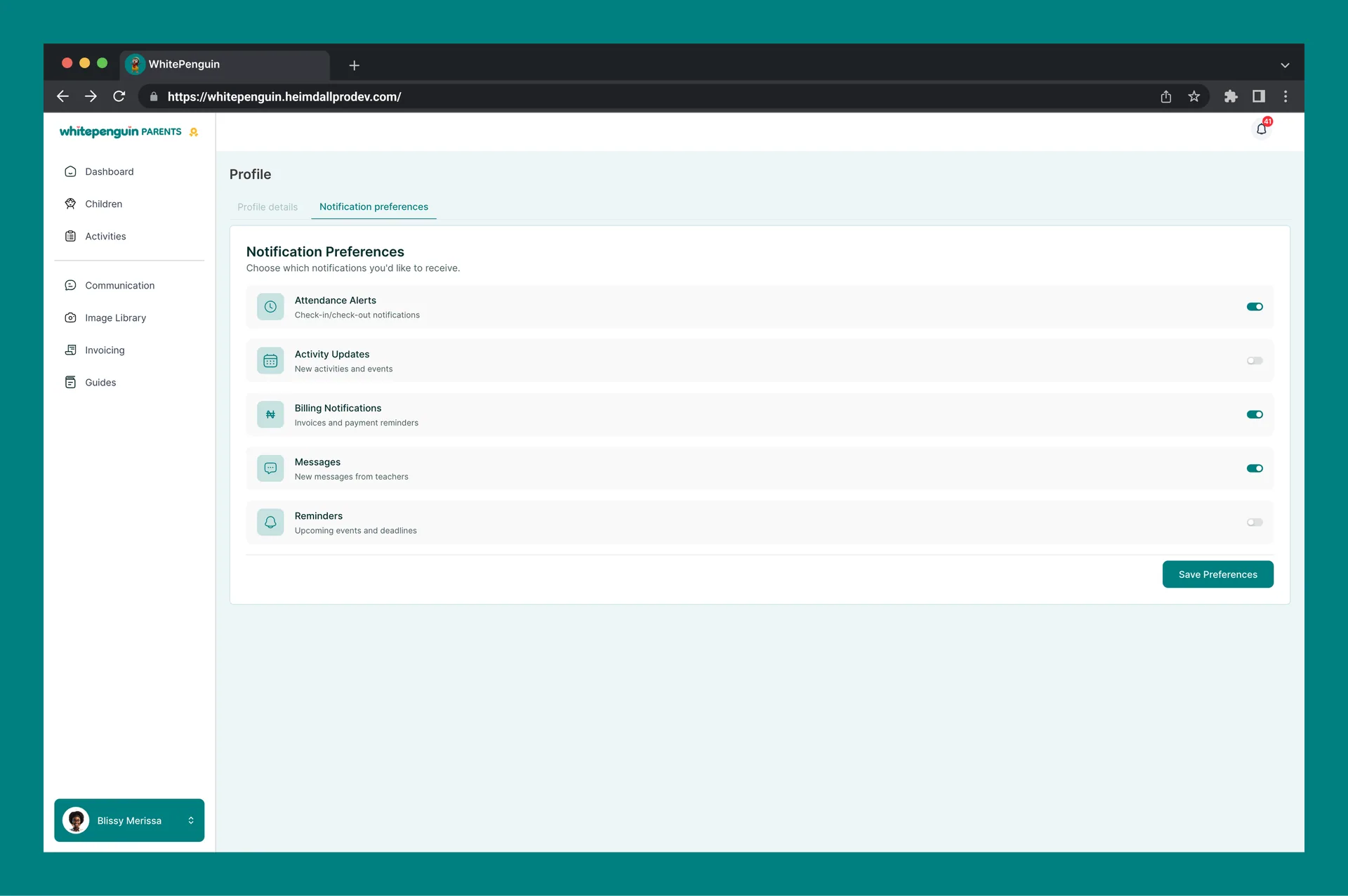
The Notification Preferences tab lets you choose which types of notifications WhitePenguin sends you.
To access Notification Preferences:
- Click the Notification preferences tab at the top of the Profile page.
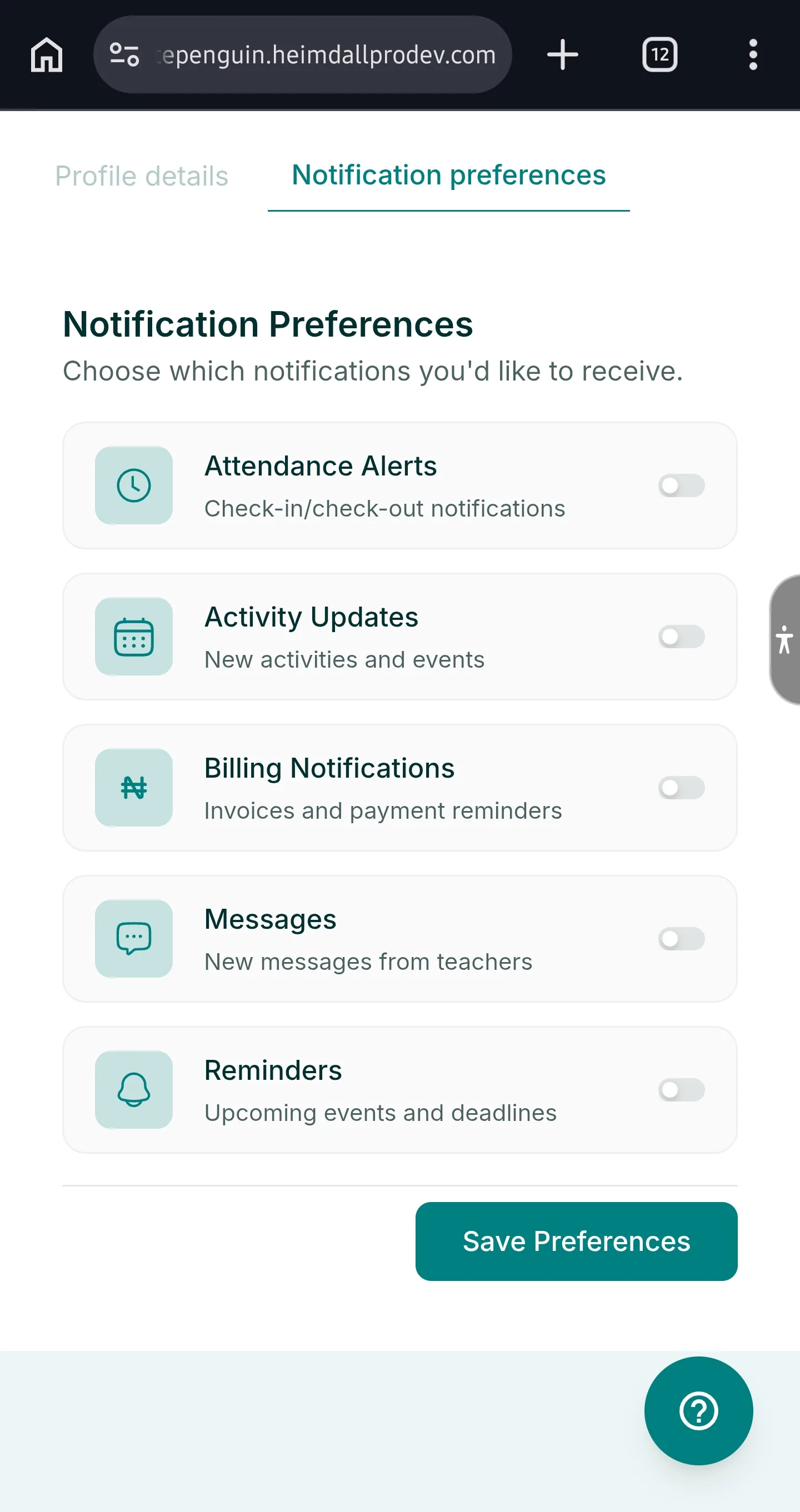
- The Notification Preferences section will load, showing all available notification types with toggle switches.
Available Notification Types
| Notification | Description | Default |
|---|---|---|
| Attendance Alerts | Check-in/check-out notifications — notifies you when your child is checked in or out at school. | Off ❌ |
| Activity Updates | New activities and events — notifies you when new activities or events are added for your child. | Off ❌ |
| Billing Notifications | Invoices and payment reminders — notifies you when a new invoice is issued or a payment is due. | Off ❌ |
| Messages | New messages from teachers — notifies you when a teacher or admin sends you a message. | Off ❌ |
| Reminders | Upcoming events and deadlines — notifies you about upcoming events, deadlines, or important dates. | Off ❌ |
To update your preferences:
- Toggle each notification type on or off using the toggle switch on the right.
- Click Save Preferences at the bottom right to apply your changes.
Tip: We recommend keeping Attendance Alerts, Billing Notifications, and Messages turned on so you never miss a check-in alert, payment reminder, or message from a teacher.
Tips
- Keep your contact information up to date. Your phone number and email address are used by the school to reach you for important updates. Make sure they are current at all times.
- Upload a clear profile photo. A recognizable profile photo helps the school's staff identify you quickly during pick-up, drop-off, and in-person visits.
- Change your password regularly. For security, update your password every few months. Use a unique password that you don't use on other websites.
- Enable Attendance Alerts. These notify you the moment your child checks in or out of school — an important safety feature.
- Turn on Billing Notifications. This ensures you receive invoice alerts and payment reminders, helping you avoid overdue balances.
- Save preferences after making changes. Always click Save Preferences or Save Changes after editing any section — changes are not applied automatically.
- Access profile options quickly via the sidebar menu. Click your name at the bottom-left to access Profile, Reset Kiosk PIN, Notification Preferences, and Log Out without navigating away from your current page.
FAQs
Go to Profile → Profile Details tab → click Edit next to Personal Information. Update your First Name, Last Name, Email Address, or Phone Number in the dialog and click Save Changes.
Click Edit next to Personal Information on the Profile Details tab. In the dialog, click Upload at the top to select a new photo from your device. Maximum file size is 10 MB. Click Save Changes to apply.
Go to Profile → Profile Details tab → click Edit next to Address. Fill in your Street Address, City, State, and Postal Code and click Save Changes.
Go to Profile → Profile Details tab → click Edit next to Password. Enter your current password, then enter and confirm your new password. Click Change Password to save.
The Change Password dialog requires your current password to proceed. If you've forgotten it, use the Forgot Password option on the login page to reset your password via your registered email address.
Go to Profile → Notification preferences tab. Find Billing Notifications and toggle the switch to off. Click Save Preferences to apply. Note that turning this off means you will not receive invoice or payment reminder alerts.
Go to Profile → Notification preferences tab. Find Reminders and toggle the switch to on. Click Save Preferences. You will then receive notifications about upcoming school events, deadlines, and important dates.
Your Member Since date is displayed in your profile summary card on the left side of the Profile Details tab (e.g., January 10, 2026).
Click your name and avatar at the bottom-left of the sidebar to open the account menu. Select Log Out (shown in red) to sign out of the WhitePenguin parent portal securely.
Last updated on
Manage My Invoices
Learn how to view, download, and manage your school invoices in WhitePenguin — track outstanding balances, understand invoice types, and pay securely online using Paystack or Bank Transfer.
Add App Link to Your Home Screen (Mobile)
Learn how to add the WhitePenguin parent portal to your mobile home screen for quick, one-tap access — no app download required. Works on Android and iOS.