

My Child's Activities
Learn how to view all daily activities logged for your children in WhitePenguin — browse the full activity feed, filter by child and time period, and tap into any entry to see its complete details.
Overview
The Activities page in WhitePenguin gives you a complete, chronological feed of every activity logged by your child's teachers throughout the day. Whether it's a meal, nap, photo, water intake, medication, or bathroom visit — every entry is recorded here so you stay fully informed about your child's daily experience at school.
You can:
- View all activities across all your children in one unified list
- Filter activities by a specific child or time period
- Click on any activity to see its full details, including who logged it, when it happened, and any notes or media attached
How to Access
- Log in to the WhitePenguin parent portal.
- Click Activities in the left sidebar.
- The Activities feed will load, showing the most recent entries at the top.
You can also view a child-specific activity feed directly from their profile: go to Children → select a child → click the Activities tab.
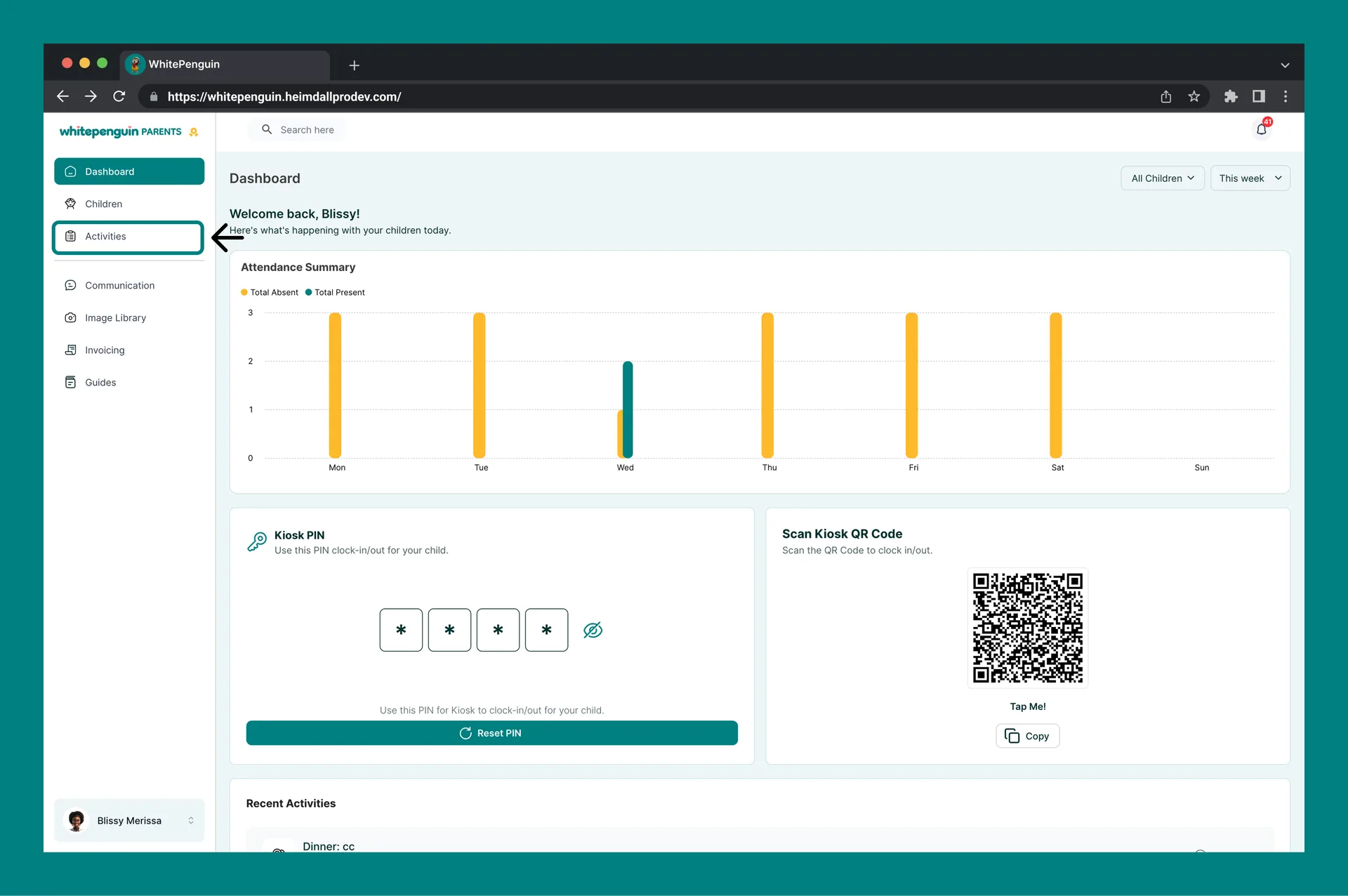
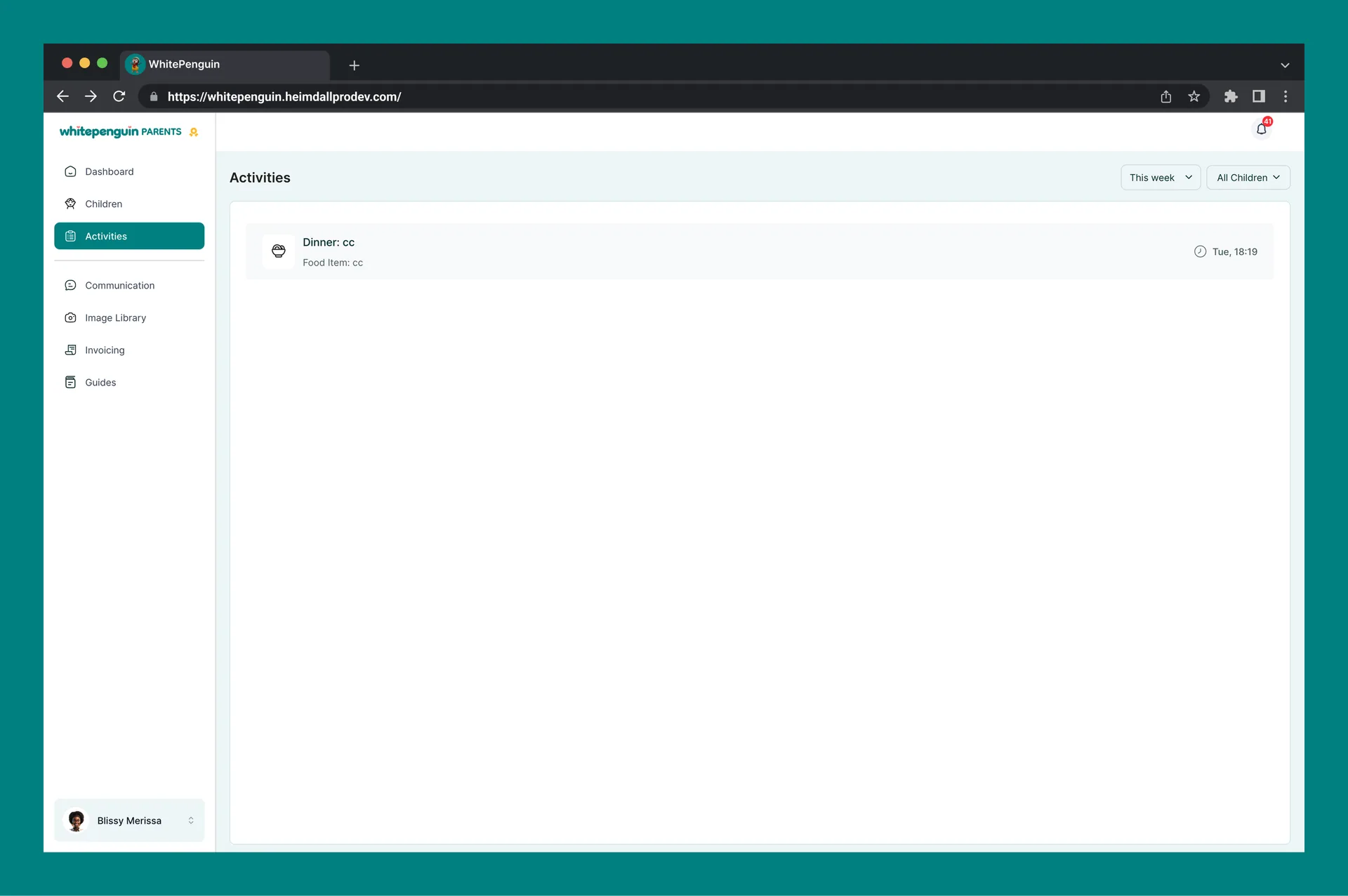
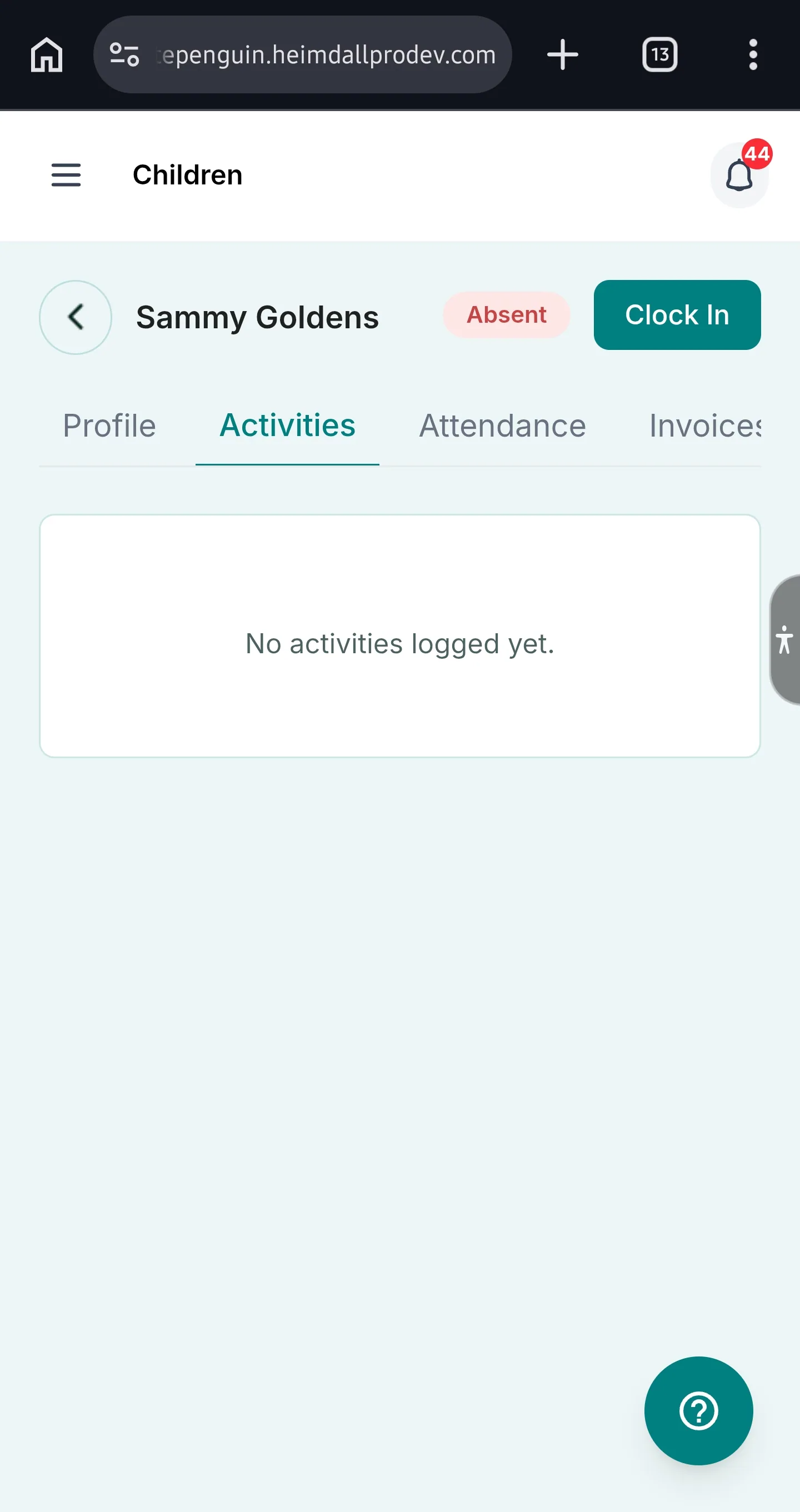
Activities Page
Filters — Time Period & Children
Two filters at the top right of the Activities page control which entries are shown:
| Filter | Options | What It Does |
|---|---|---|
| Time Period | Today, This Week, This Month, Last Month, This Year, Last Year, Custom | Narrows the activity feed to entries within the selected date range. |
| Children | All Children, or a specific child's name | Filters the feed to show activities for all your children or just one selected child. |
Use the Custom option in the Time Period filter to set a specific start and end date — useful when you want to look back at activities from a particular week or month.
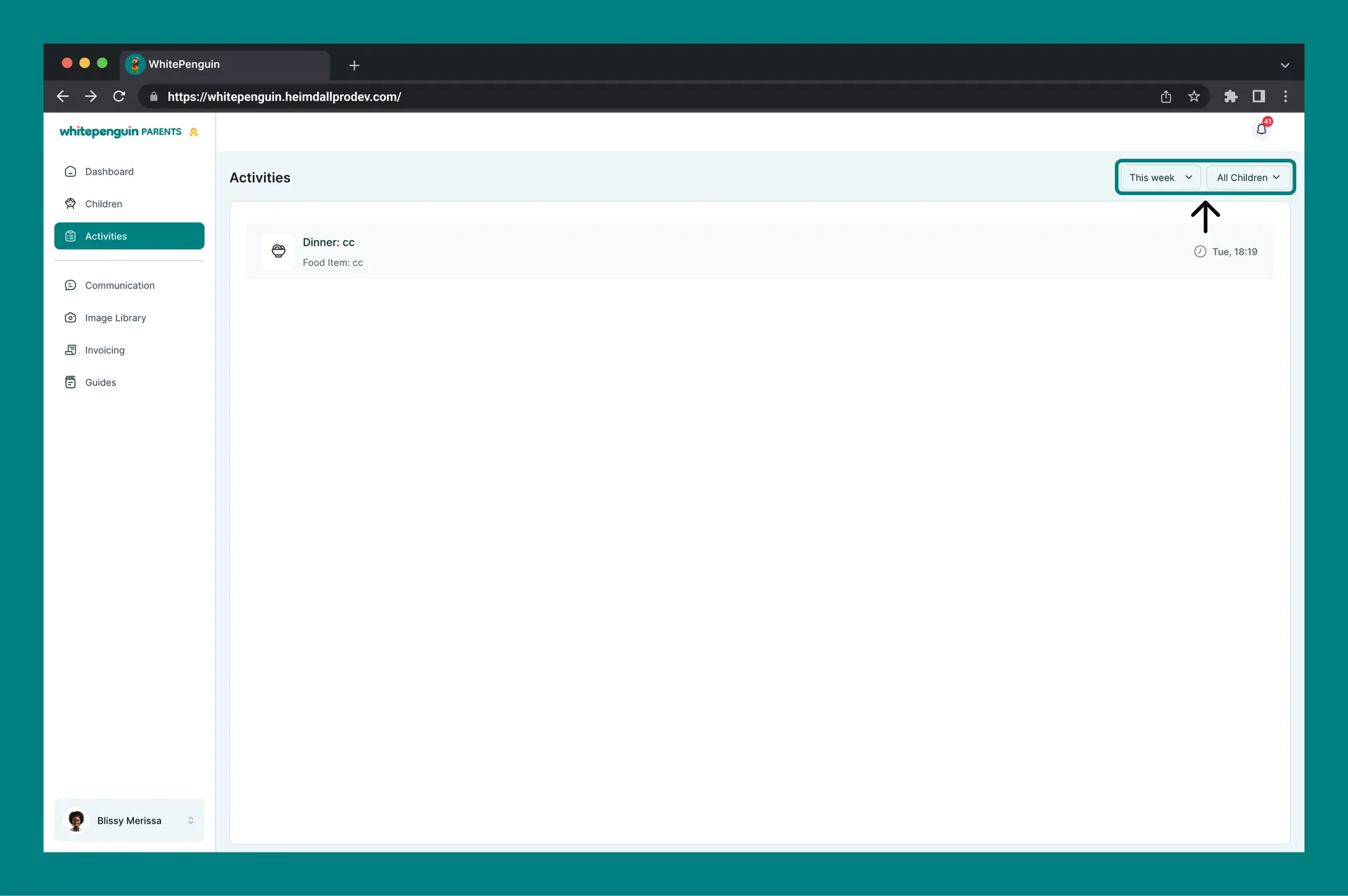
Activity Feed
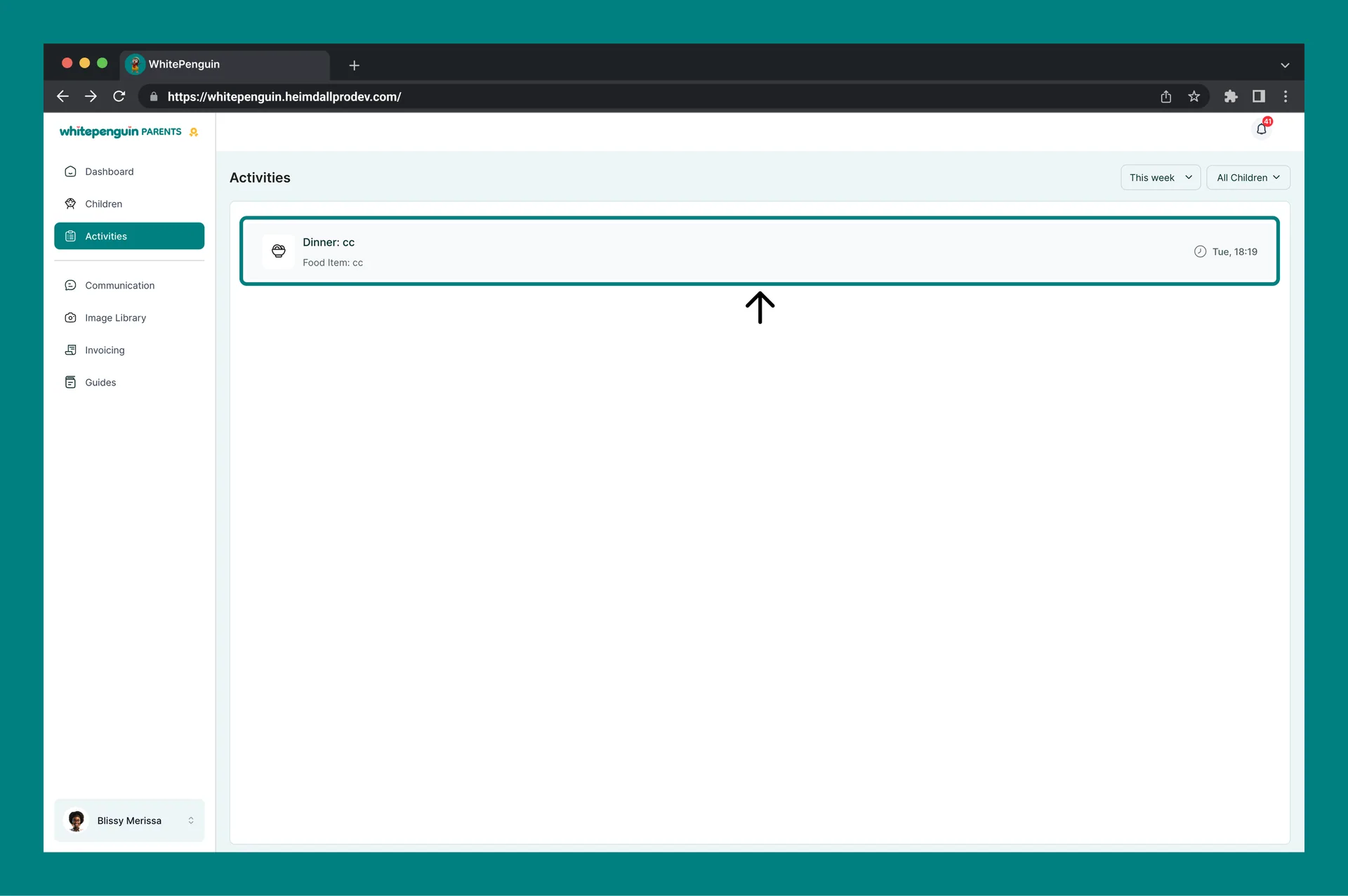
The main content area is a scrollable list of activity entries, ordered from most recent to oldest. Each entry in the list shows:
| Element | Description |
|---|---|
| Activity Icon | A small icon indicating the activity type (e.g., fork/knife for meals, clock for nap, camera for photo, drop for water, pill for medication). |
| Activity Title | The name and subtype of the activity (e.g., "Dinner: rice", "Nap Time", "Photo Activity", "Water Intake", "Breakfast: Bread", "Medication Administered: na"). |
| Note Preview | A short preview of the teacher's note (e.g., "Ate 3 spoons", "Took a nap for one hour", "No additional notes provided."). |
| Timestamp | The date and time the activity was logged, displayed on the right (e.g., "May 18, 18:28 – 19:29", "Yesterday, 18:19"). |
Click on any activity entry to open its full detail popup.
Activity Types
Teachers can log the following types of activities:
| Activity Type | What It Covers |
|---|---|
| Meal (Breakfast / Lunch / Dinner / Snack) | Food items the child ate, including the specific food name and any notes (e.g., "Ate 3 spoons"). |
| Nap Time | Sleep or rest periods, with duration and any behavioral notes (e.g., "Slept for an hour and didn't cry"). |
| Photo Activity | A photo or media entry, with an optional caption or note from the teacher. |
| Water Intake | Hydration log entries (e.g., "Drank one cup of cold water"). |
| Medication Administered | A record of any medication given to the child at school, with notes. |
| Bathroom | Bathroom visits logged by teachers. |
View Selected Activity — Detail Popup
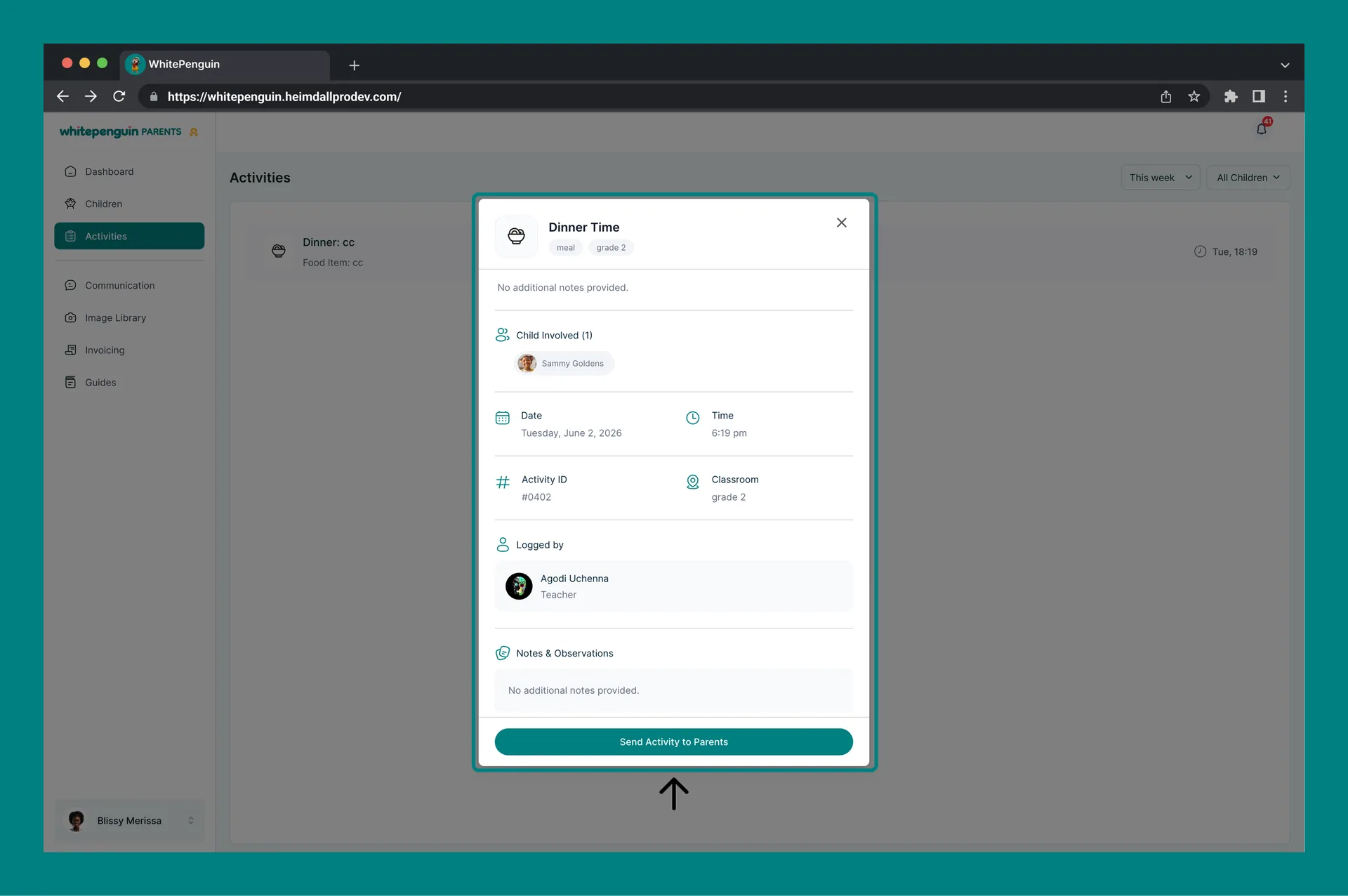
Clicking on any activity entry opens a detail popup with the full record for that activity. The popup layout varies slightly depending on the activity type, but always includes the following sections:
Header
- Activity title (e.g., "Nap Time", "Media Activity")
- Tags showing the activity category and the child's grade (e.g.,
napgrade 25,photograde 2) - Notes — the teacher's note or observation displayed at the top (e.g., "This is his medication he took that caused the reaction")
Activity Details
| Field | Description |
|---|---|
| Child Involved | The name and avatar of the child this activity was logged for. |
| Date | The full date the activity took place (e.g., Thursday, January 29, 2026). |
| Time | The time or time range of the activity (e.g., 9:58 AM, or 2:36 pm – 2:39 pm). |
| Duration | How long the activity lasted (shown for Nap Time entries, e.g., 3 minutes). |
| Activity ID | A unique reference number for this activity log entry (e.g., #0019, #0178). |
| Classroom | The classroom associated with the activity (e.g., grade 2, grade 25). |
Media (Photo Activities only)
For Photo Activity entries, the popup displays the attached image or media directly below the activity details. Multiple photos may appear if more than one image was attached to the entry.
Logged By
Shows the name and role of the staff member who logged the activity (e.g., Henry Oaks — Admin, Agodi Uchenna — Teacher).
Notes & Observations
The full teacher's note or observation is repeated at the bottom of the popup in a dedicated section. If no note was added, it will show: "No additional notes provided."
Tips
- Filter by child to focus the feed. If you have multiple children, switch the Children filter to a specific child's name so the feed only shows their entries — making it easier to spot patterns.
- Use "This Year" to get the full history. The default time period may be set to This Year, giving you the longest view of all logged activities. Narrow it to This Month or a custom range when looking for something specific.
- Photo Activities contain attached media. When you see a Photo Activity entry in the list, click it to view the photo or media shared by the teacher inside the detail popup.
- Check Medication Administered entries carefully. If a teacher logs a medication activity, it will appear as "Medication Administered" in the feed. Click it to see the full note including what was administered and any observations.
- Nap entries include duration. Each Nap Time popup shows the exact duration of the nap alongside the start and end times — useful for tracking your child's rest patterns.
- Logged by field shows accountability. Every activity detail popup shows which staff member (teacher or admin) logged the entry, so you always know who recorded each activity.
FAQs
Use the Children filter at the top right of the Activities page. Click the dropdown (default shows "All Children") and select the specific child you want to view. The feed will update to show only their activities.
You can view activities as far back as your school has been using WhitePenguin. Use the Time Period filter and select This Year, Last Year, or a Custom date range to browse older entries.
Look for entries labeled Photo Activity in the feed. Click on the entry to open the detail popup — the attached photo or media will be displayed inside the popup under the activity details section.
Teachers log medication entries as Medication Administered in the activity feed. Click the entry to see the full note, including what was given and any observations from the teacher.
Yes. Click on any Nap Time entry to open the detail popup. The popup includes a Duration field showing exactly how long the nap lasted, along with the exact start and end times.
Yes. Meal activities (Breakfast, Lunch, Dinner, Snack) are logged by teachers and appear in the Activities feed. The title shows the meal type and food item (e.g., "Lunch: Eba and okro"), and the note preview or detail popup shows any additional observations.
Activities are logged by the school's teachers and admin staff using the WhitePenguin teacher or admin portal. Every activity detail popup includes a Logged by section showing the name and role of the staff member who recorded the entry.
This could mean no activities have been logged for the selected time period or child. Try changing the Time Period filter to a wider range (e.g., This Year) and make sure the Children filter is set to All Children. If the feed remains empty, it's possible your school hasn't started logging activities yet — contact your school admin.
Last updated on
My Child's Profile & Management
Learn how to view and manage your children's profiles in WhitePenguin — access their personal details, daily activities, attendance records, invoices, progress reports, and learning milestones all in one place.
Messaging & Announcements
Learn how to use the Communication section in WhitePenguin — send direct messages to teachers or admins, view your message history, and read school-wide announcements all in one place.