

Understanding My Dashboard
Learn how to use your parent dashboard in WhitePenguin — view your children's attendance at a glance, access your Kiosk PIN and QR code for check-in/out, and stay on top of recent activities.
Overview
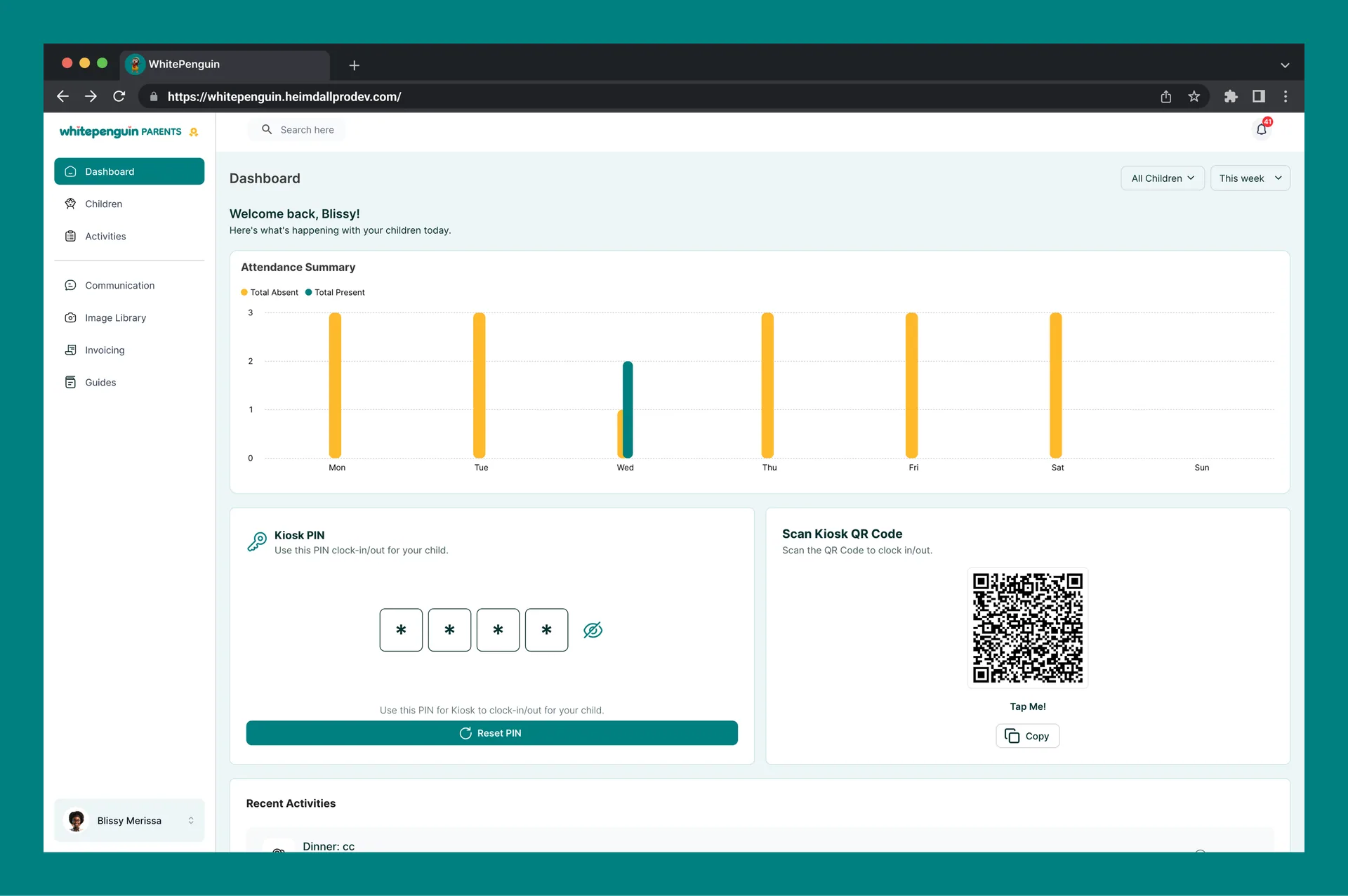
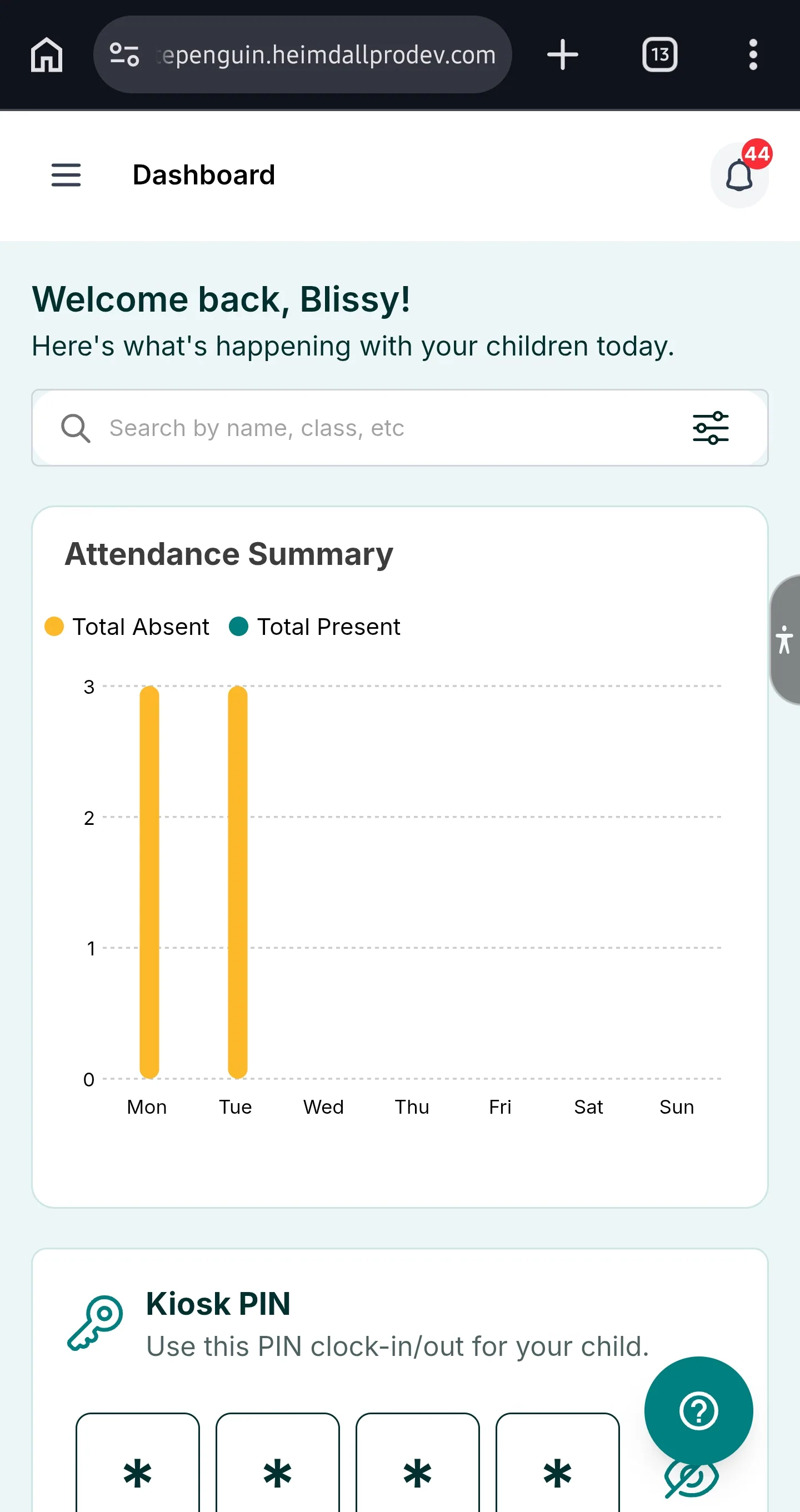
The Dashboard is the first thing you see when you log in to the WhitePenguin parent portal. It gives you a personalized, real-time summary of everything happening with your children — attendance trends, recent activities, and quick access to your Kiosk check-in tools.
The Dashboard is designed to help you:
- See how many days each child was present or absent
- Quickly check in or check out your child at the school kiosk using a PIN or QR code
- Stay updated on the latest activities logged by your child's teachers
How to Access
- Log in to the WhitePenguin parent portal using your email and password.
- You will land on the Dashboard automatically after logging in.
- If you navigate away, click Dashboard in the left sidebar to return.
First time? You'll receive an invitation email from your child's school after a staff member adds your child's profile. Click the link in the email, set your password, and you'll be taken straight to your Dashboard.
Dashboard Sections
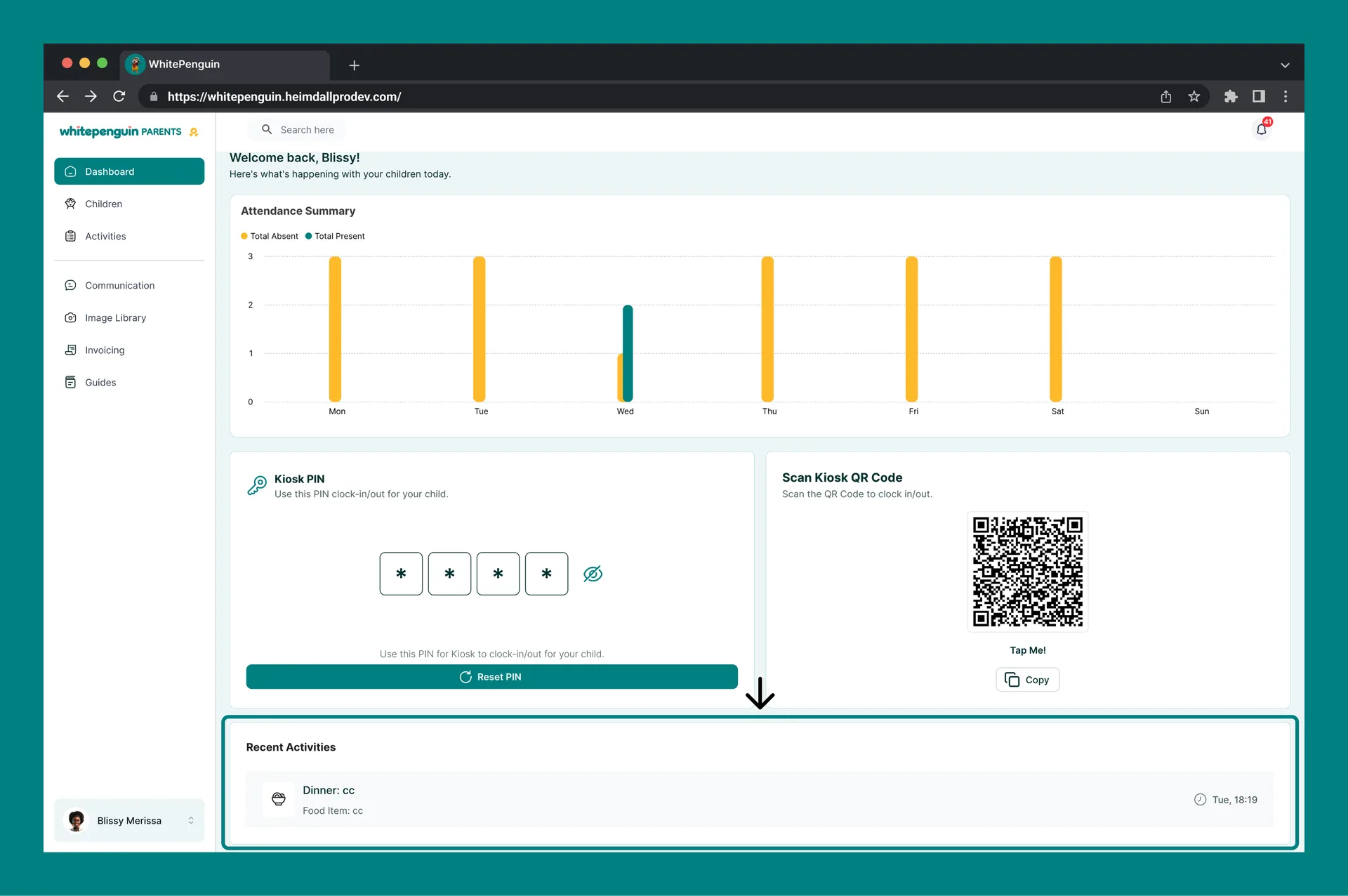
1. Welcome Banner
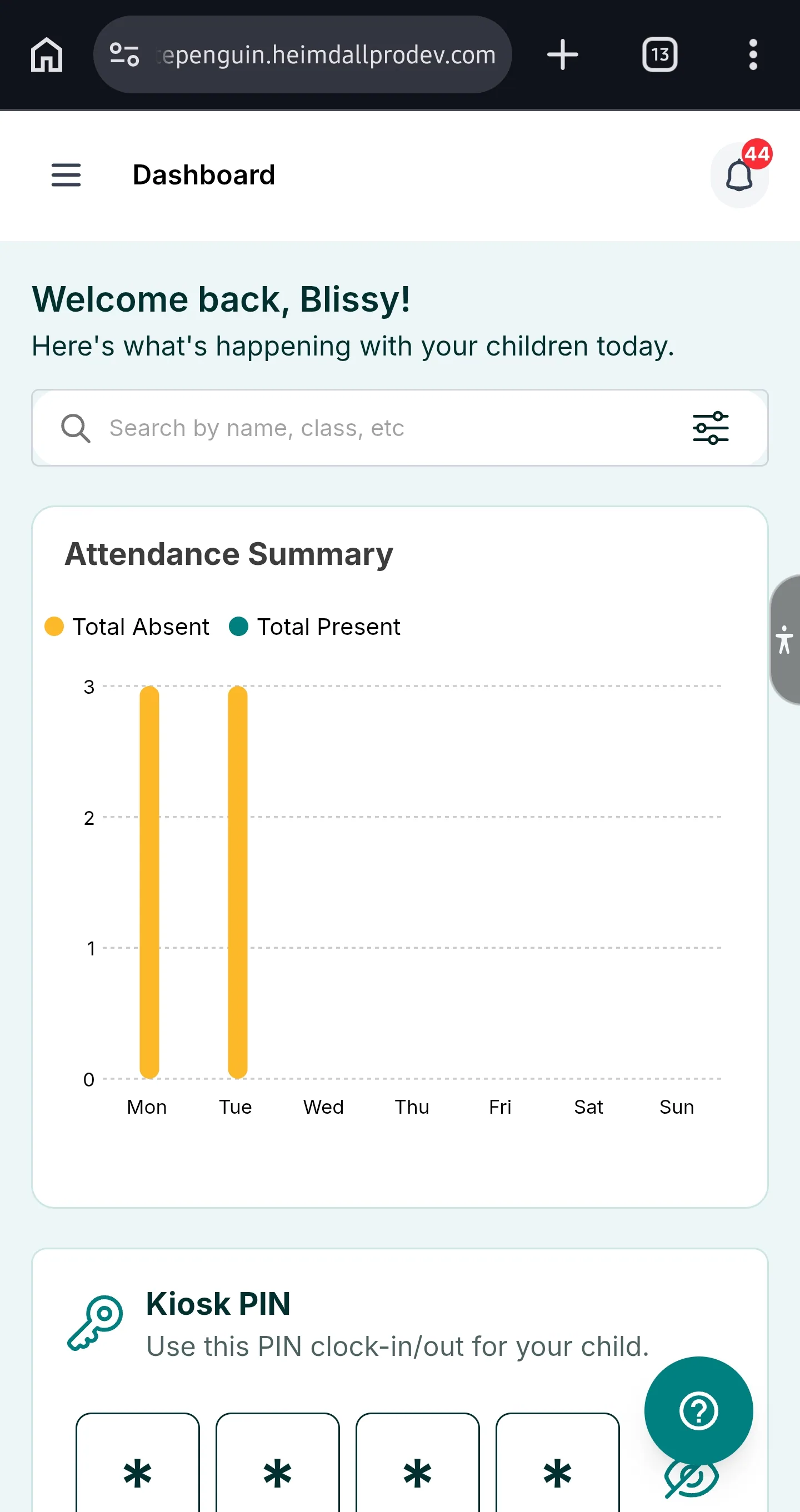
At the top of the Dashboard, you'll see a personalized welcome message — "Welcome back, [Your Name]!" — along with a short note: "Here's what's happening with your children today."
2. Filters — Children & Time Period
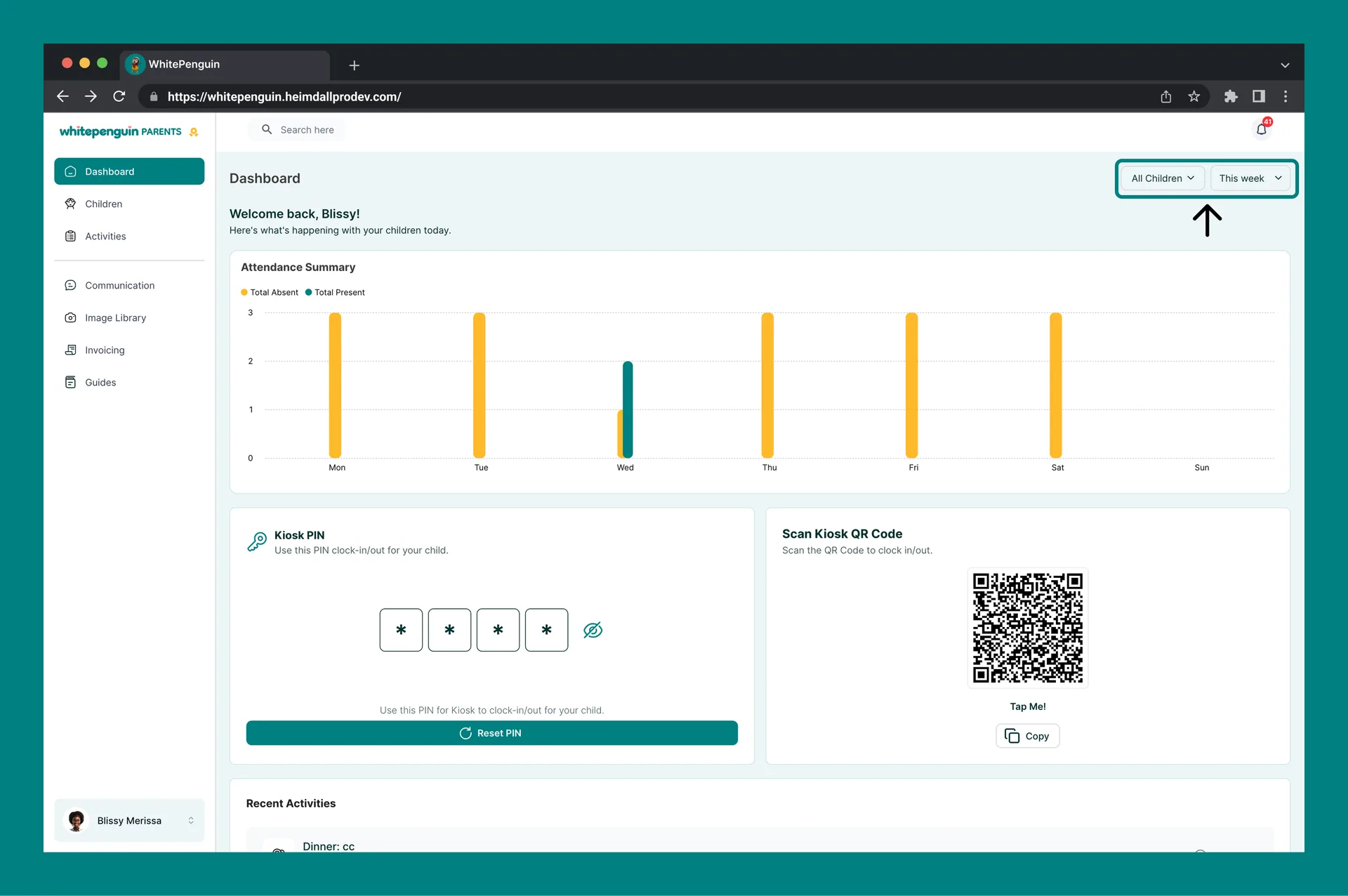
The top-right corner has two filters that control all the data shown on the Dashboard:
| Filter | Options | What It Does |
|---|---|---|
| All Children | All Children, or select an individual child by name | Filters the attendance chart and recent activities to show data for all your children or a specific child. |
| Time Period | Today, This Week, This Month, Last Month, This Year, Last Year, Custom | Filters the attendance chart by the selected date range. |
Custom date range: Select Custom from the time period dropdown to manually pick a start and end date for the attendance chart.
3. Attendance Summary Chart
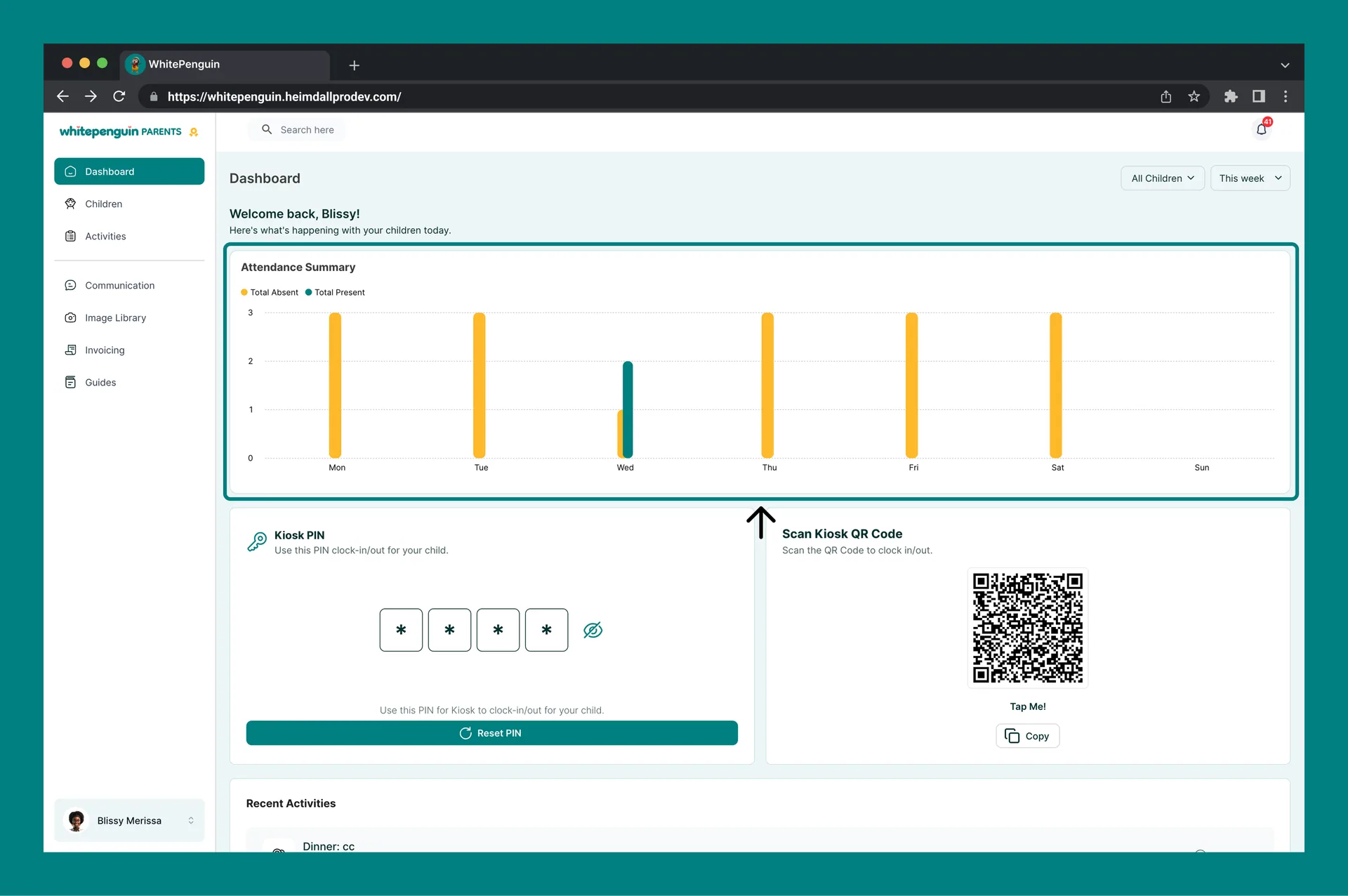
The Attendance Summary section shows a bar chart of your child's attendance over the selected time period.
- Orange bars represent days when the child was absent.
- Green dots/bars represent days when the child was present.
- The chart's X-axis shows the days of the week (Mon, Tue, Wed, Thu, Fri, Sat, Sun).
- The Y-axis shows the count of absences or presences per day.
Use the All Children filter to switch between a combined view for all your children or a focused view for one specific child.
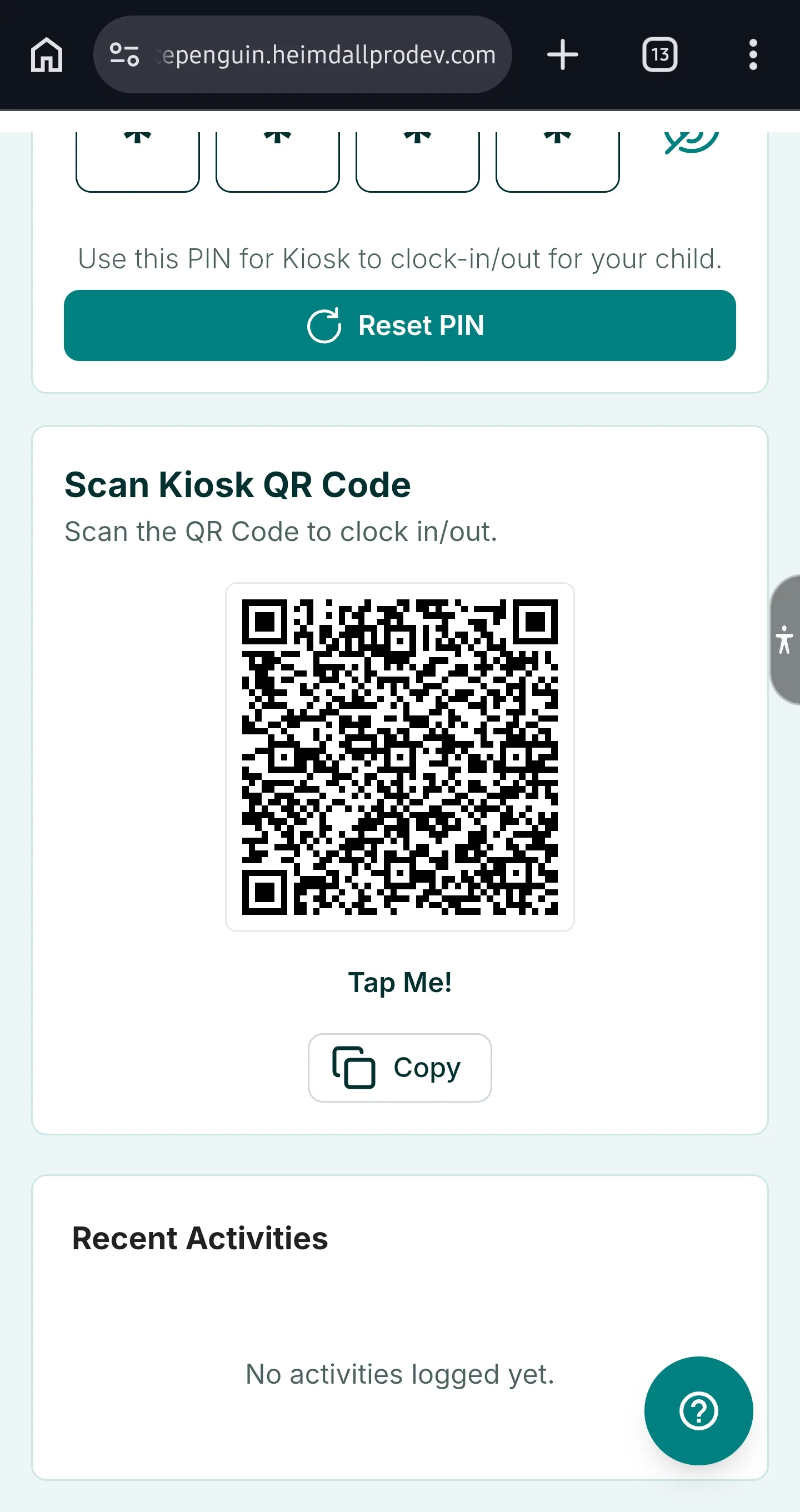
4. Kiosk PIN
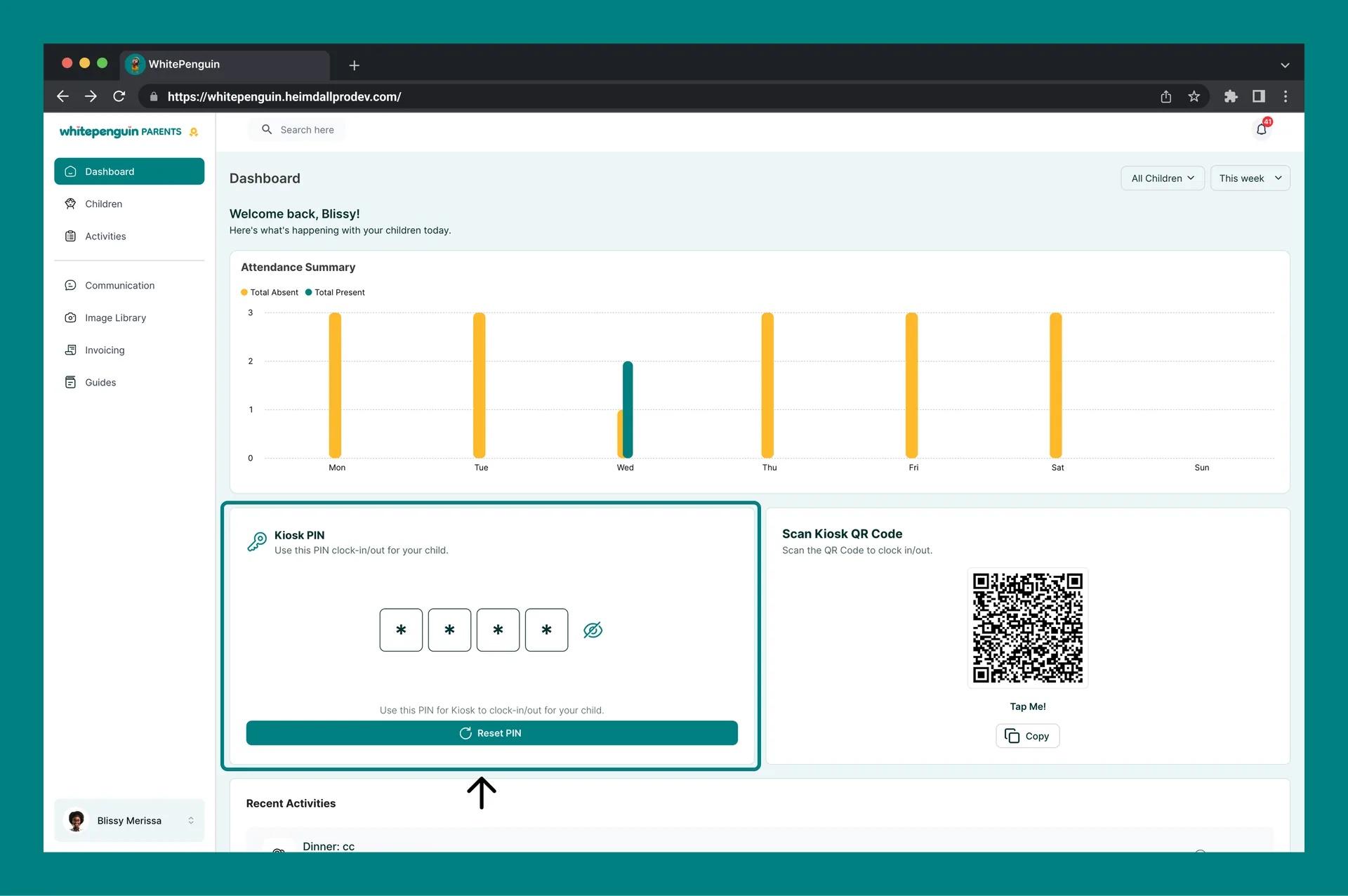
The Kiosk PIN section provides your unique 4-digit PIN for checking your child in or out at the school's kiosk terminal.
| Feature | Description |
|---|---|
| Your PIN | A 4-digit code displayed as individual digit boxes. This PIN is unique to your account. |
| Show/Hide PIN | Click the 👁️ eye icon next to the PIN to reveal or hide the digits. |
| Reset PIN | Click the Reset PIN button to generate a new 4-digit PIN for your account. Your old PIN will no longer work after resetting. |
Keep your PIN private. Your Kiosk PIN is used to clock your child in and out at school. Do not share it with others unless they are authorized to pick up your child.
5. Scan Kiosk QR Code
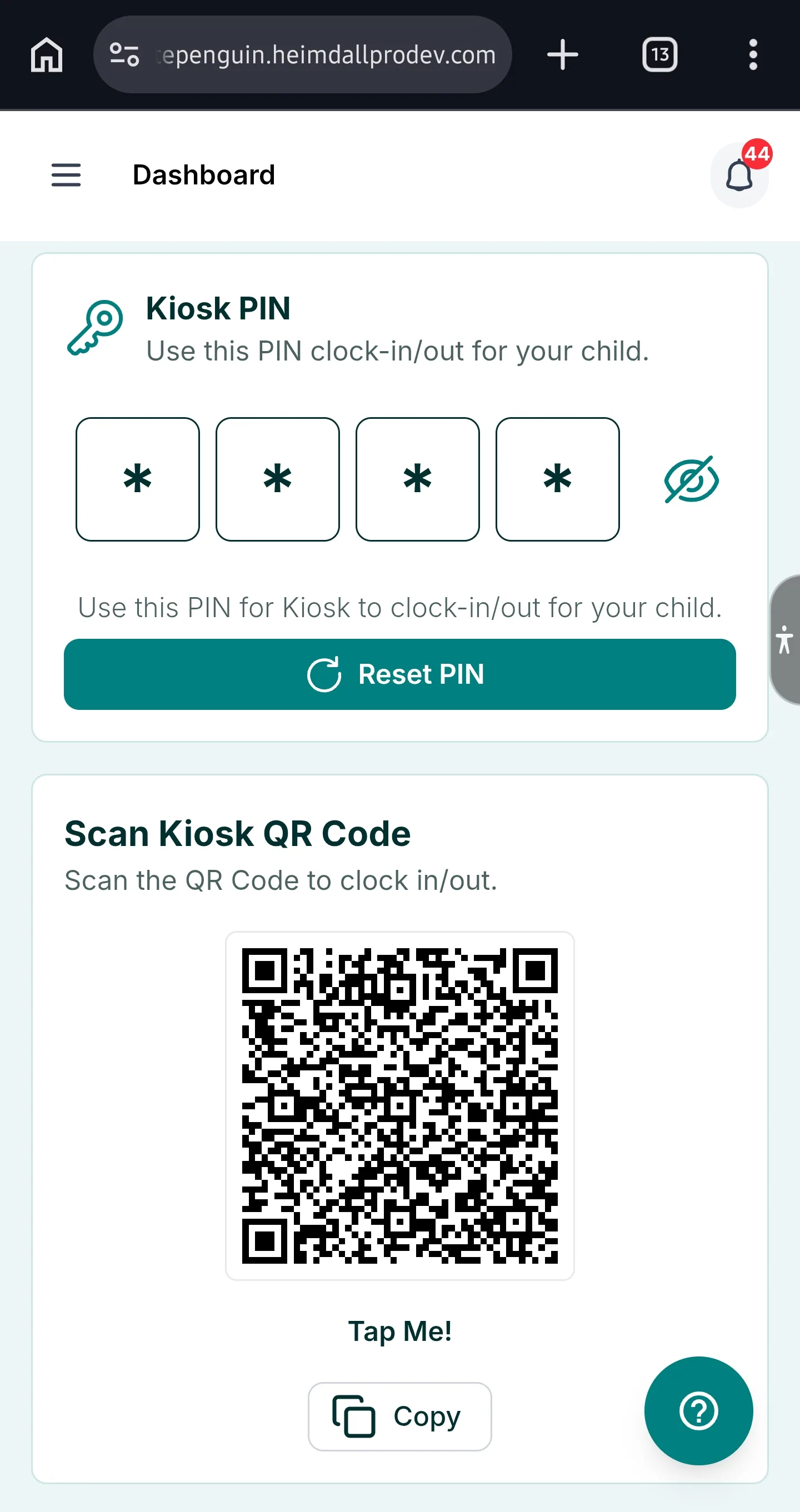
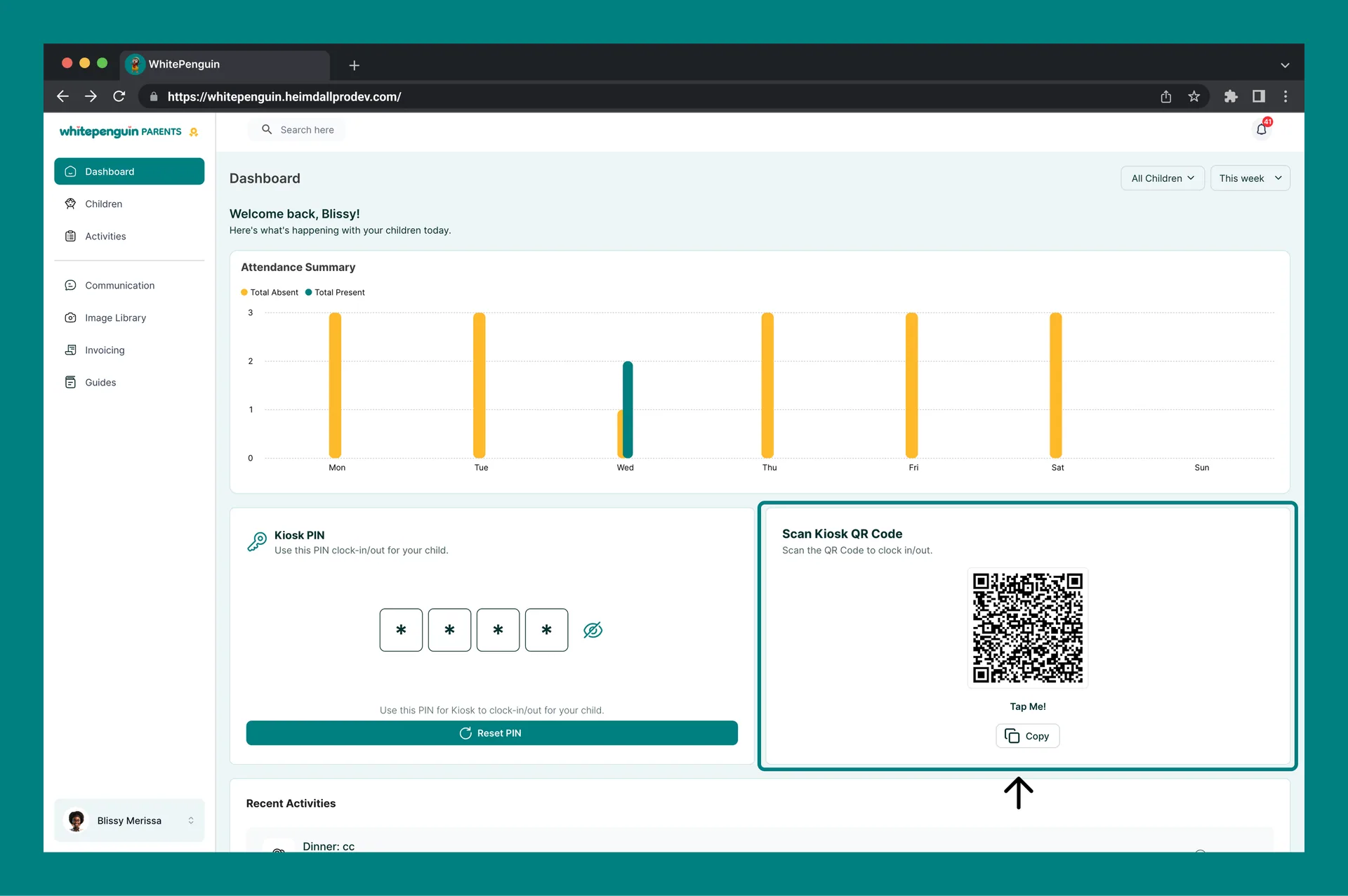
Alternatively, you can use your QR code instead of the PIN to check in or out at the kiosk.
| Feature | Description |
|---|---|
| QR Code | A unique QR code is generated for your account. Point the kiosk camera at this code to clock in/out. |
| Tap Me! | Tap the QR code image to enlarge it for easier scanning at the kiosk. |
| Copy | Click the Copy button to copy the QR code link to your clipboard. |
6. Recent Activities
The Recent Activities feed at the bottom of the Dashboard shows the latest activities logged by your child's teachers — such as meals, naps, water intake, photos, medications, and bathroom visits.
Each activity entry shows:
- The activity type (e.g., Dinner, Nap Time)
- Any notes added by the teacher
- The date and time the activity was logged
Use the All Children filter to view activities for all your children or filter to a specific child.
Tips
- Tap the QR code to enlarge it. When you're at the school kiosk, tap the QR code on your phone screen to make it bigger and easier to scan.
- Reset your PIN if you think it's been shared. Use the Reset PIN button to immediately generate a new PIN. This invalidates the old one.
- Use the child filter to focus on one child. If you have multiple children enrolled, click the All Children dropdown and select a specific child to see only their attendance and activities.
- Use Custom date range for specific periods. Need to check attendance for a school trip week or a specific month? Select Custom in the time period dropdown to set exact dates.
- Check Recent Activities regularly. Teachers log naps, meals, photos, and more throughout the day. Checking this section keeps you informed about your child's day without needing to call the school.
- Save your QR code. You can copy the QR code link and save it in a convenient spot on your phone for quick kiosk access when dropping off or picking up.
FAQs
Your Kiosk PIN is a 4-digit code used to clock your child in or out at your school's kiosk terminal. Enter the PIN at the kiosk when dropping off or picking up your child. Each parent account has a unique PIN.
Click the Reset PIN button in the Kiosk PIN section of your Dashboard. A new 4-digit PIN will be generated immediately. Your old PIN will stop working as soon as you reset it.
Yes. The Scan Kiosk QR Code section on your Dashboard provides a unique QR code for your account. Simply show it to the kiosk camera to check your child in or out — no PIN required. Tap the QR code to enlarge it for easier scanning.
Yes. Use the All Children dropdown filter at the top right of the Dashboard to switch between a combined view for all your children or a focused view for a specific child. The attendance chart and Recent Activities feed will update accordingly.
The chart shows your child's attendance across the selected time period. Orange bars indicate absent days and green indicators show present days. Use the time period filter to adjust the range — from Today all the way to Last Year, or set a Custom date range.
You can filter by: Today, This Week, This Month, Last Month, This Year, Last Year, or Custom (where you pick your own start and end date).
Recent Activities shows the latest entries logged by your child's teachers, including meals (breakfast, lunch, dinner, snack), nap times, water intake, photos, medication, and bathroom visits. Each entry shows the activity type, any teacher notes, and the time it was logged.
Yes. Your QR code is unique to your parent account and is linked to your children's check-in records. Treat it like your PIN — do not share it with unauthorized individuals. If needed, contact your school admin to discuss access controls.
Last updated on
Parent Dashboard
Guides for parents: your WhitePenguin dashboard, your child's profile and activities, messages, photos, invoices and profile.
My Child's Profile & Management
Learn how to view and manage your children's profiles in WhitePenguin — access their personal details, daily activities, attendance records, invoices, progress reports, and learning milestones all in one place.