

Account & Security
Learn how to change your account password and keep your WhitePenguin account secure. This feature is available to all users — Admins, Staff, and Parents.
Overview
The Account & Security section allows any user to update their account password at any time. It is designed to help you maintain a strong, secure password that protects your account and your school's data.
This section is available to all user types in WhitePenguin:
| User Type | Can access Account & Security? |
|---|---|
| Admin | ✅ Yes — via Settings → Account & Security |
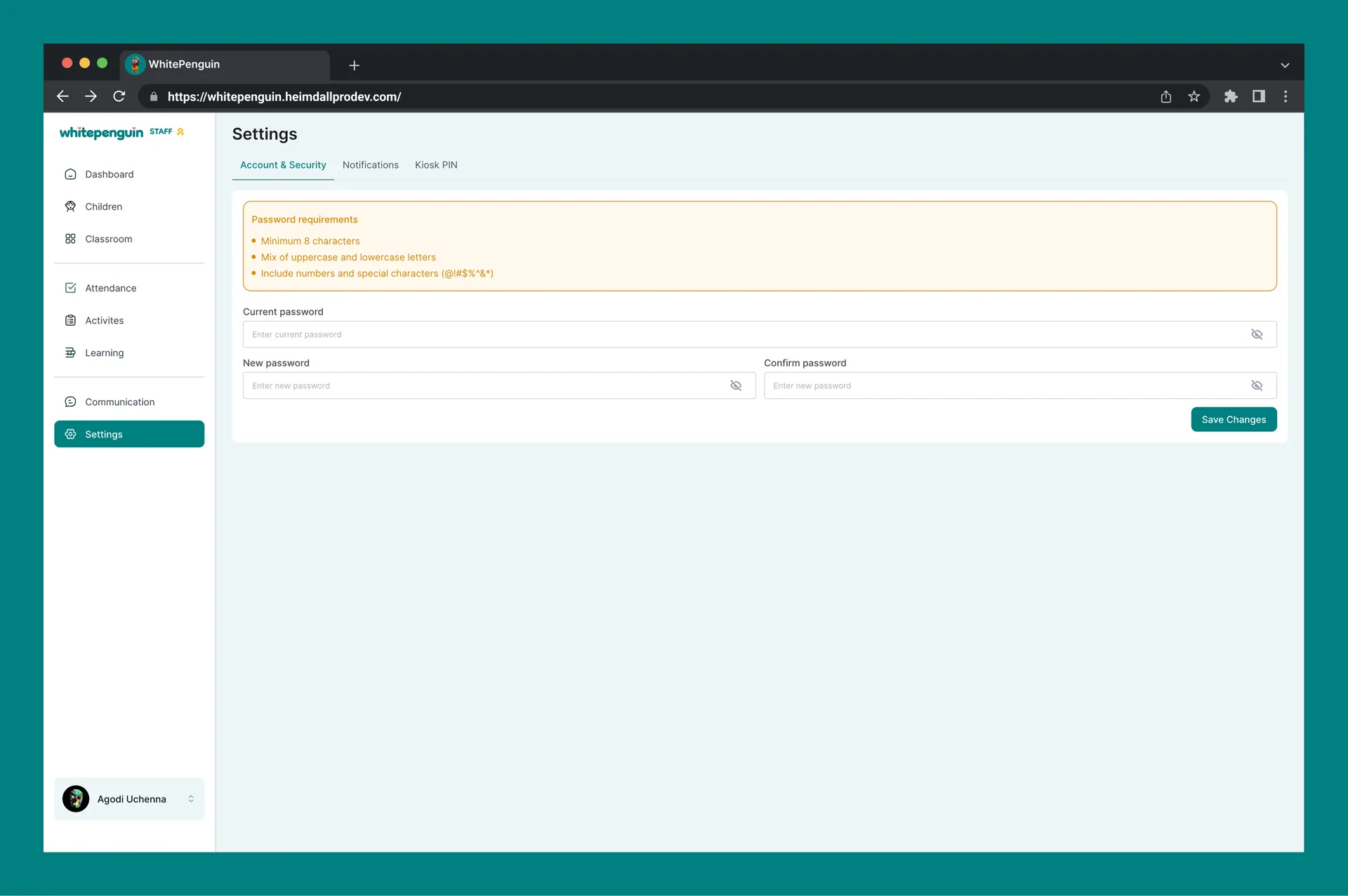
| Staff (Teacher) | ✅ Yes — via their account settings |
| Parent | ✅ Yes — via their account settings in the parent portal |
How to Access
For Admins:
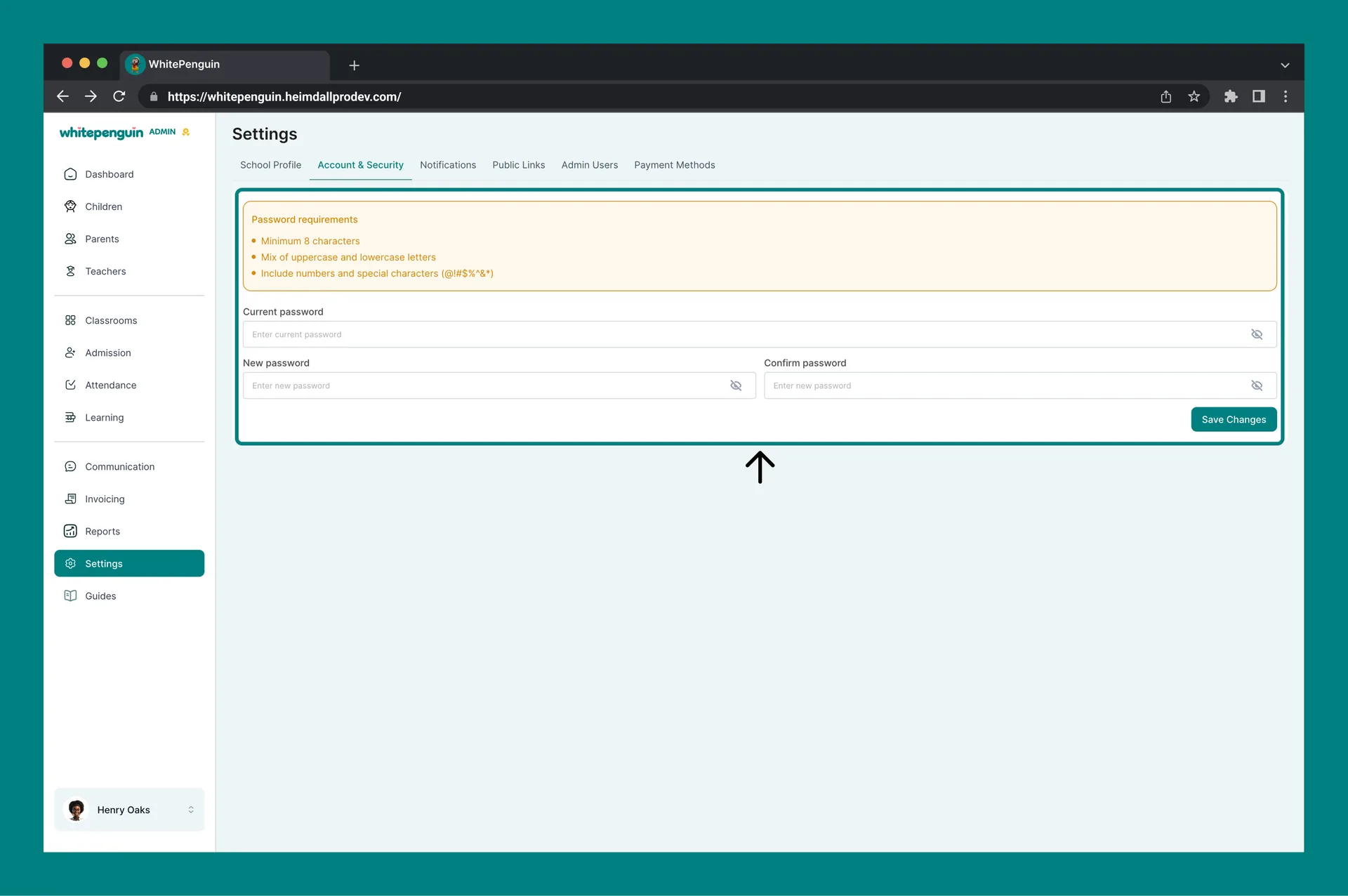
- Click Settings in the left sidebar.
- Click the Account & Security tab at the top of the Settings page.
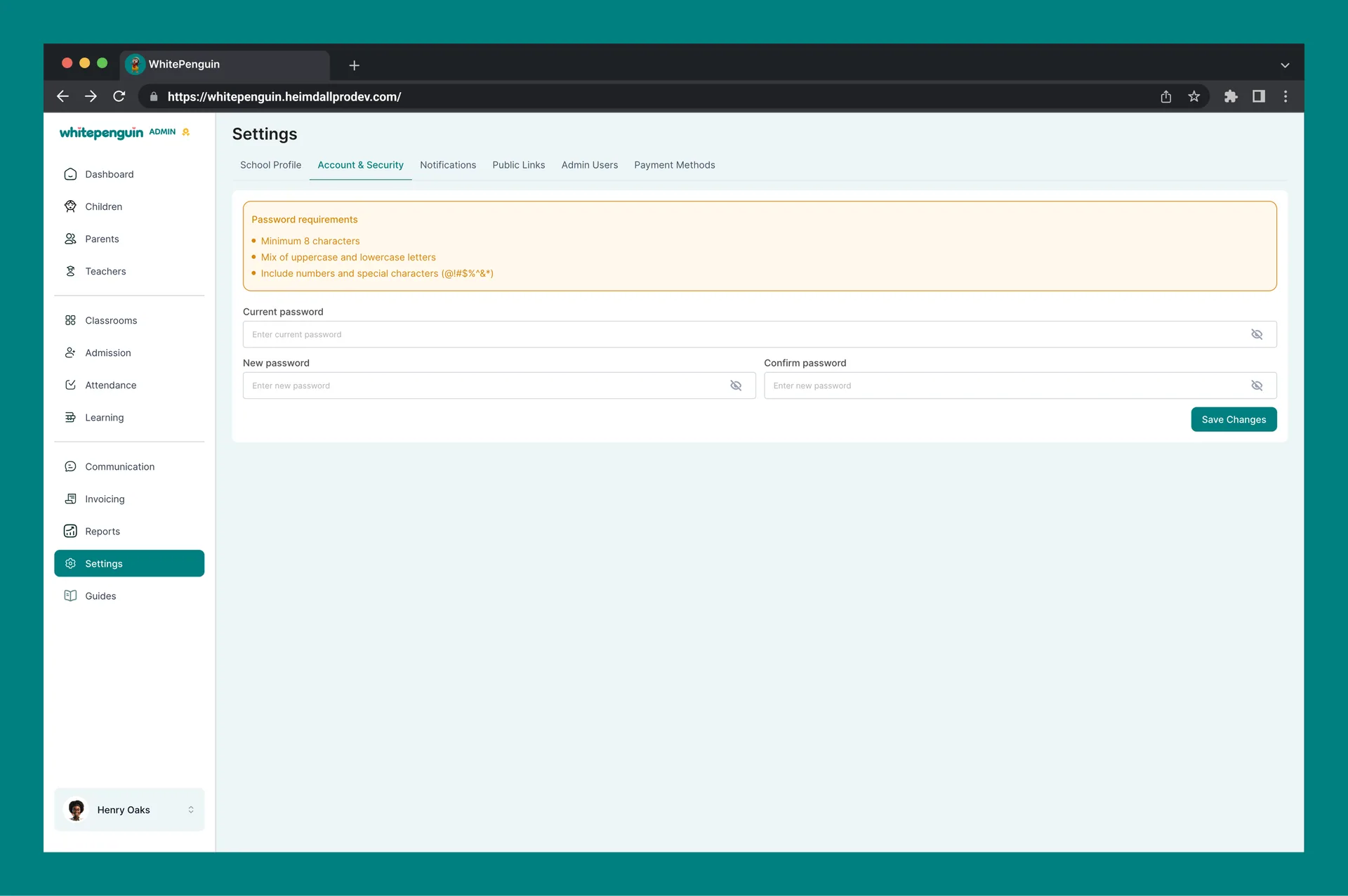
- The password change form will appear.
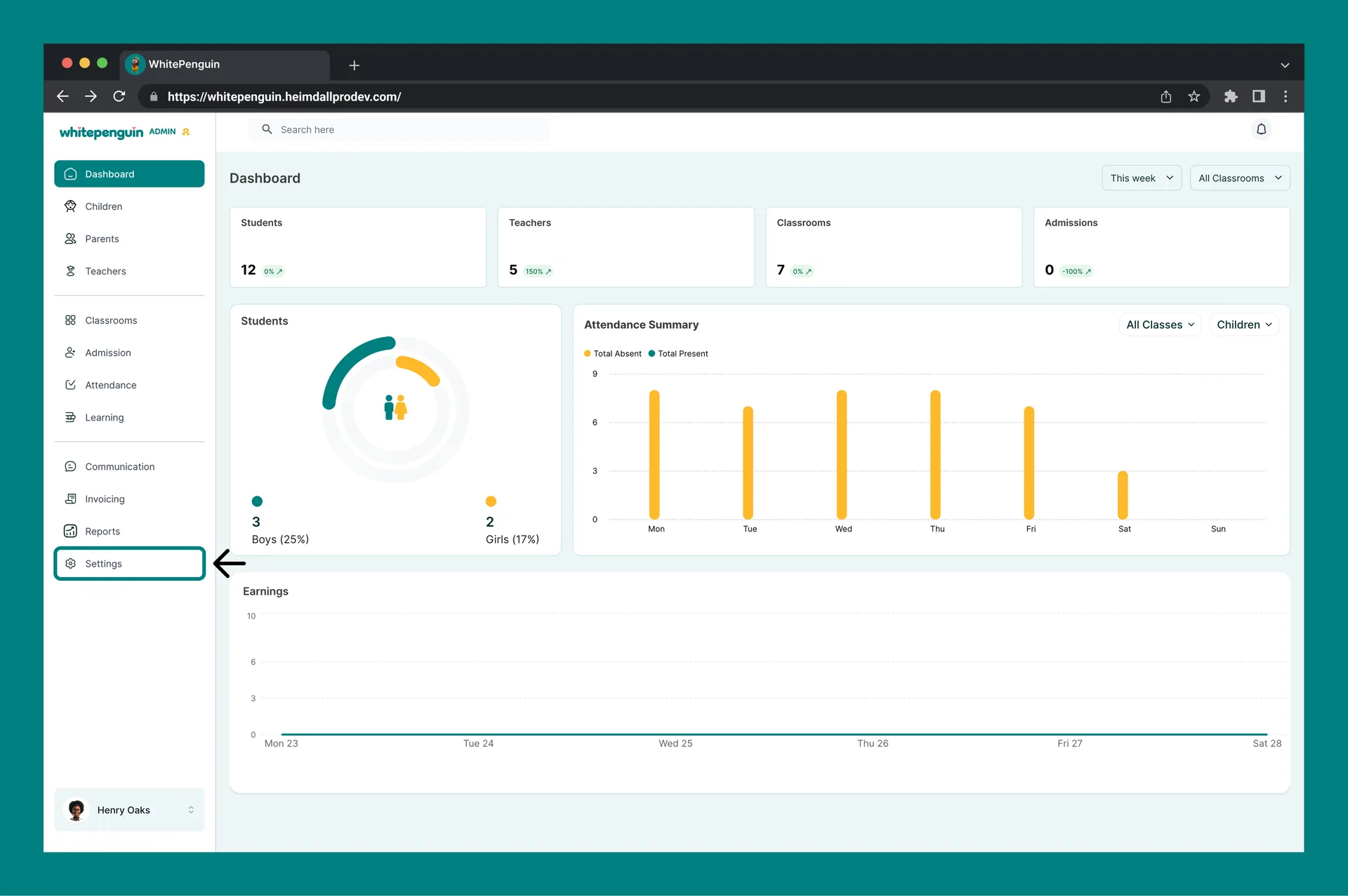
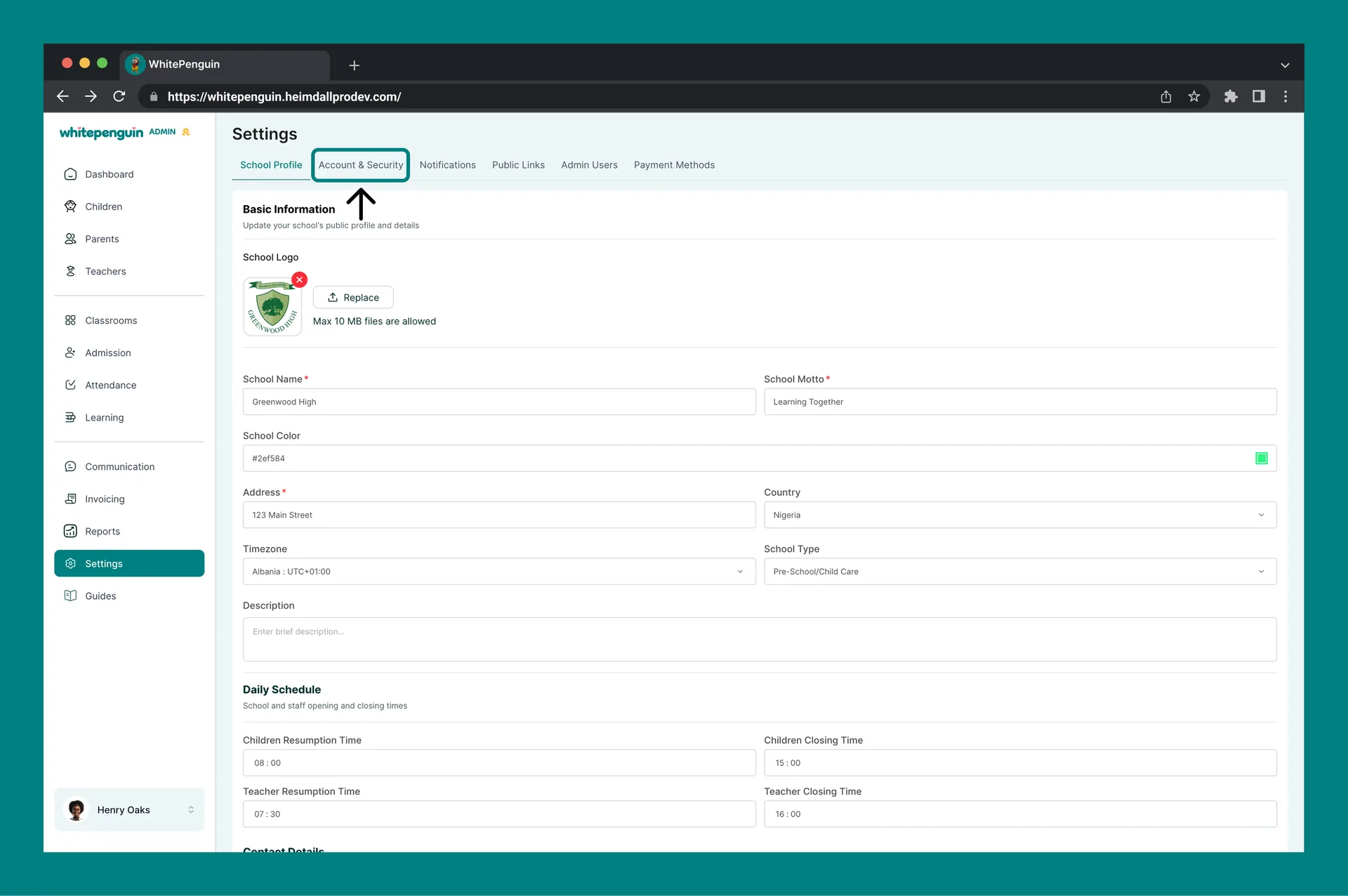
For Staff and Parents:
- Navigate to your account or profile settings (accessible from your user menu or profile area).
- Open the Account & Security section.
- The password change form will appear.
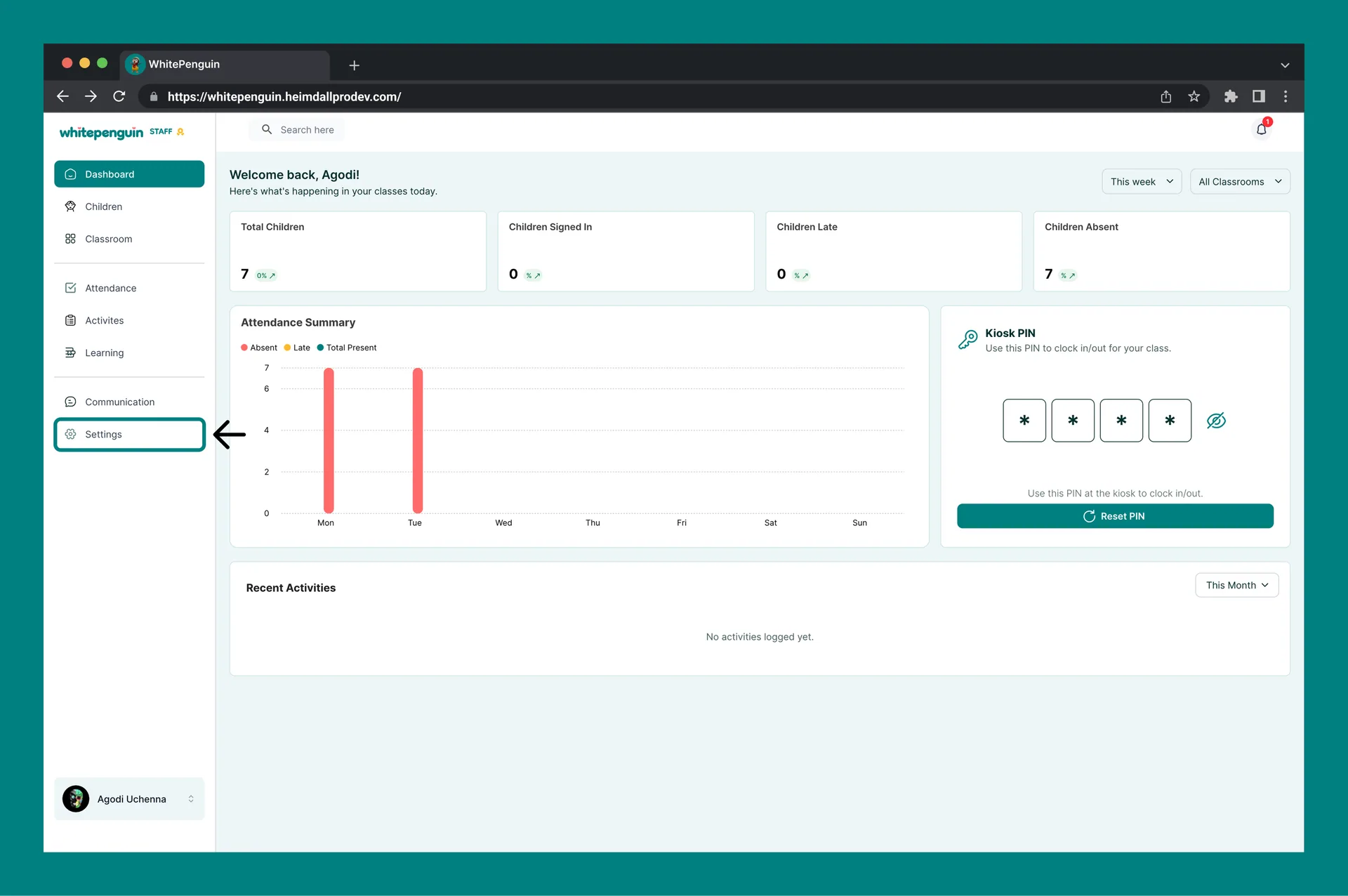
Changing Your Password
The Account & Security page contains a single password change form with three fields:
| Field | Required | Description |
|---|---|---|
| Current Password | ✅ Required | Enter your existing password to verify your identity before making changes. |
| New Password | ✅ Required | Enter the new password you want to use. Must meet the password requirements below. |
| Confirm Password | ✅ Required | Re-enter the new password to confirm it matches. Both fields must be identical. |
Once all fields are filled, click Save Changes to update your password.
Password Requirements
Your new password must meet all of the following requirements:
- Minimum 8 characters
- A mix of uppercase and lowercase letters
- Must include numbers and special characters (e.g.,
@,!,#,$,%,^,&,*,+)
Passwords that do not meet these requirements cannot be saved. The system will show an inline error if any requirement is not met.
Tips
- Use a strong, unique password. Avoid using the same password across multiple platforms. A combination of random words, numbers, and symbols makes the strongest passwords.
- Don't share your password. Each user — admin, staff, or parent — should have their own login credentials. Never share your password with others.
- Change your password regularly. It's good practice to update your password every few months, especially for admin accounts that have access to sensitive school data.
- Use the eye icon to verify your input. All three password fields have a show/hide toggle (👁️) so you can check what you've typed before saving.
- Forgotten your password? If you can't remember your current password, use the Forgot Password option on the login page to reset it via email — you won't need your current password for that flow.
- Admins: protect your account. The admin account has full access to all school data, children profiles, invoices, and settings. Keeping it secured with a strong password is especially important.
FAQs
All users can change their password — Admins, Staff (Teachers), and Parents. Each user type accesses it through their own account or settings area.
Yes. You must enter your current password in the first field to verify your identity before setting a new one. If you've forgotten your current password, use the Forgot Password option on the login page instead.
Your password must meet all three requirements: at least 8 characters, a mix of uppercase and lowercase letters, and at least one number or special character (@!#$%^&*+). Check that your new password meets all of these before trying again.
The system will show an error if the two fields don't match. Make sure both the New Password and Confirm Password fields contain exactly the same value before clicking Save Changes.
No. The Account & Security page requires you to know your current password. If you've forgotten it, go to the login page and click Forgot Password to receive a reset link by email.
No. You must click the Save Changes button to apply your new password. The change is not saved until you explicitly submit the form.
Last updated on
Manage School Profile
Learn how to set up and update your school's profile in WhitePenguin — including basic information, daily schedule, and contact details. This section is managed exclusively by the school's admin (owner) account.
Customize Notifications
Learn how to configure notification channels for admins, parents, and staff in WhitePenguin — including email, SMS, and WhatsApp, and how often daily reports are sent to parents.