

Setup Payment Methods
Learn how to set up your school's preferred payment method in WhitePenguin — either Bank Transfer or Paystack — so parents can pay invoices easily and securely.
Overview
The Payment Methods section allows the school admin to configure how parents pay invoices. WhitePenguin supports two payment methods:
| Payment Method | Best For | How It Works |
|---|---|---|
| Bank Transfer | Schools that prefer manual payments | Parents transfer fees directly to the school's bank account. Supports all banks in Nigeria. |
| Paystack | Schools that want automated online payments | Parents pay invoices online via Paystack's payment gateway — cards, bank transfers, and more — directly from the parent portal. |
Only one payment method can be active at a time. You can switch between them at any point from Settings.
Restricted access. Only the school owner and admin users can configure Payment Methods. This setting applies school-wide and affects how all parents pay their invoices.
How to Access
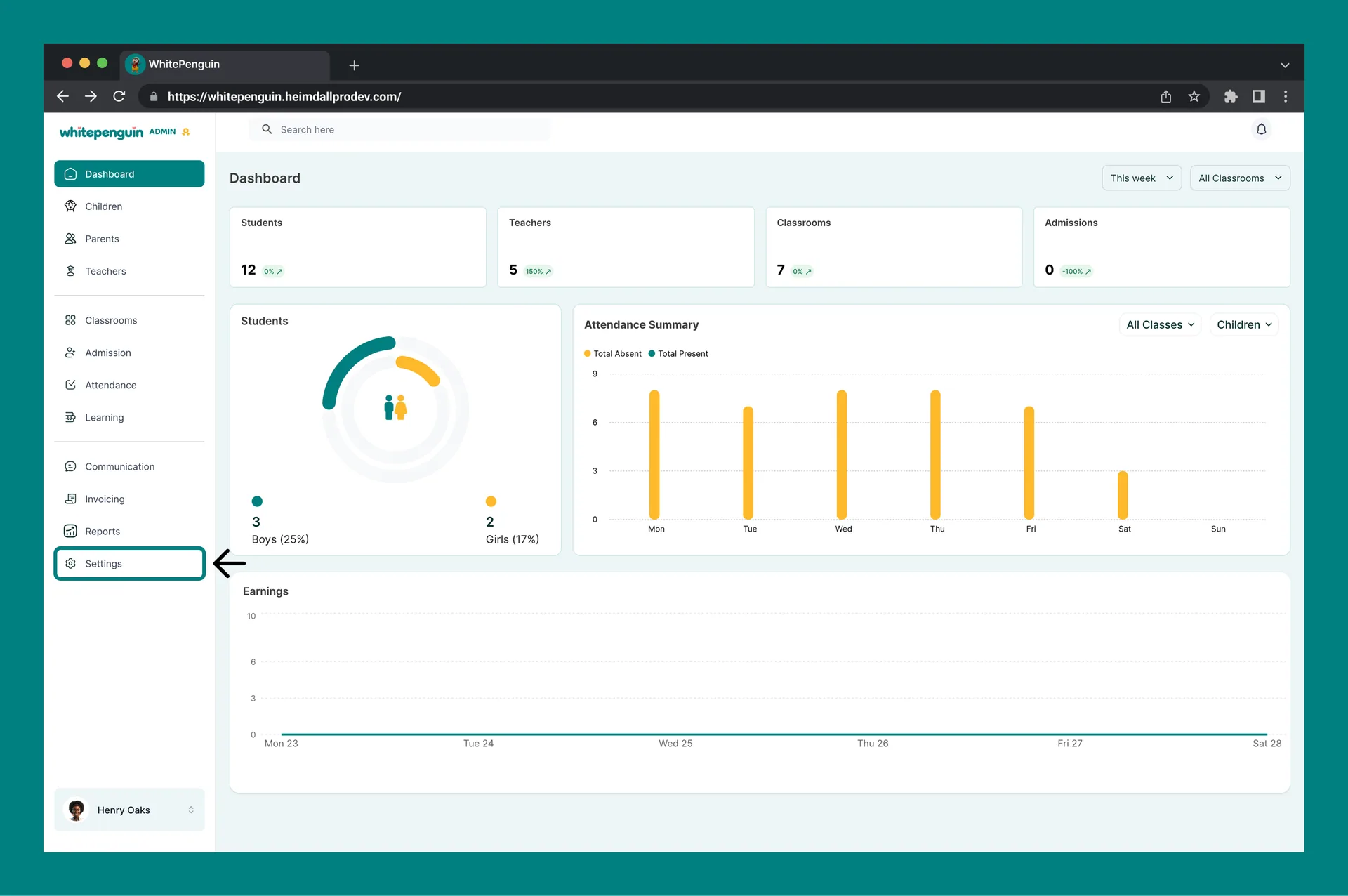
- Click Settings in the left sidebar.
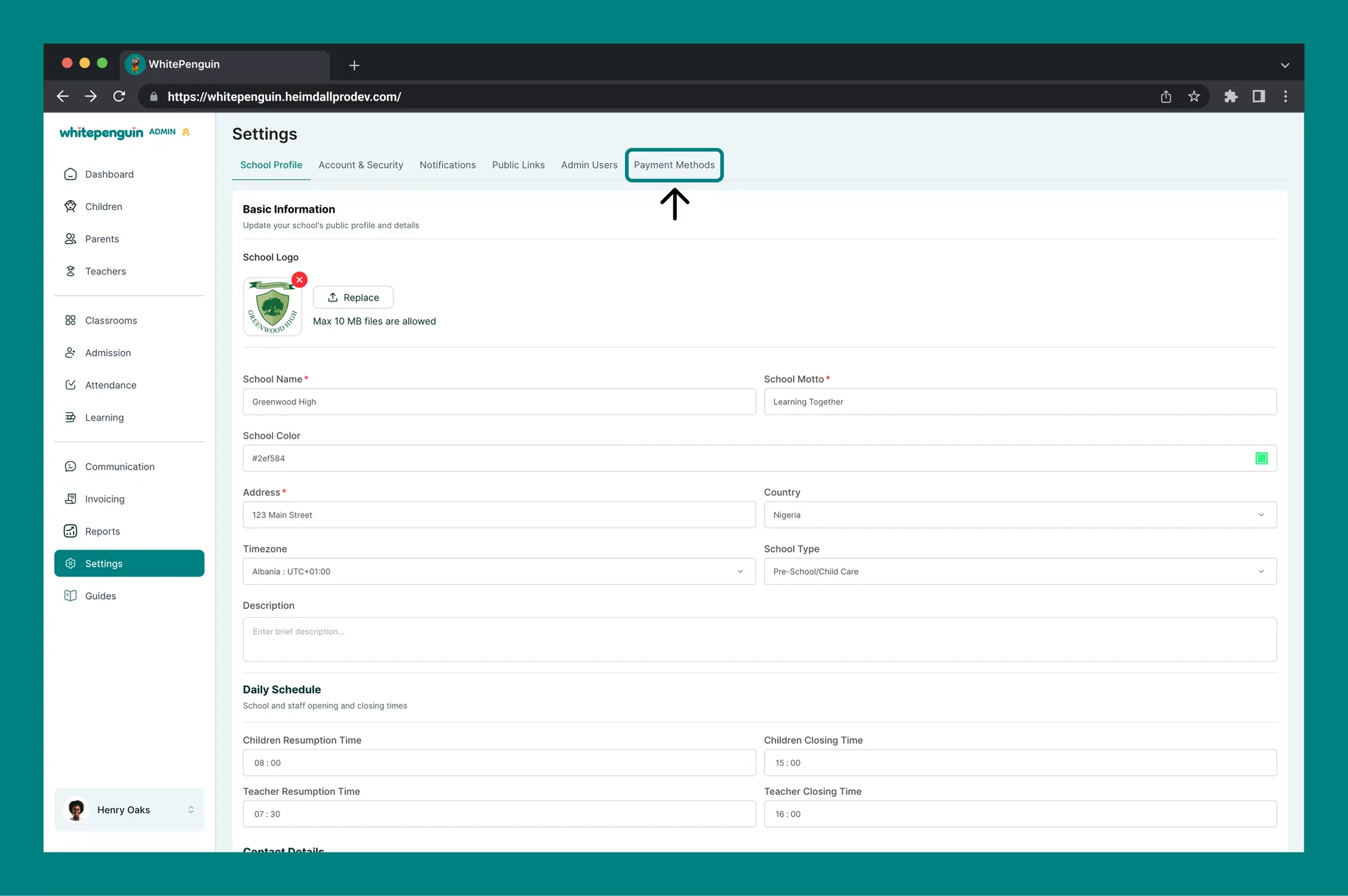
- Click the Payment Methods tab at the top of the Settings page.
- The Payment Methods page will load showing the two options: Bank Transfer and Paystack.
- Select your preferred method using the radio button and complete the setup steps for that method.
Option 1: Bank Transfer
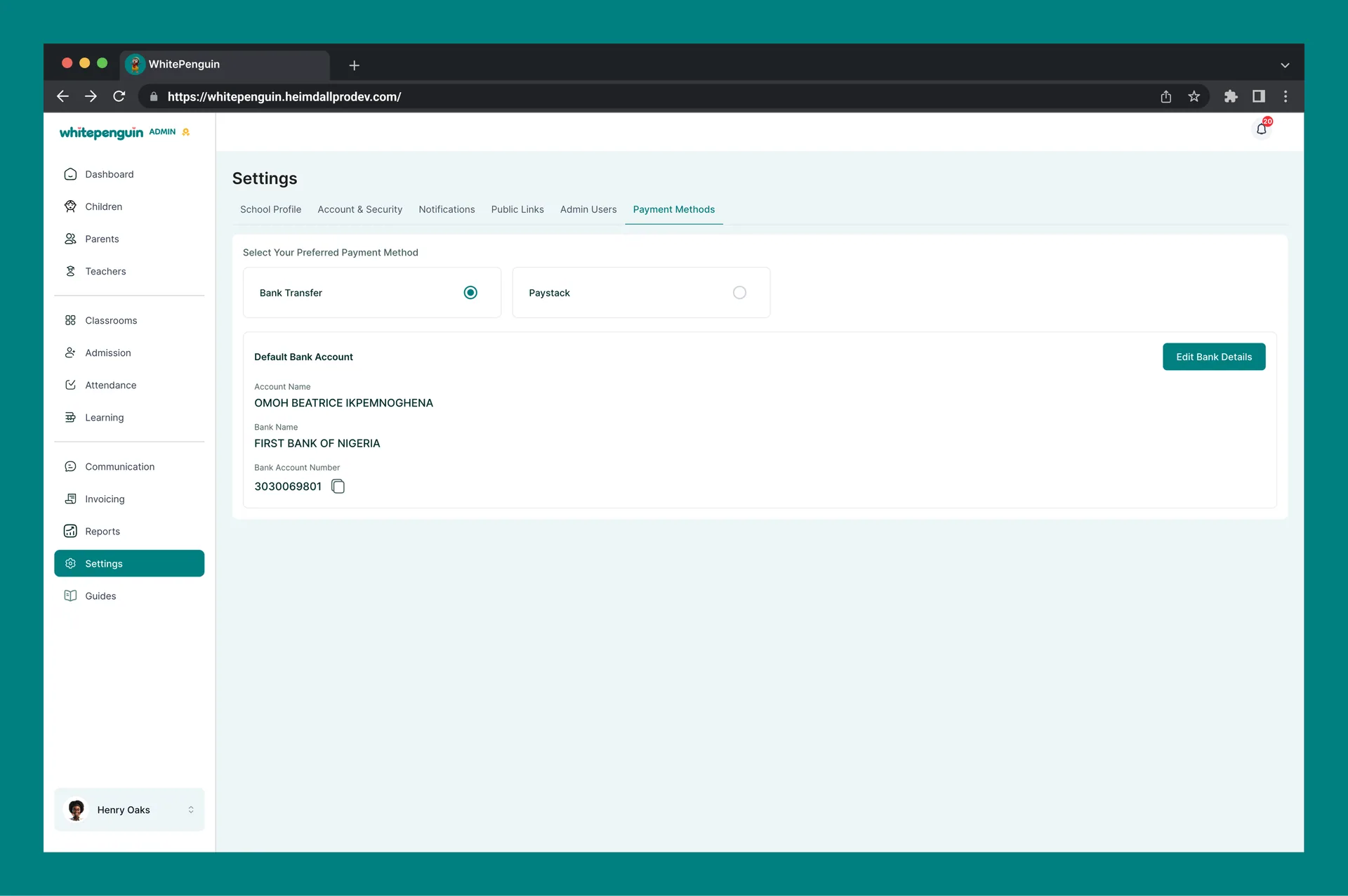
Bank Transfer is the default payment method. It allows parents to pay invoices by transferring money directly to your school's Nigerian bank account.
How to Set Up Bank Transfer
- On the Payment Methods page, select Bank Transfer (radio button on the left).
- Scroll down to the Default Bank Account section.
- If no bank account has been added yet, you will see: "No bank account found. Click 'Add Bank Account' to create one."
- Click the + Add Bank Account button at the top right.
- The Add Bank Account form will appear with the following fields:
| Field | Required | Description |
|---|---|---|
| Select Bank | ✅ Required | Choose your bank from the dropdown. All Nigerian banks are supported. |
| Account Number | ✅ Required | Enter your school's 10-digit bank account number. |
| Set as default account | Optional | Toggle this on to set this bank account as the default account parents transfer fees to. |
- Click Confirm to save the bank account, or Cancel to close without saving.
- The bank account will now appear in the Default Bank Account section and will be shown to parents on their invoices.
You can add more than one bank account. Use the Set as default account toggle to choose which account is shown to parents by default on invoices.
Option 2: Paystack
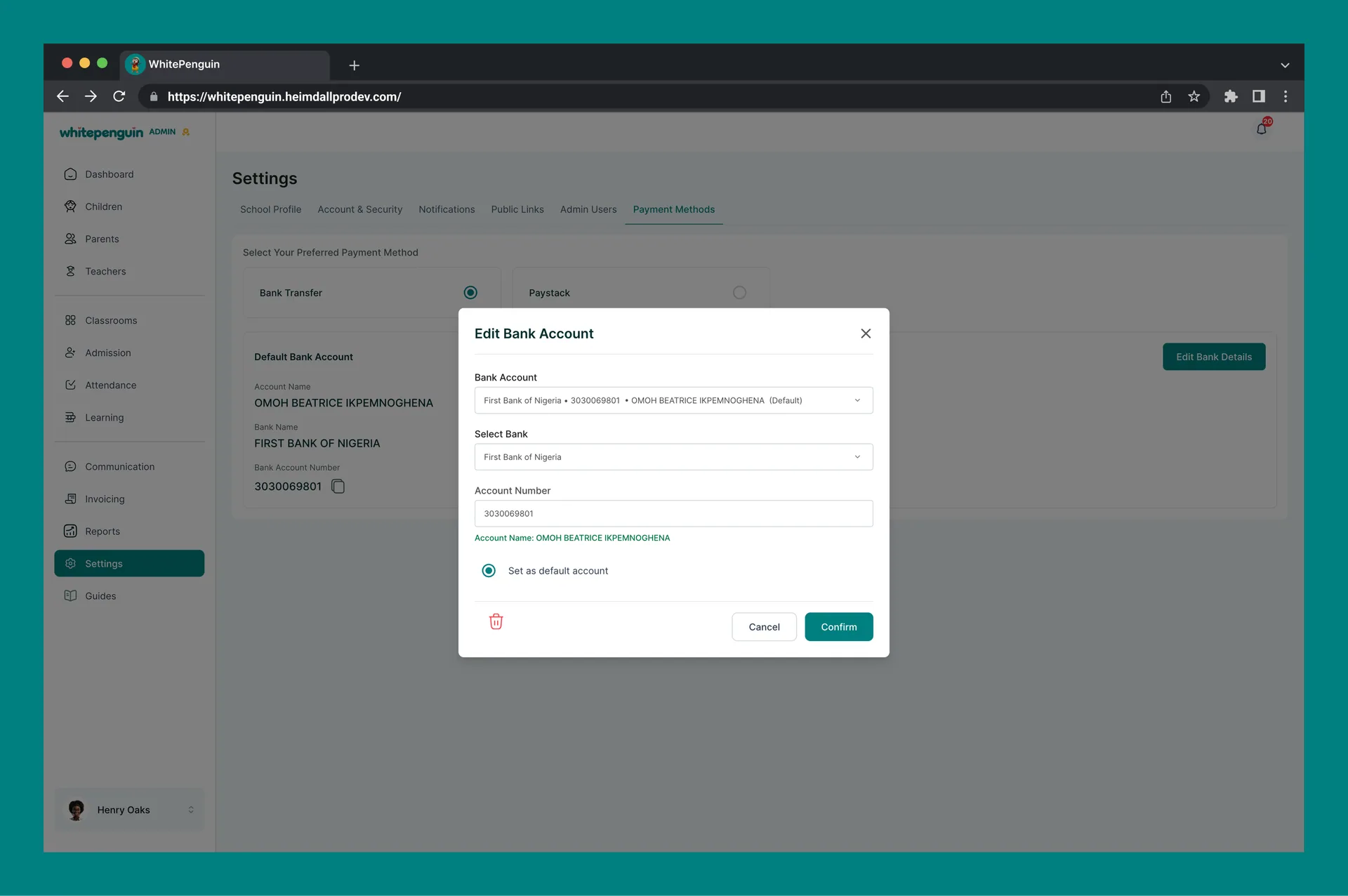
Paystack is an online payment gateway integration that allows parents to pay invoices digitally — directly from the parent portal. It supports card payments, bank transfers, and other payment options available through Paystack.
How to Set Up Paystack
- On the Payment Methods page, select Paystack (radio button on the right).
- The Paystack configuration form will appear with the following fields:
| Field | Required | Description |
|---|---|---|
| Payment Secret Key | ✅ Required | Your Paystack Secret Key. This is used to authenticate and process payments securely. |
| Public Key | Optional | Your Paystack Public Key. Used to initialize the payment form on the parent portal. |
| Callback URL | Optional | The URL Paystack redirects parents to after a payment is completed. |
| Your Unique Webhook URL | — | Auto-generated by WhitePenguin (e.g., https://api.whitepenguin.com/webhooks/paystack/abc123xyz). Copy this and paste it into your Paystack dashboard to receive payment notifications. |
- Click Save configuration to activate the Paystack integration.
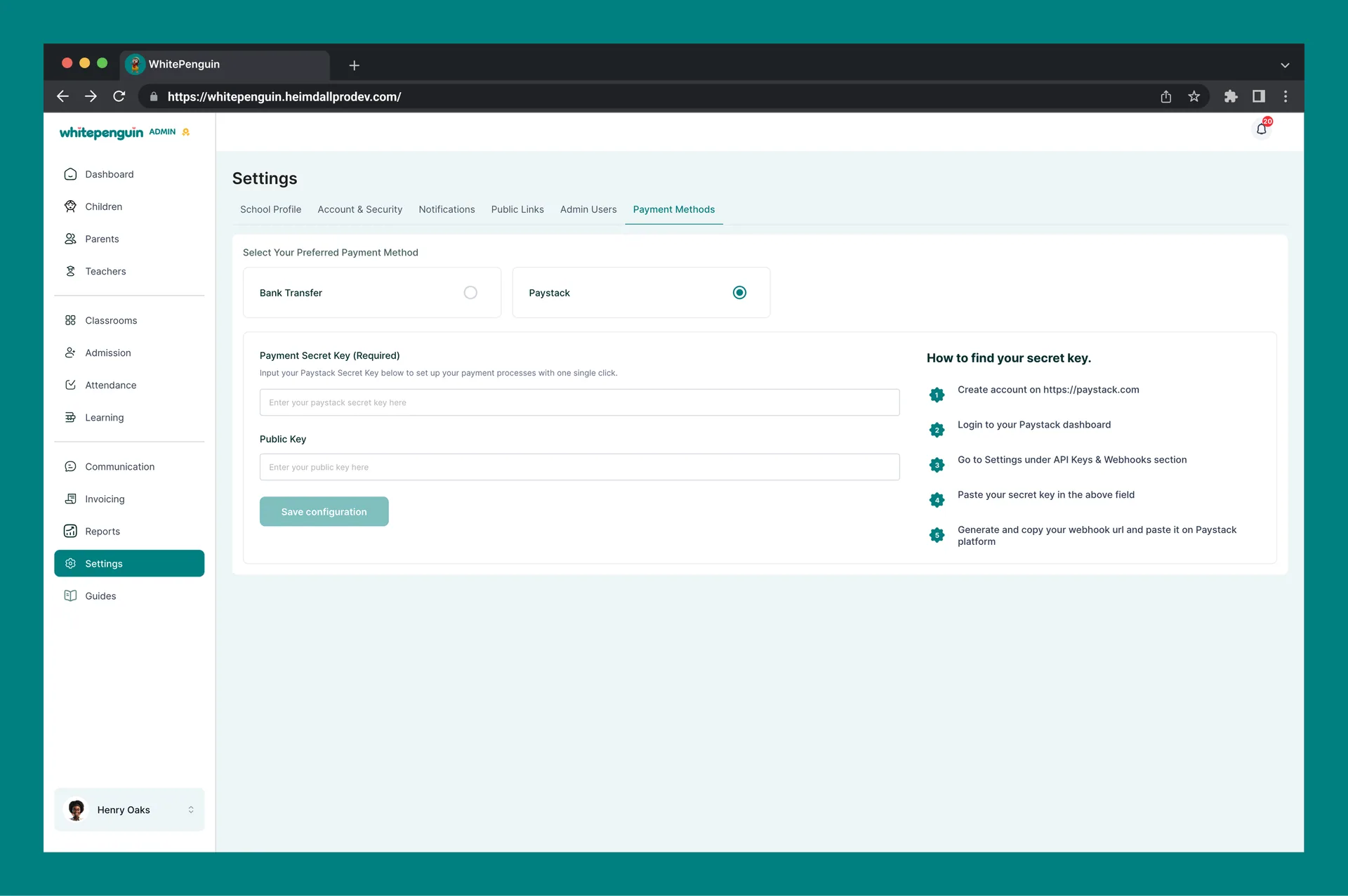
How to Find Your Paystack Secret Key
The platform provides a step-by-step guide on the right side of the Paystack configuration form:
- Create an account at https://paystack.com if you don't already have one.
- Log in to your Paystack dashboard.
- Go to Settings → API Keys & Webhooks section.
- Copy your Secret Key and paste it into the Payment Secret Key field in WhitePenguin.
- Copy the Webhook URL from WhitePenguin (the auto-generated URL shown in the form) and paste it into your Paystack dashboard under Webhooks to enable payment notifications.
Keep your Secret Key private. Never share your Paystack Secret Key publicly or with unauthorized users. It provides full access to your Paystack account's payment operations.
Tips
- Bank Transfer is best for manual workflows. If your school prefers to manually confirm payments and reconcile bank records, Bank Transfer is the simpler option and requires no third-party integration.
- Paystack enables faster parent payments. With Paystack, parents can pay invoices directly from the parent portal in a few clicks — no need to manually transfer funds or confirm payments via bank records.
- You can switch methods anytime. If your school starts with Bank Transfer and later wants to move to Paystack (or vice versa), simply select the other method in Settings and complete the setup.
- Add multiple bank accounts. You can add more than one Nigerian bank account under Bank Transfer. Use the default toggle to set which account parents see first on their invoices.
- Copy the Webhook URL before saving. When setting up Paystack, copy the auto-generated Webhook URL from the form and paste it into your Paystack dashboard before clicking Save configuration — this ensures payment confirmations are sent back to WhitePenguin automatically.
- Use Paystack's test keys first. If you want to test the Paystack integration before going live, use your Paystack test mode Secret Key first, then switch to the live key when you're ready.
FAQs
Bank Transfer supports all banks in Nigeria. When adding a bank account, you can choose your bank from the full dropdown list of Nigerian banks.
No. Only one payment method can be active at a time. You must choose either Bank Transfer or Paystack as your preferred method. You can switch between them at any point from the Payment Methods settings.
Log in to your Paystack dashboard at paystack.com, go to Settings → API Keys & Webhooks, and copy your Secret Key. Paste it into the Payment Secret Key field in WhitePenguin.
The Webhook URL is a unique URL auto-generated by WhitePenguin. When pasted into your Paystack dashboard, it allows Paystack to send real-time payment confirmation notifications back to WhitePenguin — so invoices are automatically updated when a parent pays.
Yes. You can add multiple Nigerian bank accounts. Use the Set as default account toggle when adding an account to choose which one parents see by default on their invoices.
When Bank Transfer is active, parents will see your school's bank account details on their invoices. They transfer the invoice amount directly to that account through their own bank. The admin then manually confirms payment receipt.
When Paystack is active, parents can pay their invoices directly from the parent portal using the Paystack payment gateway — which supports card payments, bank transfers, and other payment options available through Paystack.
Yes. You can switch between Bank Transfer and Paystack at any time. However, any unpaid invoices already sent to parents may need to be communicated about separately to avoid confusion about which payment method to use.
Last updated on