

Manage School Profile
Learn how to set up and update your school's profile in WhitePenguin — including basic information, daily schedule, and contact details. This section is managed exclusively by the school's admin (owner) account.
Overview
The School Profile is the foundation of your WhitePenguin setup. It holds your school's public identity, operating hours, and contact information — all of which are visible to parents, staff, and used throughout the platform.
The School Profile is part of the Settings section and is divided into three sub-sections:
- Basic Information — Your school's name, logo, branding, type, and location
- Daily Schedule — The opening and closing times for children and teachers
- Contact Details — How parents and prospects can reach your school
Admin access only. Only the school's admin (owner) account can view and update the School Profile. Other user roles do not have access to Settings.
How to Access
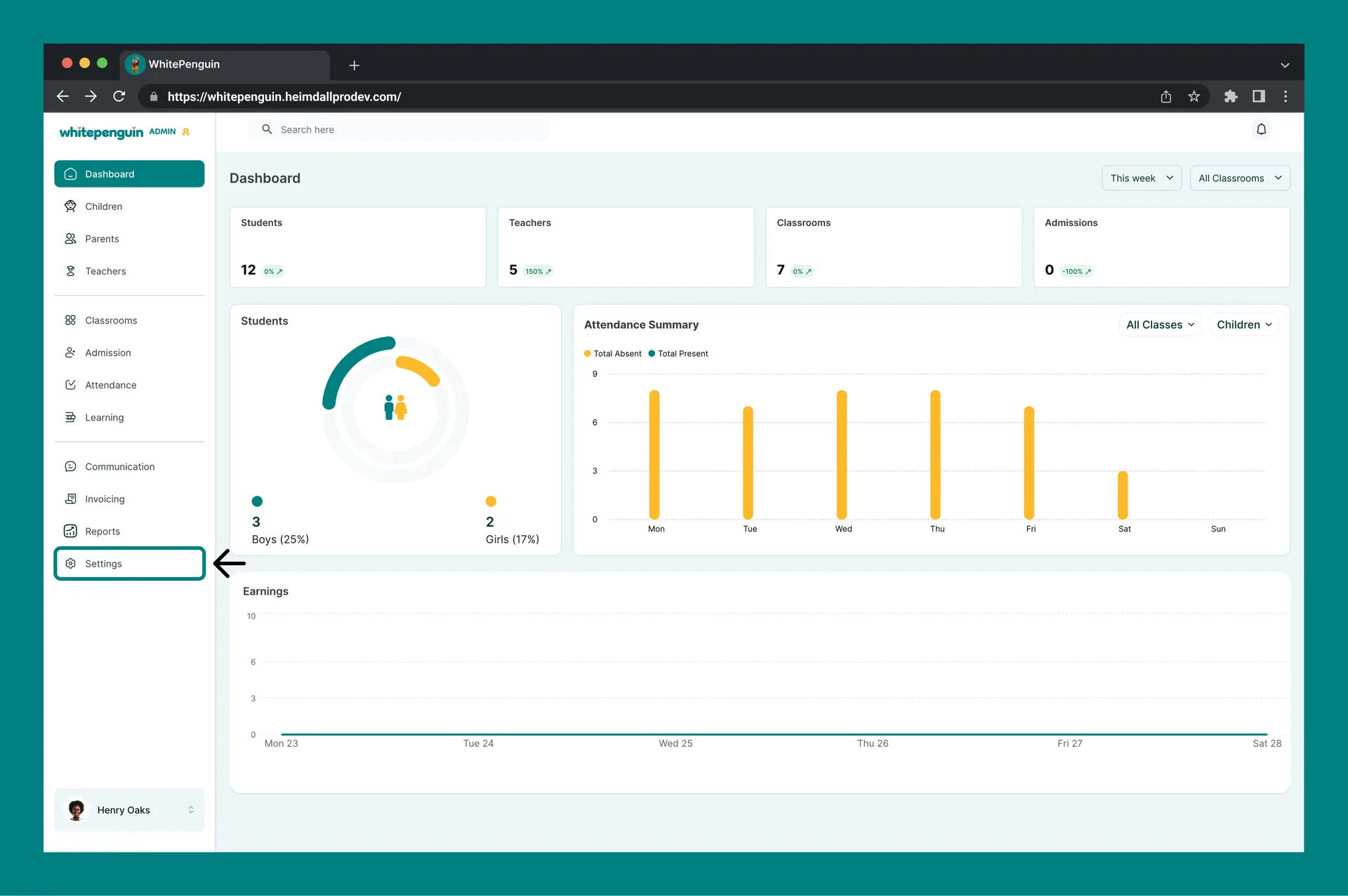
- Click Settings in the left sidebar (at the bottom of the navigation).
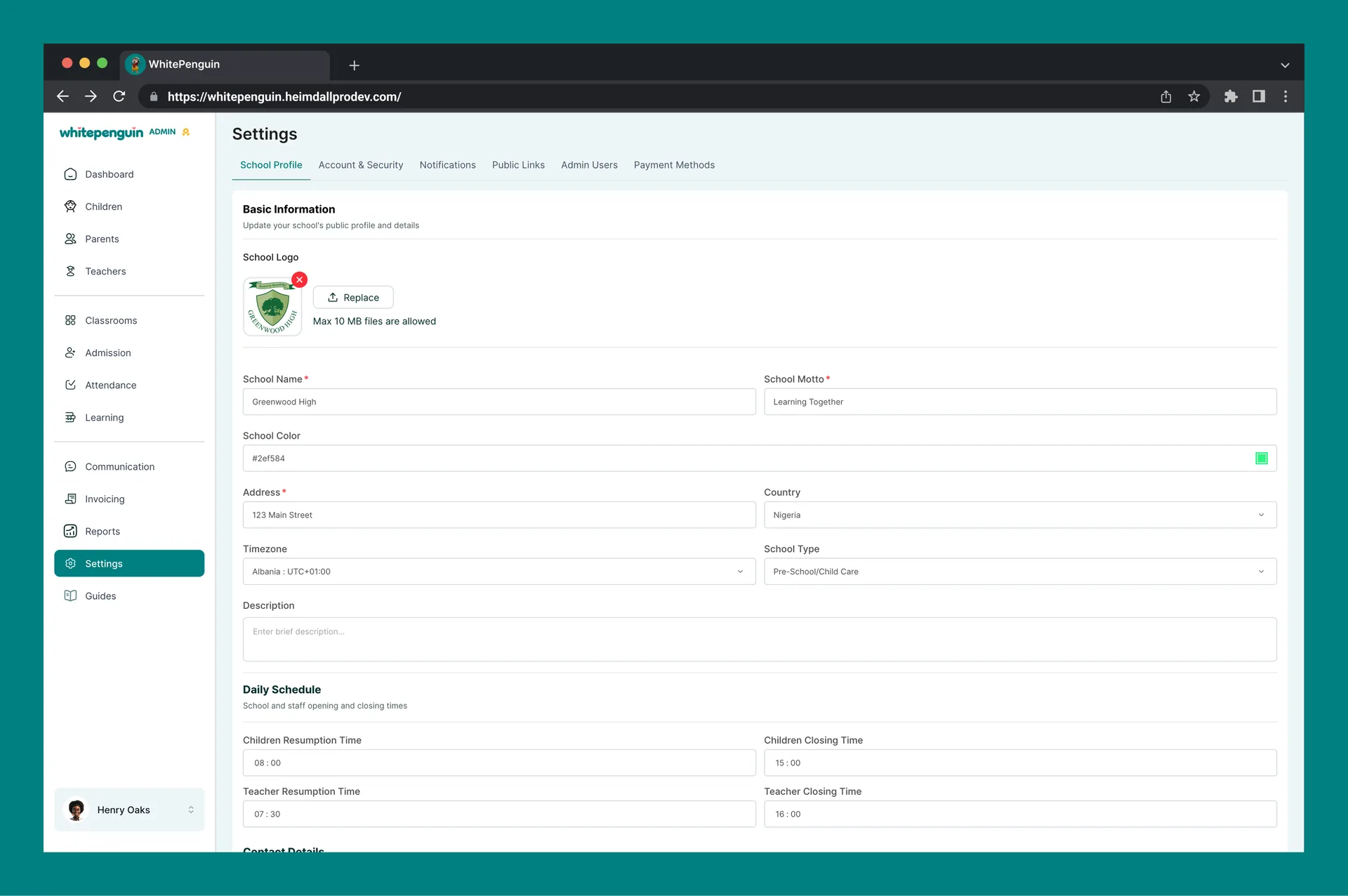
- The Settings page will open on the School Profile tab by default.
- You will see the three sections: Basic Information, Daily Schedule, and Contact Details.
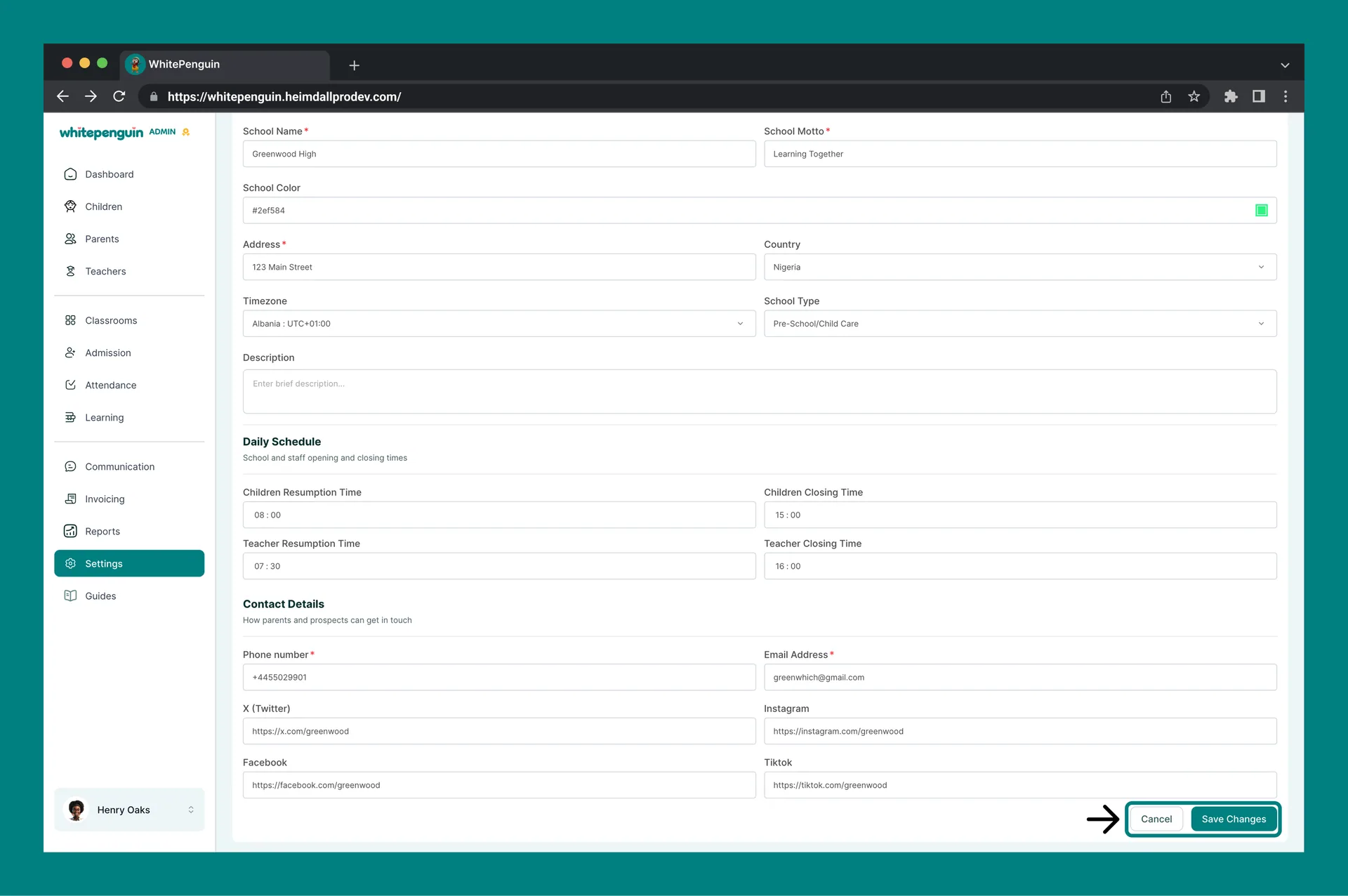
- Make your changes and click Save Changes at the bottom right of the page to apply them.
- To discard any changes, click Cancel.
Basic Information
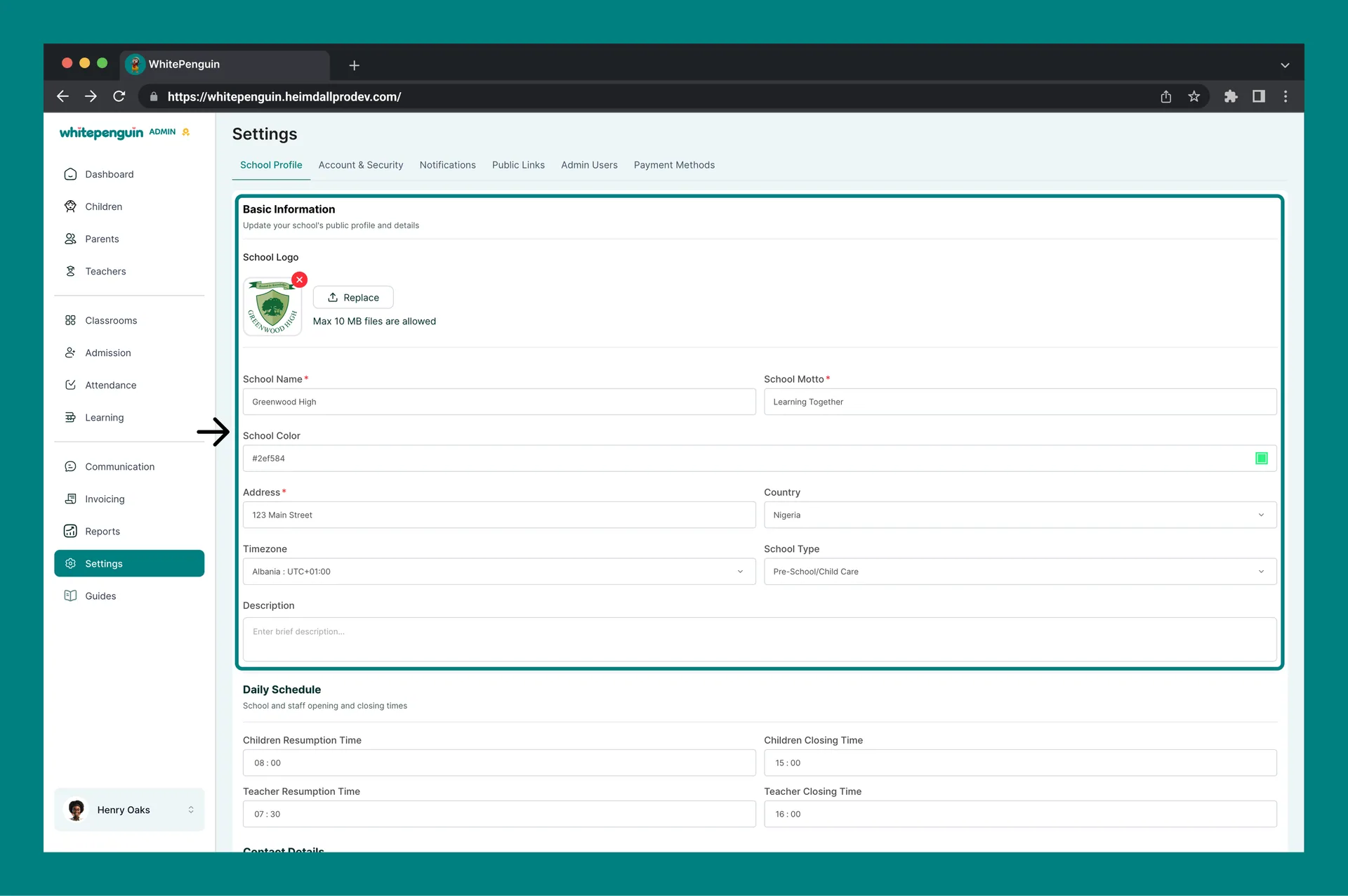
This section defines your school's public profile and identity on the platform.
| Field | Required | Description |
|---|---|---|
| School Logo | Optional | Upload your school's logo. Max file size: 10 MB. Click Replace to update an existing logo. |
| School Name | ✅ Required | The official name of your school as it will appear across the platform. |
| School Motto | ✅ Required | A short tagline or motto for your school. |
| School Color | Optional | Your school's primary brand color, entered as a HEX code (e.g., #f7ab08). This color is used for branding across the platform. |
| Address | ✅ Required | The physical address of your school. |
| Country | Optional | Select your school's country from the dropdown. |
| Timezone | Optional | Set the timezone for your school. This affects how times and schedules are displayed across the platform. |
| School Type | Optional | Select your school type from the dropdown (e.g., Pre-School/Child Care). |
| Description | Optional | A brief description of your school. This may appear in public-facing views. |
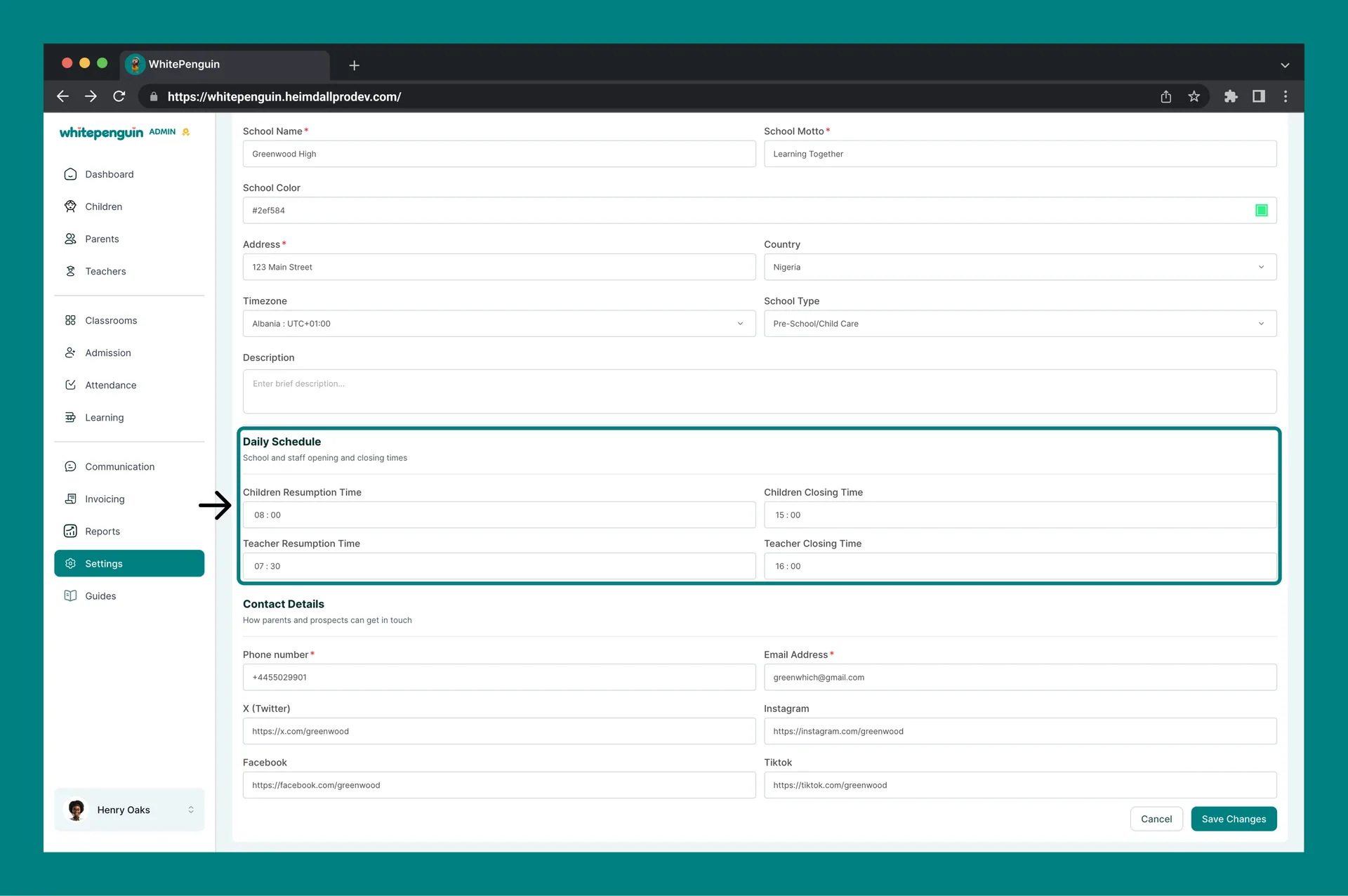
Daily Schedule
This section sets the official opening and closing times for both children and staff. These times are used for attendance tracking, reports, and operational planning.
| Field | Required | Description |
|---|---|---|
| Children Resumption Time | Optional | The time children are expected to arrive at school each day. |
| Children Closing Time | Optional | The time children are expected to leave school each day. |
| Teacher Resumption Time | Optional | The time teachers are expected to arrive and start their shift. |
| Teacher Closing Time | Optional | The time teachers' shift ends each day. |
Setting accurate schedule times helps generate meaningful attendance reports and gives parents clear visibility into school hours through the parent portal.
Contact Details
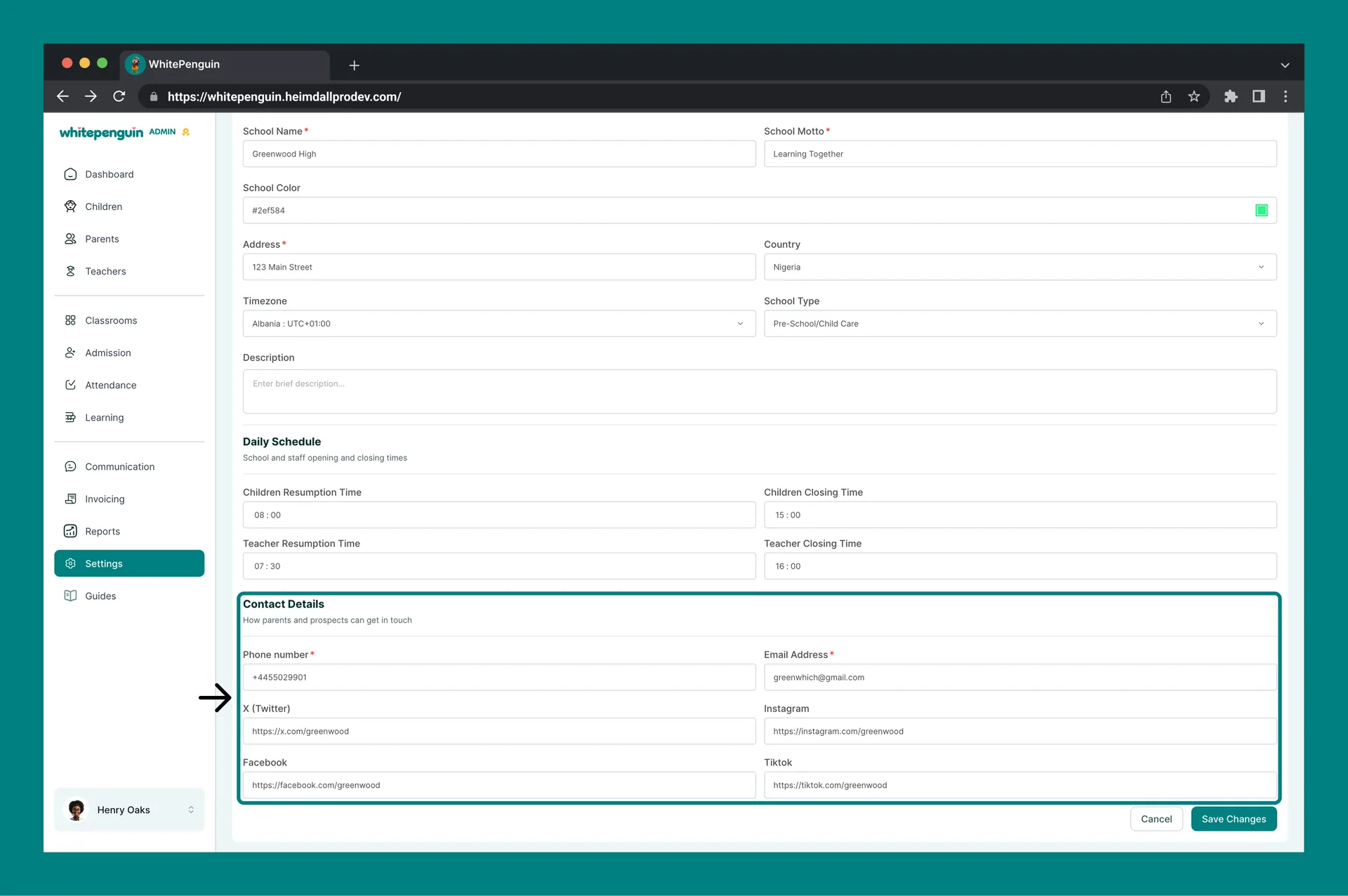
This section provides the contact information that parents and prospective families use to reach your school.
| Field | Required | Description |
|---|---|---|
| Phone Number | ✅ Required | Your school's main contact phone number. |
| Email Address | ✅ Required | Your school's official contact email address. |
| X (Twitter) | Optional | Your school's X (formerly Twitter) handle. |
| Optional | Your school's Instagram handle. | |
| Optional | Your school's Facebook page handle or URL. | |
| TikTok | Optional | Your school's TikTok handle. |
Related Settings Tabs
The Settings page contains additional tabs beyond the School Profile:
| Tab | What it covers |
|---|---|
| Manage School Profile | Basic info, daily schedule, and contact details (current page) |
| Account & Security | Admin account credentials and security settings |
| Customize Notifications | Notification preferences for admins, teachers, and parents |
| Manage Public Links | Public URLs for school tours and admission forms |
| Manage Admin Users | Manage additional admin users for the school |
| Setup Payment Methods | Configure payment methods for invoicing |
Tips
- Set your timezone correctly. The timezone field affects how all schedules and timestamps are displayed across the platform. Make sure it matches your school's actual timezone.
- Keep contact details up to date. The phone number and email in Contact Details are what parents and prospective families see. Update them promptly if they change.
- Use your brand color. Adding your school's HEX color code creates a consistent branded experience for parents using the portal.
- Complete the Daily Schedule. Even though schedule times are optional, setting them accurately will improve the quality of your attendance and staff reports.
- Save before leaving. Changes are not saved automatically. Always click Save Changes after making updates, or your edits will be lost if you navigate away.
- Logo size limit. Make sure your school logo file is under 10 MB. If it's larger, compress or resize it before uploading.
FAQs
Only the school's admin (owner) account has access to the Settings section and can update the School Profile. Teachers, parents, and other users do not have access to these settings.
No. You must click the Save Changes button at the bottom right of the Settings page to apply your updates. If you navigate away without saving, your changes will be lost.
The School Name appears across the platform in the admin dashboard, parent portal, reports, and any public-facing pages. Make sure it matches your school's official name.
You can use a free tool like htmlcolorcodes.com or ask your designer for the exact HEX value. It will look like a 6-character code starting with # (e.g., #f7ab08).
Schedule times are optional. However, leaving them blank may affect the accuracy of attendance reports and staff tracking. It is recommended to set them as part of your initial school setup.
The timezone setting controls how all times, schedules, and timestamps are displayed across the platform. If it is set incorrectly, schedule times and reports may display at the wrong time. Set it to your school's actual local timezone.
Make sure your logo file is under 10 MB. The platform accepts common image formats (PNG, JPG). If your file is too large, use a free image compressor to reduce its size before uploading again.
Yes. Social media handles added in the Contact Details section may appear on your school's public profile pages, making it easy for parents and prospective families to follow and connect with your school.
Last updated on
School Settings
Configure WhitePenguin: school profile, account security, notifications, public links, admin users and payment methods.
Account & Security
Learn how to change your account password and keep your WhitePenguin account secure. This feature is available to all users — Admins, Staff, and Parents.