

Manage Admin Users
Learn how to invite new admin users, manage their roles and permissions, and control their access to your WhitePenguin school account.
Overview
The Admin Users section — found under Role & Permission — allows the school owner (primary admin) to invite additional administrators and manage their access. Admin users have full access to all sections of the WhitePenguin system, including Children, Parents, Teachers, Classrooms, Settings, Invoicing, and Reports.
Owner only. Only the school owner (primary admin) can invite and manage other admin users. Secondary admins cannot access this section or manage other users.
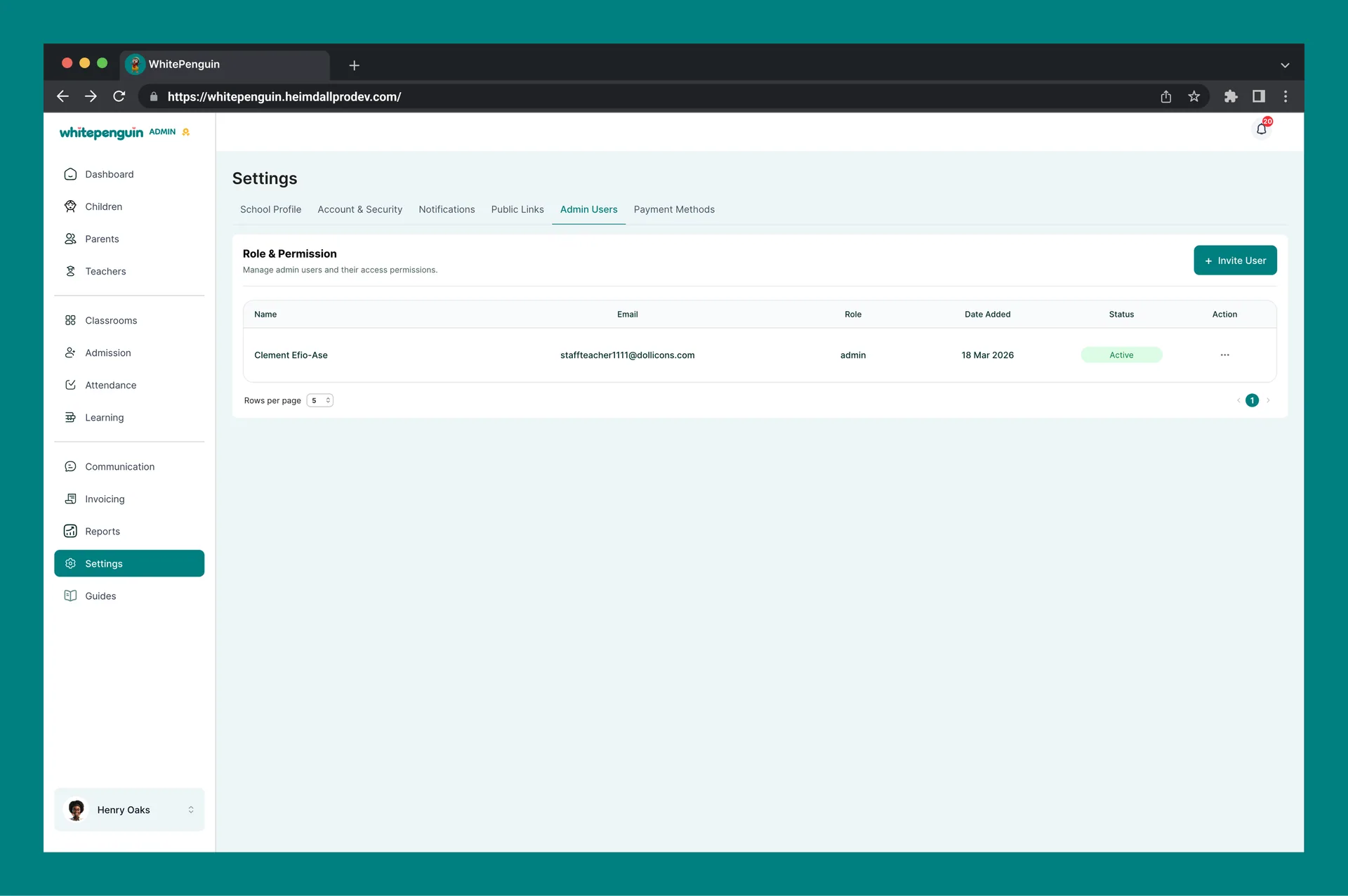
The Admin Users table displays the following information for each admin:
| Column | Description |
|---|---|
| Name | The full name of the admin user. |
| The admin's registered email address. | |
| Role | The assigned role — currently shown as Admin for all users in this section. |
| Date Added | The date the admin was added to the system. |
| Status | Shows whether the admin's account is Active or Inactive. |
| Action | The (⋯) menu for managing the admin — Edit, Deactivate, or Delete. |
How to Access
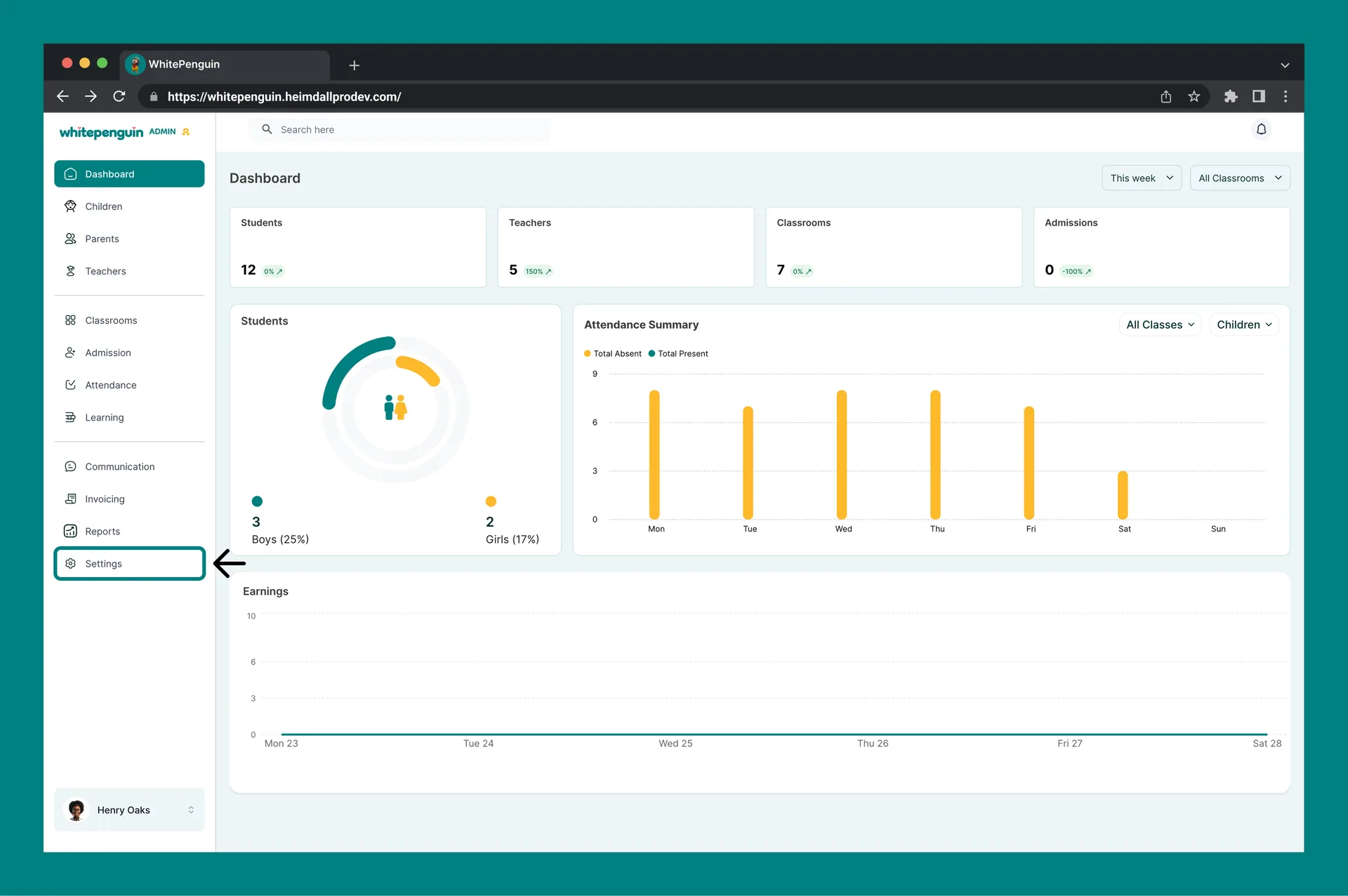
- Click Settings in the left sidebar.
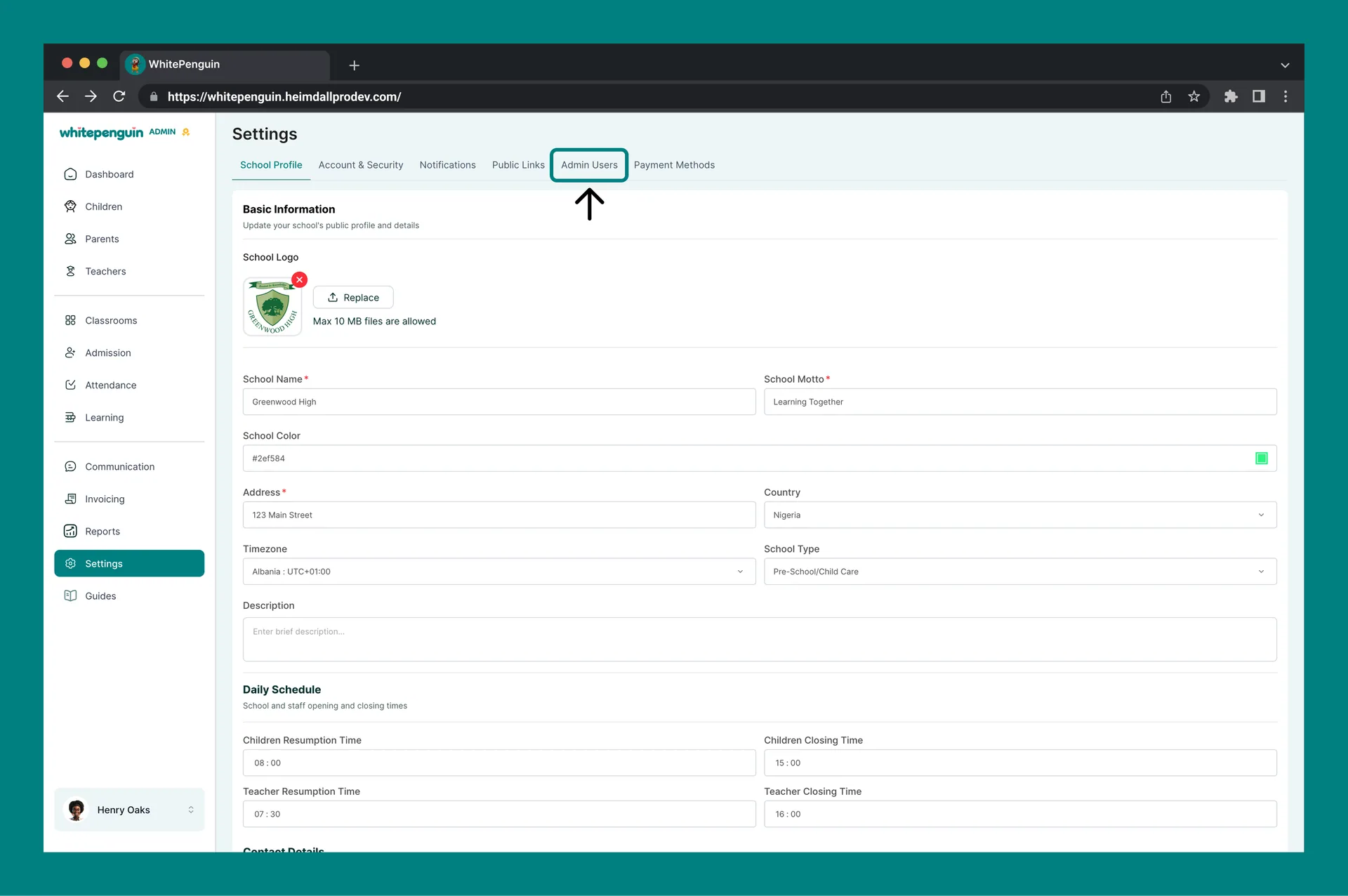
- Click the Admin Users tab at the top of the Settings page.
- The Role & Permission page will load, showing all existing admin users in a table.
- From here you can invite new admins or manage existing ones.
Inviting a New Admin User
To invite a new administrator:
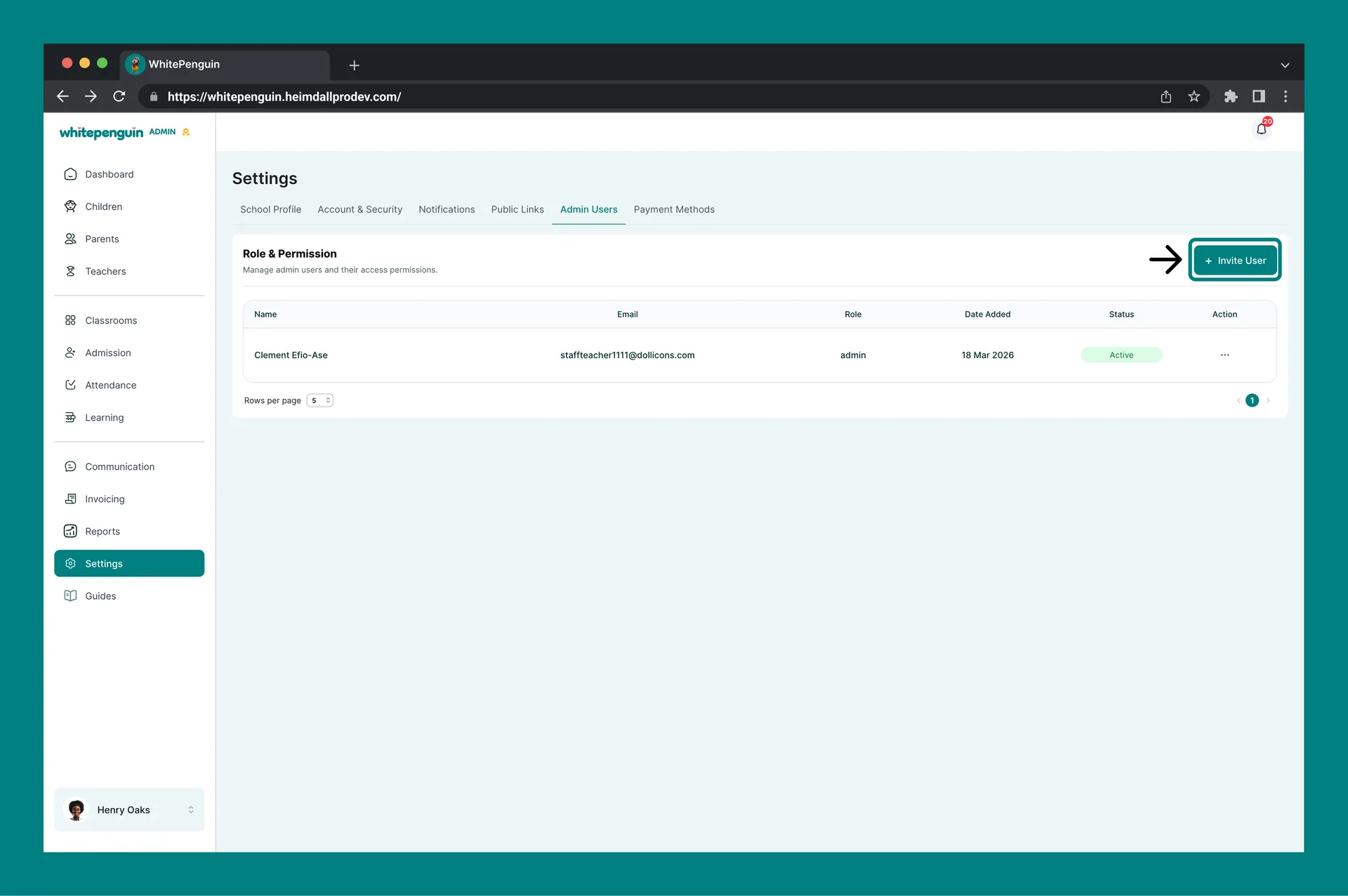
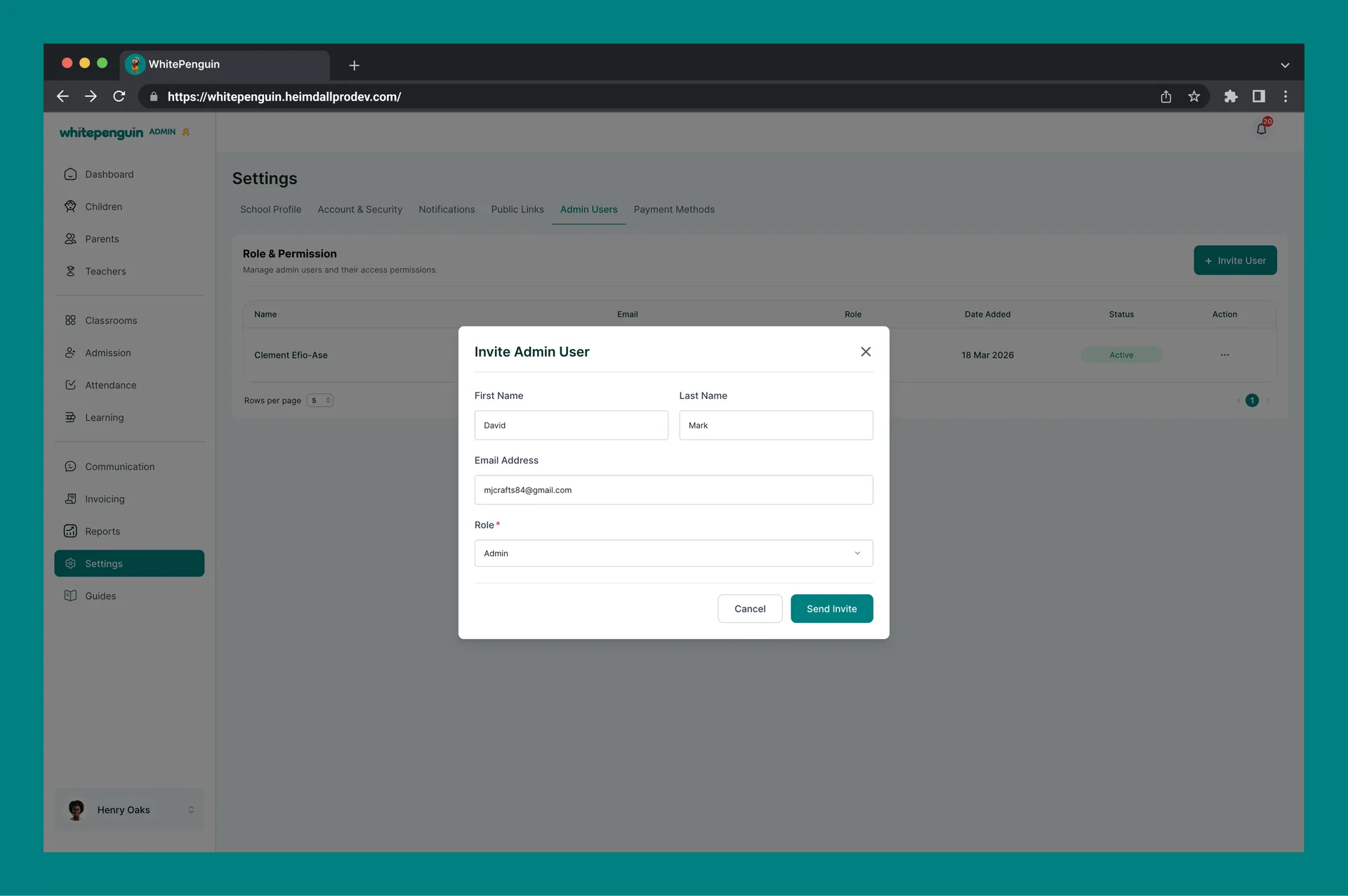
- Click the + Invite User button at the top right of the Admin Users page.
- The Invite Admin User form will appear with the following fields:
| Field | Required | Description |
|---|---|---|
| First Name | Optional | The first name of the admin being invited. |
| Last Name | Optional | The last name of the admin being invited. |
| Email Address | ✅ Required | The email address where the invitation will be sent. The new admin will use this to set up their account. |
| Role | ✅ Required | The role to assign — defaults to Admin. All users added here will have full admin access. |
- Click Send Invite to send the invitation email, or Cancel to close without inviting.
- The invited user will appear in the Admin Users table with a pending status until they accept and activate their account.
Managing Existing Admin Users
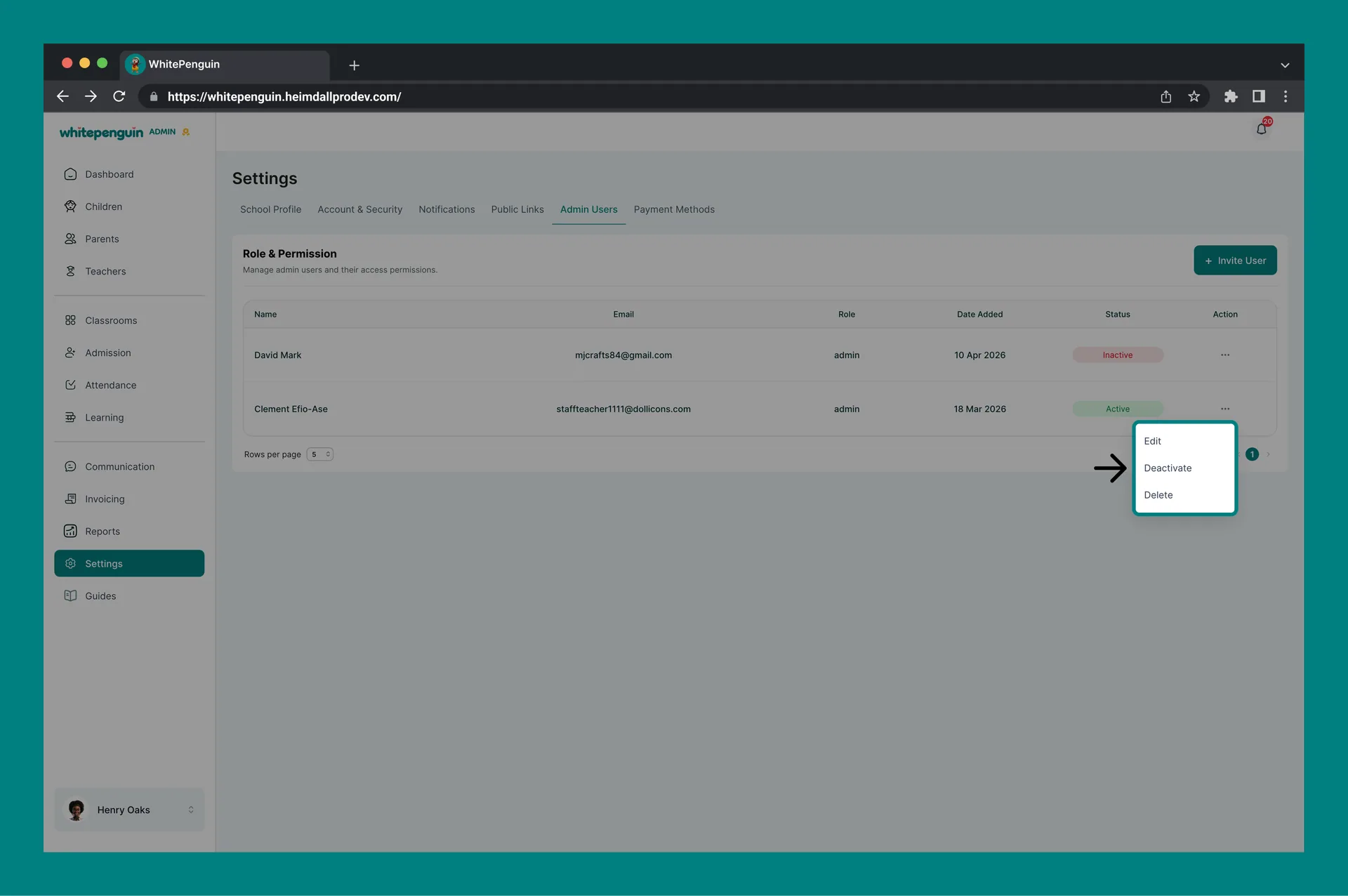
From the Action (⋯) menu on any admin's row, the following actions are available:
| Action | Description |
|---|---|
| Edit | Update the admin's name, email address, or role details. |
| Deactivate / Activate | Toggle the admin's account status. Deactivating prevents them from logging in without removing their account. Activating restores their access. |
| Delete | Permanently removes the admin user from the system. This action cannot be undone. |
Delete is permanent. Before deleting an admin, consider using Deactivate instead to suspend their access while keeping their record in the system.
Admin User Access
All users invited through the Admin Users section are granted full admin access to the entire WhitePenguin platform. This includes:
- Children — View, add, and manage all child profiles
- Parents — View and manage all parent records
- Teachers — View and manage all teacher profiles
- Classrooms — Create and manage classrooms
- Admission — Manage admissions and enrollment
- Attendance — View and manage attendance records
- Learning — Manage learning and portfolio content
- Communication — Send and manage school communications
- Invoicing — Create and manage invoices and payments
- Reports — Access all school reports and analytics
- Settings — Access to account and school settings (except managing other admins, which is owner-only)
Because admin users have full access, only invite people you fully trust with your school's data and operations.
Tips
- Limit the number of admins. Every admin has full access to all school data. Only invite users who genuinely need this level of access.
- Use Deactivate instead of Delete. If an admin leaves temporarily or their role changes, deactivate their account instead of deleting it. You can reactivate it later if needed.
- Double-check the email address. The invitation is sent to the email you enter. If the email is wrong, the person won't receive it. You can use Resend Invite if they didn't receive the original.
- The owner account cannot be deleted. The primary school owner (the account that set up the school) cannot be removed from the Admin Users list.
- Only one role available. Currently, all users invited from this section are assigned the Admin role with full permissions. There is no option to assign limited or custom roles from here.
- Monitor status. Check the Status column regularly to ensure only active and intended admins have access to your school account.
FAQs
Only the school owner (primary admin) can invite new admins and manage existing ones from the Admin Users section. Secondary admins do not have access to this section.
Admin users have full access to all sections of the WhitePenguin system — including Children, Parents, Teachers, Classrooms, Attendance, Invoicing, Reports, and most Settings. Managing other admin users is reserved for the school owner only.
After the owner sends an invite, the new admin will receive an email invitation at the address provided. They click the link in the email to set up their password and activate their account. Their status in the table will show Active once completed.
Ask the admin to check their spam or junk folder first. If the email isn't there, use the Action (⋯) menu on their row and select Resend Invite to send a new invitation link.
- Deactivate — Suspends the admin's access without removing their record. Can be reversed with Activate.
- Delete — Permanently removes the admin from the system. This cannot be undone.
No. All users added from the Admin Users section are assigned the Admin role with full system access. There is currently no option to create custom roles with limited permissions from this section.
There is no stated limit on the number of admin users you can invite. However, it is strongly recommended to keep the number of admins small and only invite users who genuinely need full access to your school's data.
Last updated on
Manage Public Links
Learn how to view and share your school's public links in WhitePenguin — including Tour Booking Page URLs and Admission Form links that can be sent to parents or embedded on your school's website.
Setup Payment Methods
Learn how to set up your school's preferred payment method in WhitePenguin — either Bank Transfer or Paystack — so parents can pay invoices easily and securely.